Analytics
See your profit
Add what each product costs you, then read your gross profit, margin and net profit, and which products earn the most.
Open this in your dashboard7 steps · Video
Your sales say what came in; your profit says what you kept. Mahallat works it out from the cost price you save on each product, so add costs first.
Watch the video
What the video says
- In this video, you see where a product's cost goes, then read your profit and which products earn the most.
- First, open a product and type what one piece costs you in Cost per item.
- Customers never see it. Your profit is worked out from it.
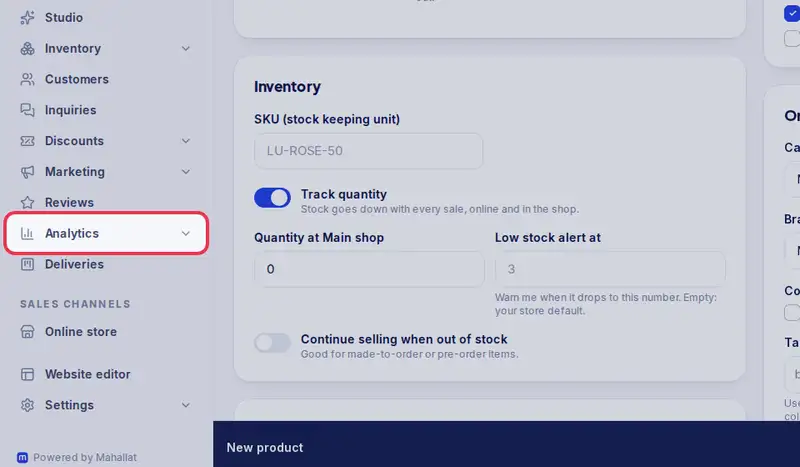
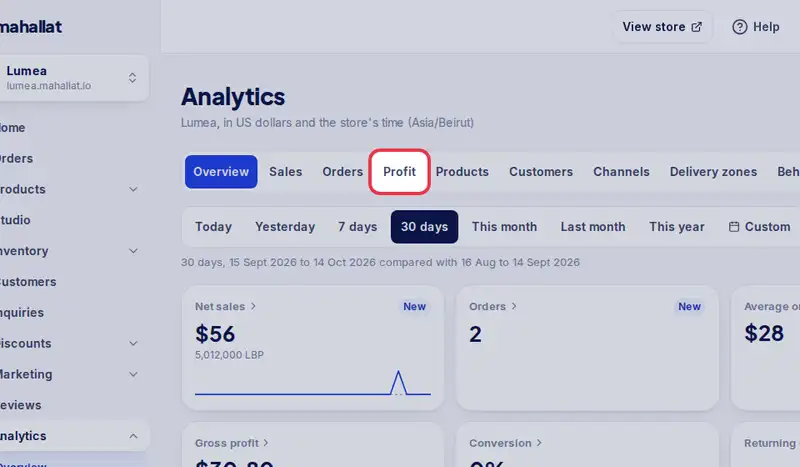
- Then open Analytics and tap the Profit tab.
- Read your gross profit, your margin, the cost of goods and your net profit, after refunds.
- Scroll down: Profit by product shows which products earn the most.
- Items sold with no cost are left out of profit, never counted as pure profit.
Step by step
- Step 1: Open a product in Products and type what one piece costs you in Cost per item. Customers never see it.
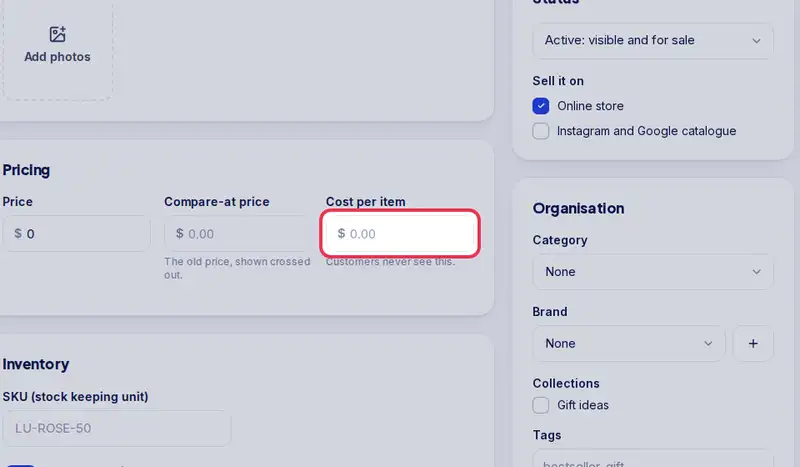
- Step 2: For a product with sizes or colours, type the cost before you add the options (each variant starts with it), or fill the Cost per item column when you import a spreadsheet.
- Step 3: Open Analytics in the menu.
- Step 4: Tap the Profit tab.
- Step 5: Pick the period at the top, and turn on Compare to see the period before.
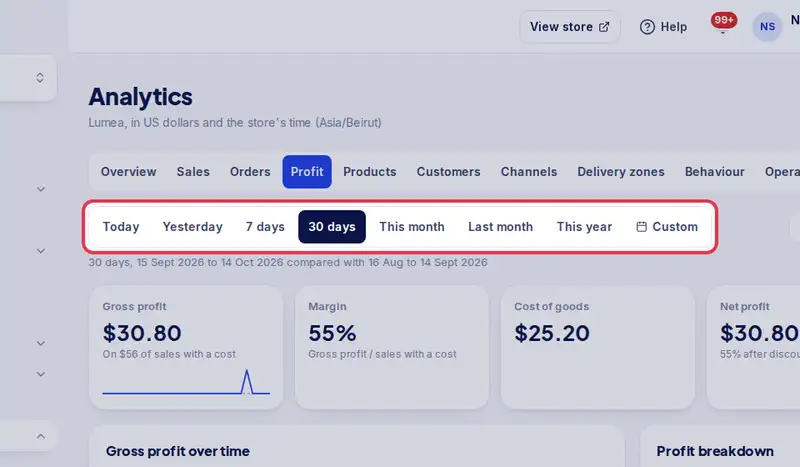
- Step 6: Read the four numbers: Gross profit (sales with a cost, after discounts, minus their cost), Margin, Cost of goods and Net profit (after refunds).
- Step 7: Profit breakdown shows how each number is made, and Profit by product shows which products earn the most.