Payments
Set up your checkout
Choose what customers fill in, gift wrapping, your order numbers and your invoices.
Open this in your dashboard7 steps · Video
These settings change what customers see when they order, and what your invoices show.
Watch the video
What the video says
- In this video, you choose what customers fill in when they order, add gift wrapping and set your invoices.
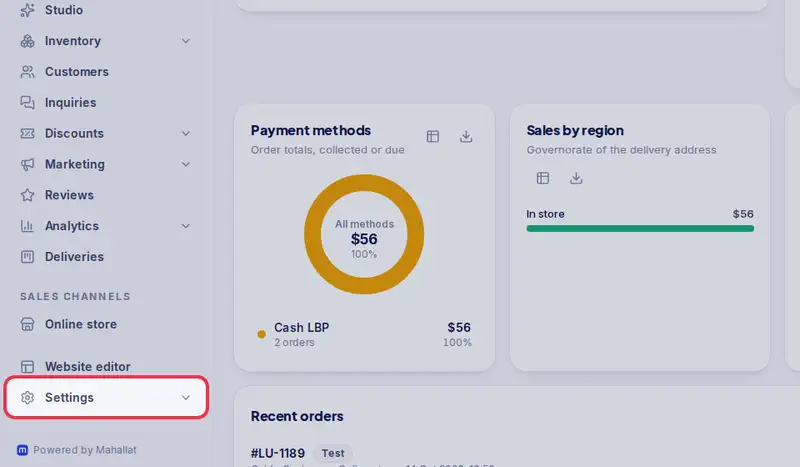
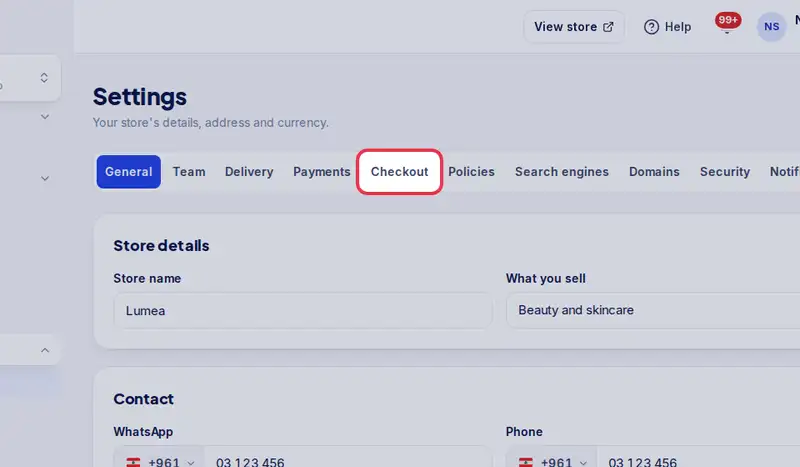
- Open Settings, then the Checkout tab.
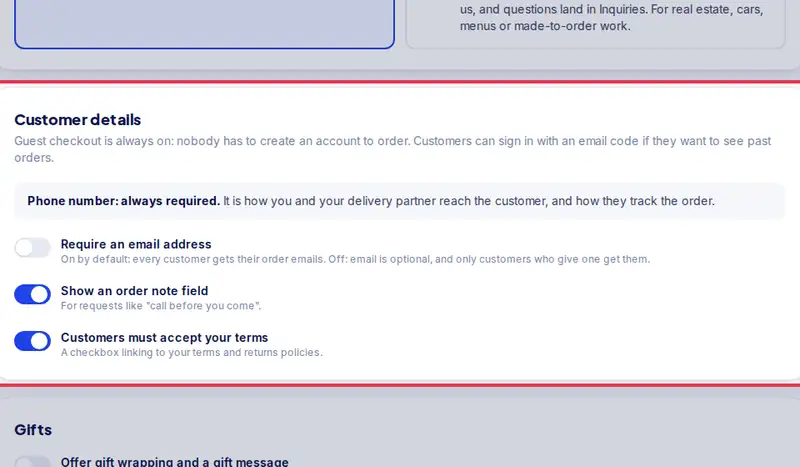
- Choose if an email is needed, if customers can leave a note, and if they accept your terms.
- Under Gifts, turn on gift wrapping and set its price.
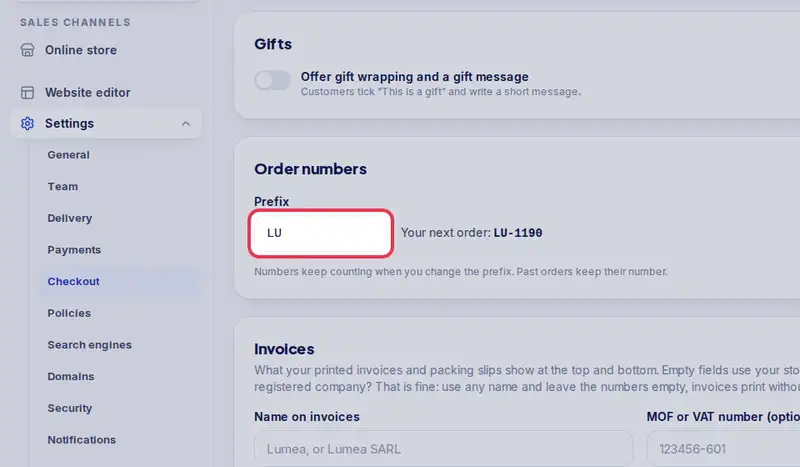
- Your order numbers start with a prefix of two or three letters.
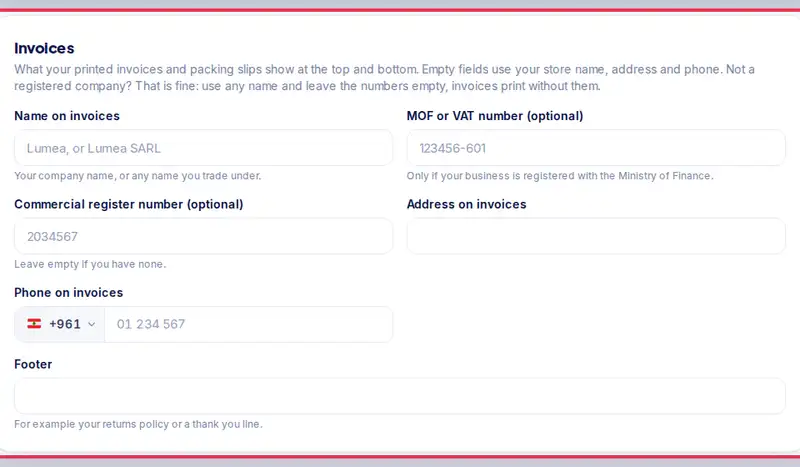
- Under Invoices, add the name on your invoices.
- Tap Save checkout settings.
- Customers see the gift option at checkout from now on.
Step by step
- Step 1: Open Settings.
- Step 2: Tap the Checkout tab.
- Step 3: Under Customer details, choose whether an email is required, whether customers can leave a note, and whether they must accept your terms. The phone number is always required.
- Step 4: Under Gifts, turn on gift wrapping and a gift message, and set the price (0 for free).
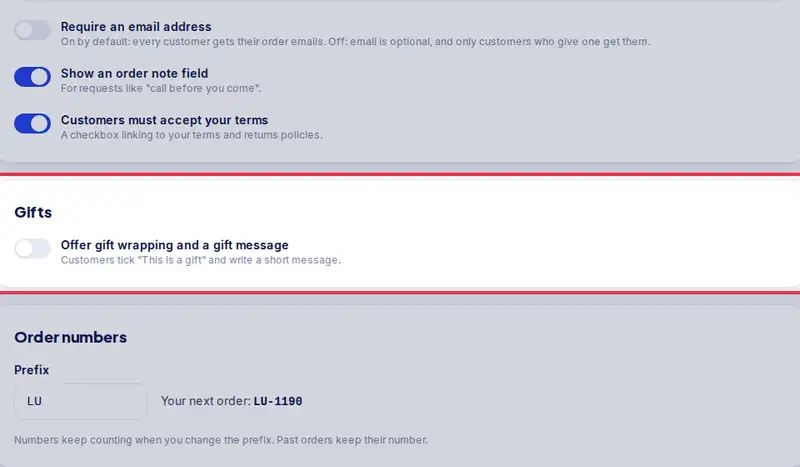
- Step 5: Under Order numbers, set a Prefix of 2 or 3 capital letters, for example LU for LU-1001.
- Step 6: Under Invoices, add the name on your invoices and a footer line. Registered? Add your MOF or VAT number and commercial register number; if not, leave them empty and invoices print without them.
- Step 7: Tap Save checkout settings.