Orders and delivery
Name your sales channels
Your own list of where sales come from (In store, Instagram, WhatsApp, a market stall). Rename, reorder, remove or add channels.
Open this in your dashboard10 steps · Video
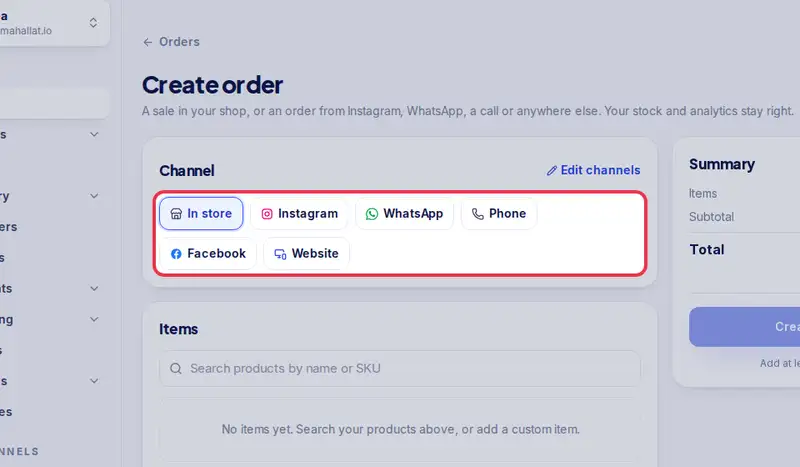
When you create an order by hand, you tap where it came from. That list is yours: every shop starts with In store, Instagram, WhatsApp, Phone, Facebook and Website, and you can rename them, put them in your order, remove the ones you never use and add your own. Owners and admins edit the list.
Watch the video
What the video says
- In this video, you add your own sales channel, like a market stall, to the list you pick from.
- Open Settings, then the Checkout tab.
- Scroll down to Sales channels and tap Edit channels.
- Rename a channel in its box, move it with the arrows, or remove it with the bin.
- To add one, type its name at the bottom and tap Add.
- Tap Save channels.
- The new channel is there when you create an order, under Channel.
Step by step
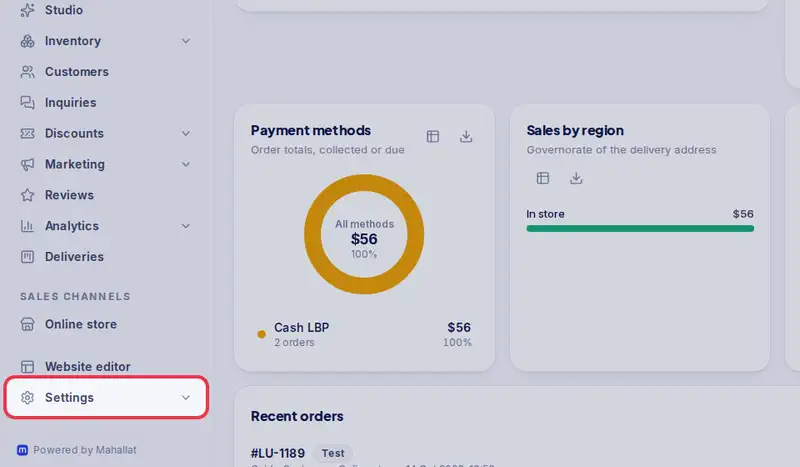
- Step 1: Open Settings in the menu.
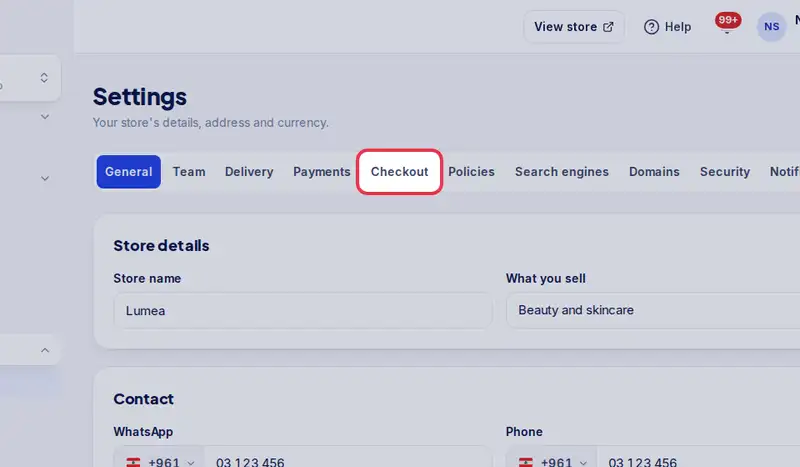
- Step 2: Tap the Checkout tab.
- Step 3: Scroll down to Sales channels: it shows your channels in the order Create order shows them.
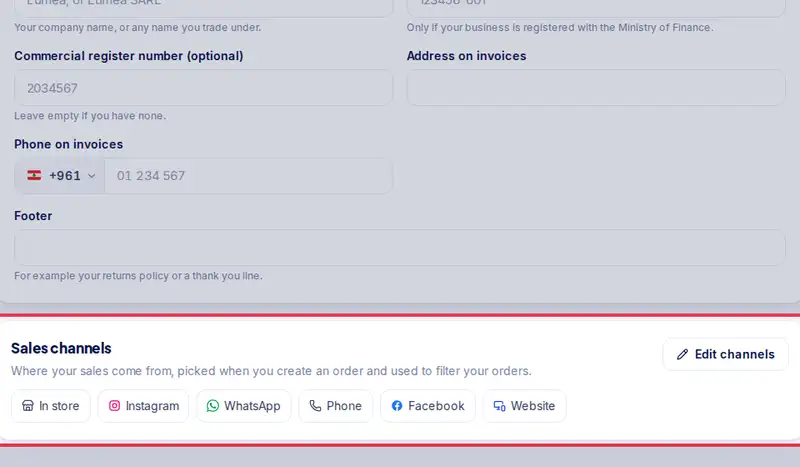
- Step 4: Tap Edit channels.
- Step 5: To rename a channel, type the new name in its box, for example "Instagram shop".
- Step 6: Move a channel up or down with the arrows. The first ones are the easiest to tap in Create order.
- Step 7: Tap the bin next to a channel you do not use. At least one channel stays.
- Step 8: To add one, type its name in the empty box at the bottom (for example "Souk el Tayeb") and tap Add.
- Step 9: Tap Save channels.
- Step 10: The same list opens while you create an order: in Orders, Create order, under Channel, tap Edit channels.