Orders and delivery
Pack and mark an order delivered
Move an order step by step, from confirmed to packed, out for delivery and delivered, and record the cash collected.
Open this in your dashboard8 steps · Video
Each step emails the customer an update, so they always know where their order is. Several steps within a minute send one email with the latest status, so a customer is never flooded.
Under the order's steps (Placed, Confirmed, Packed, On the way, Delivered) you always see the next thing to do, in blue. When you do it, the step after it appears.
Watch the video
What the video says
- In this video, you confirm an order, pack it, send it out for delivery and mark it delivered.
- Open the order from Orders.
- Under the steps, the next thing to do is always in blue.
- Checked the order with the customer? Tap Confirm order.
- When you prepare it, tap Pack items. Everything is packed at once and comes off your stock.
- The line under it says who delivers: your usual company from Settings. Change sends this one another way.
- When it leaves, tap Out for delivery. One tap, and the customer gets an email.
- When the customer has it, tap Delivered.
- Cash on delivery? Check the cash collected, then tap Confirm.
Step by step
- Step 1: Open the order from Orders.
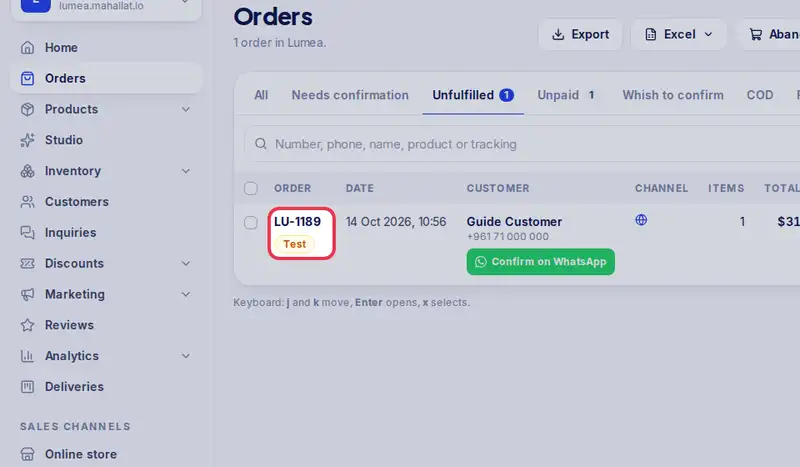
- Step 2: Checked the order with the customer? Tap Confirm order. Confirm on WhatsApp next to it opens your WhatsApp with the confirmation message ready.
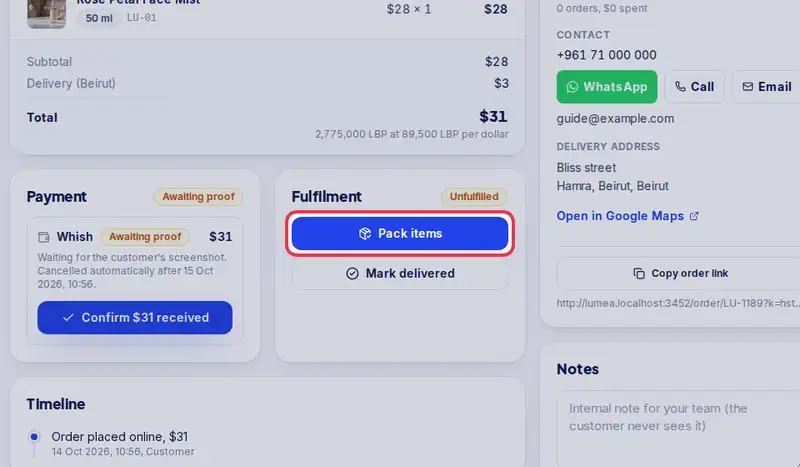
- Step 3: When you prepare it, tap Pack items: everything on the order is packed at once and comes off your stock.
- Step 4: Sending only part of it now? Tap Custom packing instead and choose how many of each item go in this package.
- Step 5: When it leaves, tap Out for delivery. One tap: it goes the way you set in Settings, Delivery: delivered by you, or handed to your usual delivery company.
- Step 6: This order goes another way (another company, or you deliver it yourselves)? Tap Change under the button, pick who delivers it and add the tracking number if you have one.
- Step 7: When the customer has the order, tap Delivered.
- Step 8: Cash on delivery? Enter the cash collected in dollars, and in lira if they paid some in LBP. Tap Confirm.