Orders and delivery
Print an invoice or a packing slip
Print an order's invoice or packing slip on A4 paper or an 80 mm receipt printer, one order or many at once.
Open this in your dashboard6 steps · Video
An invoice shows the prices and the totals, for the customer. A packing slip shows what goes in the box, with a tick box and the SKU for each item (on A4), and the delivery landmark and instructions, for whoever packs it. Both print on A4 or on an 80 mm receipt printer.
Watch the video
What the video says
- In this video, you print an order's invoice, then its packing slip for the person who packs it.
- On the order, tap Print invoice at the top. It opens in a new tab.
- The invoice shows the prices and totals, with your shop's details.
- At the top, switch to Packing slip: what goes in the box, with a tick box for each item.
- Using a receipt printer? Tap 80 mm.
- Then tap Print.
- To print many at once, tick them in the Orders list and tap Invoices or Packing slips.
Step by step
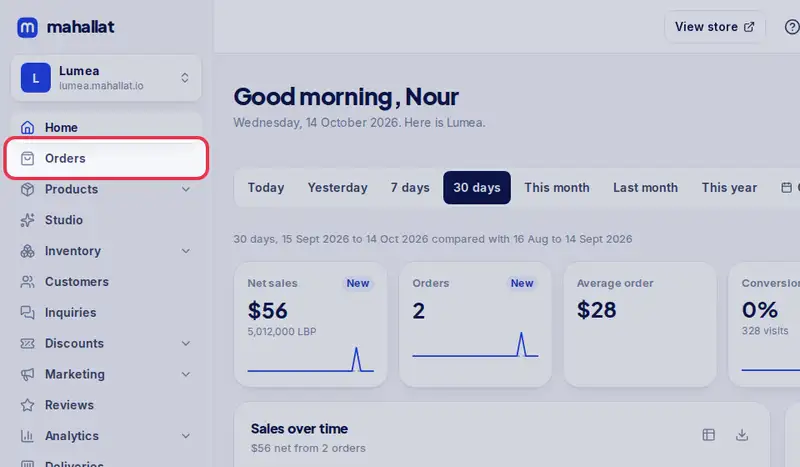
- Step 1: Open Orders in the menu.
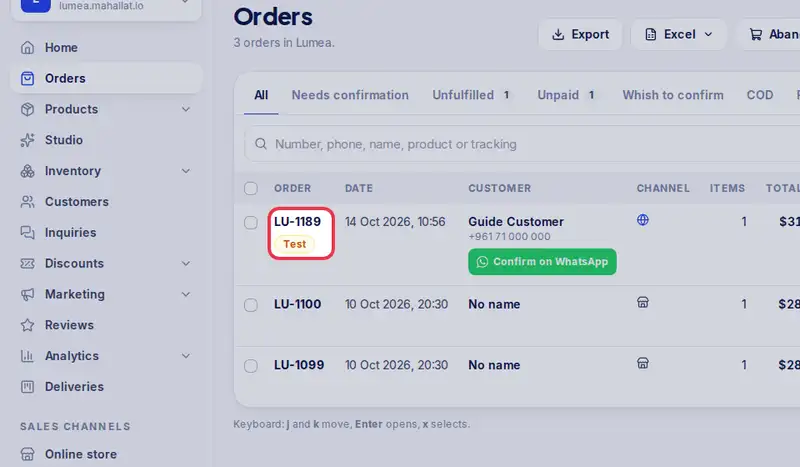
- Step 2: Tap the order number to open it.
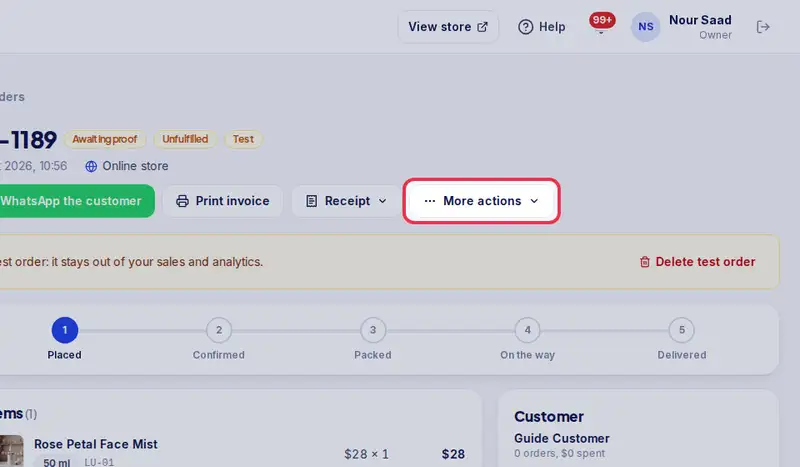
- Step 3: Tap Print invoice at the top for an A4 invoice. It opens in a new tab.
- Step 4: For the other formats, tap More actions, then Print invoice (80 mm), Print packing slip (A4) or Print packing slip (80 mm).
- Step 5: On the print page, switch between Invoice and Packing slip, or A4 and 80 mm, at the top, then tap Print.
- Step 6: To print many orders at once, tick them in the Orders list and tap Invoices or Packing slips in the bar that appears.