Your website
Find your way around Online store
Your store link, the preview, templates, your brand, publishing and the website editor.
Open this in your dashboard6 steps · Video
Online store is your website's control room. Here is where everything is.
Watch the video
What the video says
- In this video, you take a tour of Online store, your website's control room.
- Open Online store from the menu.
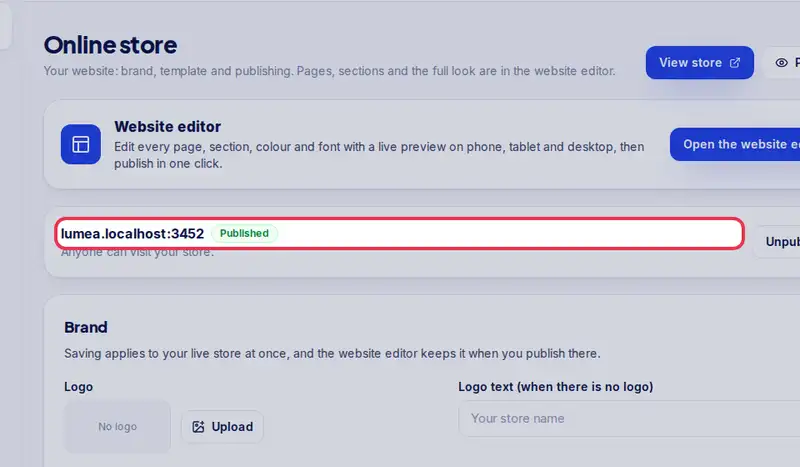
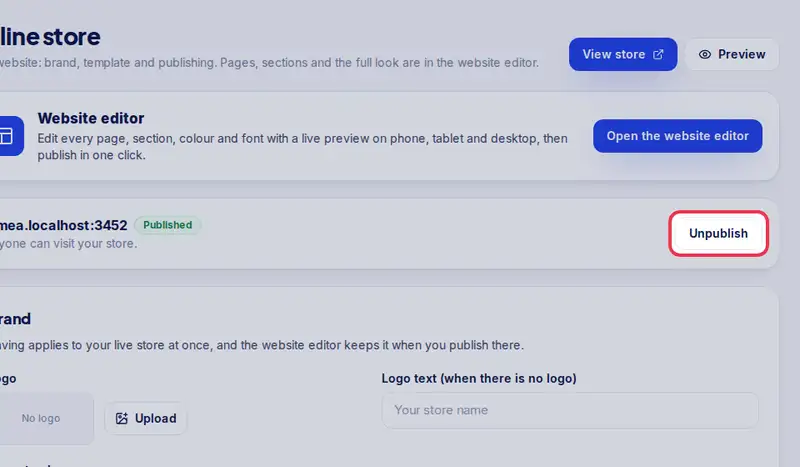
- This is your store's address, with Published or Not published next to it.
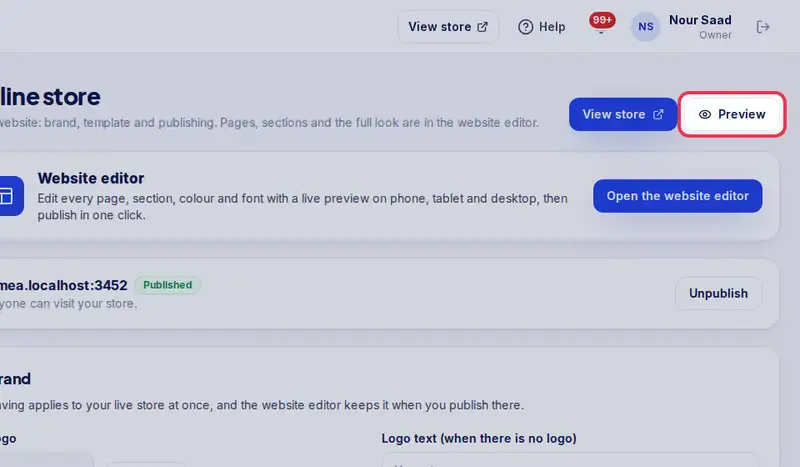
- Tap Preview to see your store as a customer does, even before it is published.
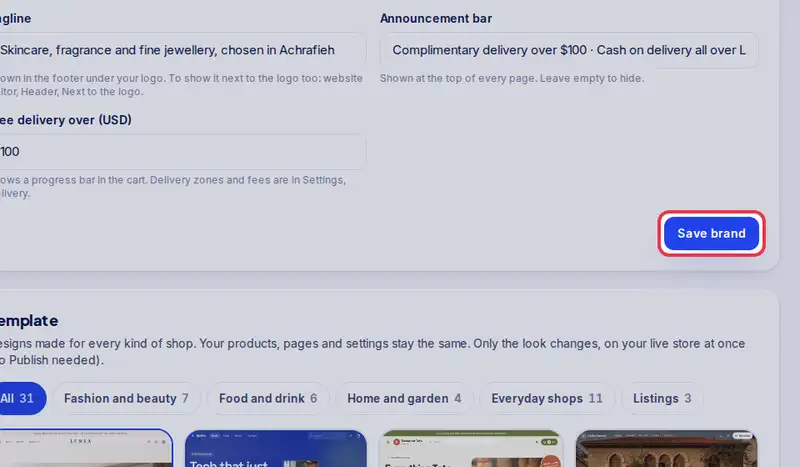
- Under Brand, set your logo, colour, tagline and announcement bar, then tap Save brand.
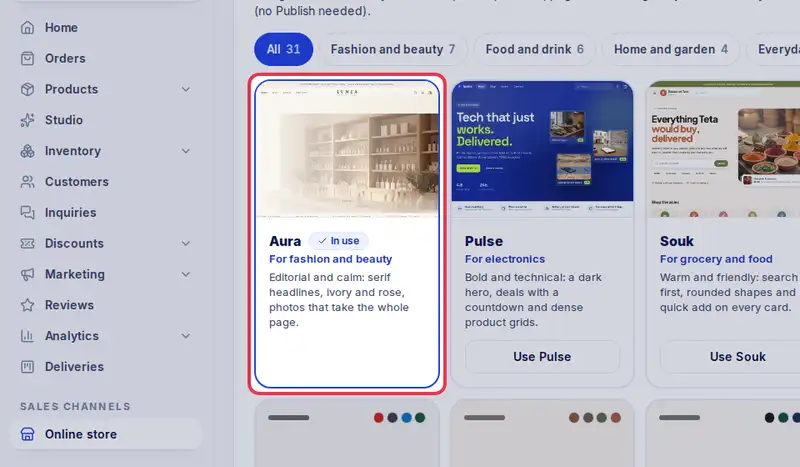
- Pick a template made for your kind of shop. Only the look changes, never your products.
- Next to your address, Publish store opens your website to customers, and Unpublish closes it.
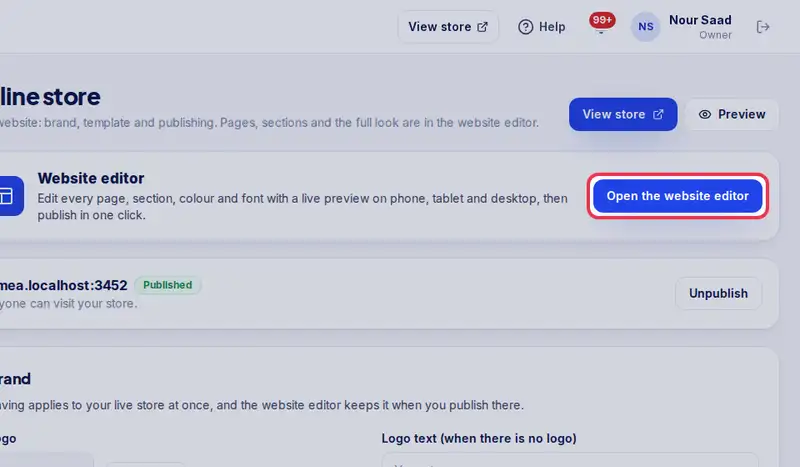
- To change any page, section, colour or font, tap Open the website editor.
Step by step
- Step 1: This is your store's address, with Published or Not published next to it.
- Step 2: Tap Preview to see your store as a customer does, even before it is published.
- Step 3: Pick a template, each made for a kind of shop (the chips above them filter by kind). Your products and settings stay the same, only the look changes.
- Step 4: Set your logo, colour, tagline and announcement bar, then tap Save brand.
- Step 5: Publish store opens your website to customers. Only the owner sees this button.
- Step 6: Tap Open the website editor to change any page, section, colour or font.