Your website
Customise your website
Open the website editor, add a section, change your colours, check every screen size and publish.
Open this in your dashboard7 steps · Video
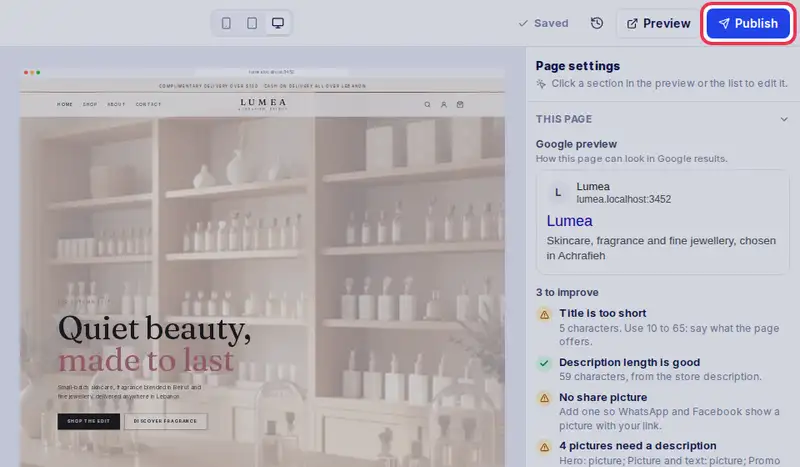
The website editor changes a draft. Customers keep seeing your current website until you tap Publish.
Watch the video
What the video says
- In this video, you add a section to your home page, change your colours, and publish.
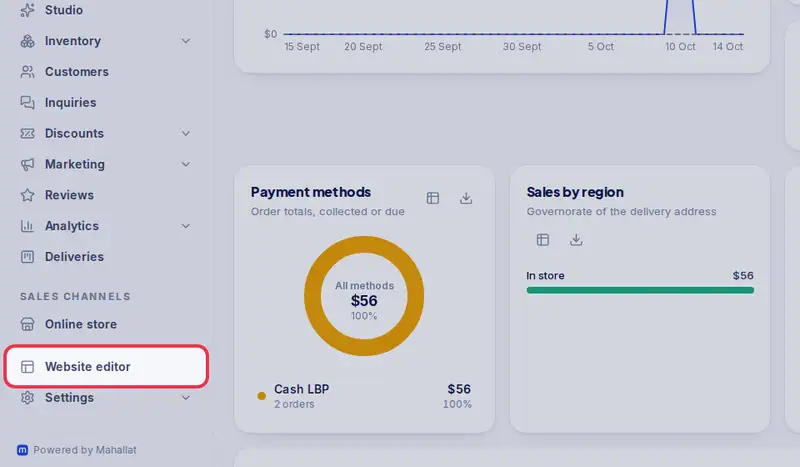
- Open the Website editor from the menu.
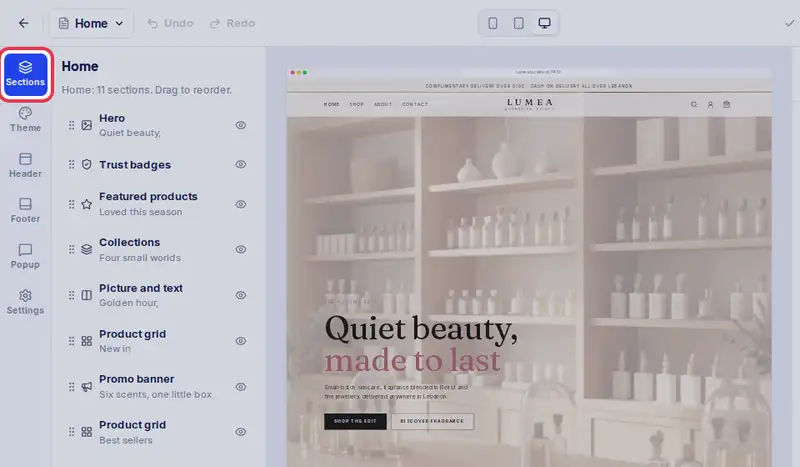
- Sections lists the blocks on this page. Tap one to edit its text and pictures.
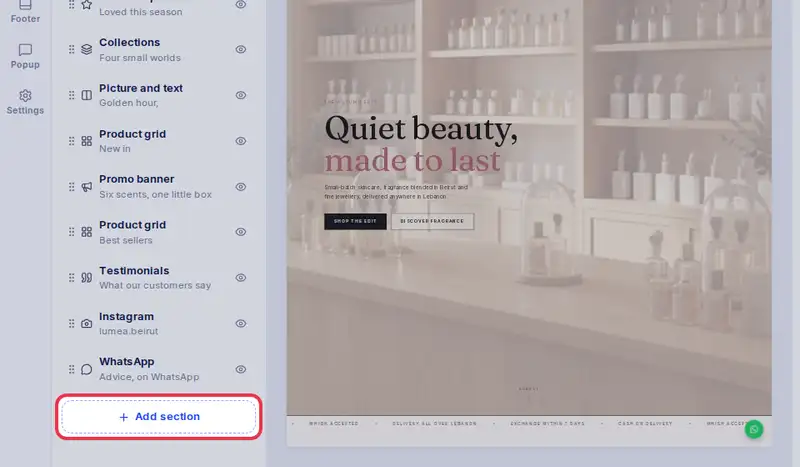
- Tap Add section and pick one, for example a newsletter sign up.
- Tap Theme to change your colours. Every page follows.
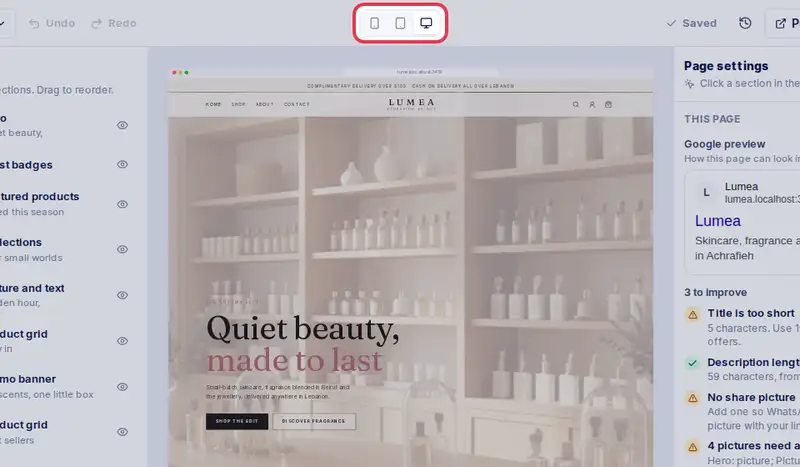
- Switch to phone to check how it looks on a small screen.
- Your changes save by themselves. Happy with it? Tap Publish, and customers see it at once.
Step by step
- Step 1: Open Website editor in the menu.
- Step 2: Tap Sections on the left to see the blocks on this page. Tap one to edit its text and pictures.
- Step 3: Tap Add section and pick one, for example a banner, featured products or reviews.
- Step 4: Tap Theme to change your colours and fonts. Every page follows.
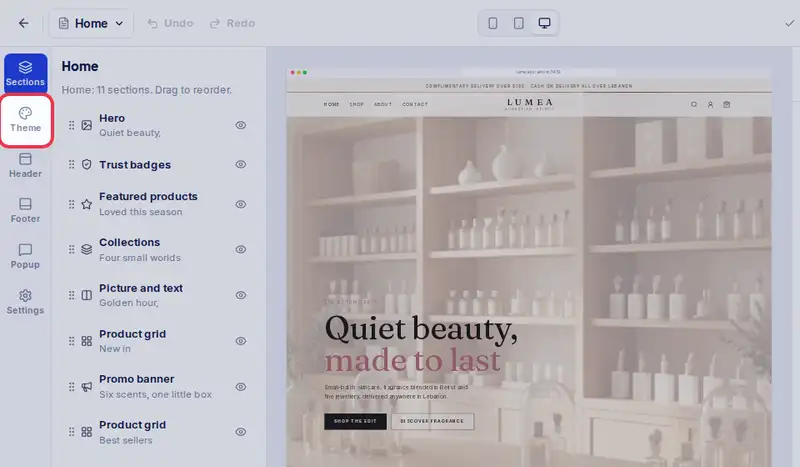
- Step 5: Switch between phone, tablet and computer to check how it looks on each.
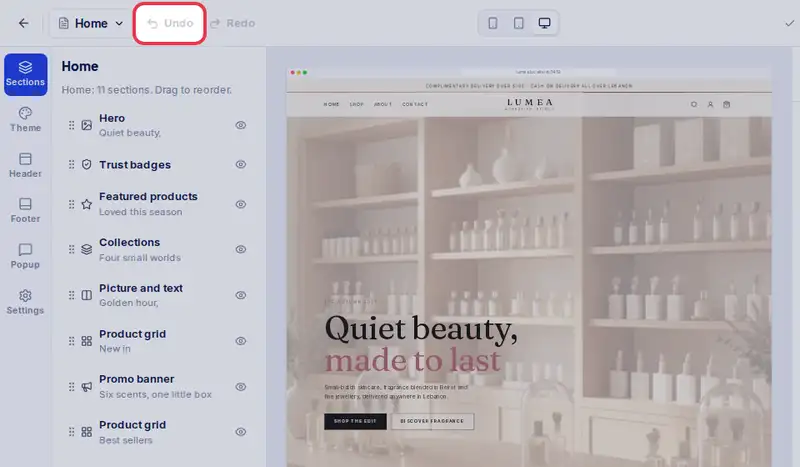
- Step 6: Your changes save by themselves; Save at the top saves at once, Undo and Redo go back and forth.
- Step 7: Happy with it? Tap Publish. Customers see it straight away. To keep a version you can come back to, open Versions and save it under a name.