Your website
Publish your store
Understand draft and published, check your store, and open it to customers.
Open this in your dashboard4 steps · Video
A new store starts as a draft: only you and your team see it, through the preview link. Once you publish, anyone with the link can visit and order.
Watch the video
What the video says
- In this video, you check your store in the preview, then publish it so customers can visit and order.
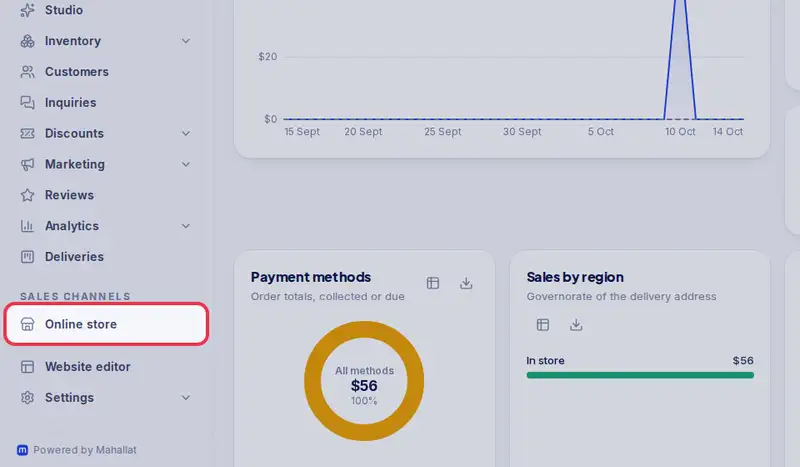
- Open Online store from the menu.
- Next to your link, Not published means only you and your team can see the store.
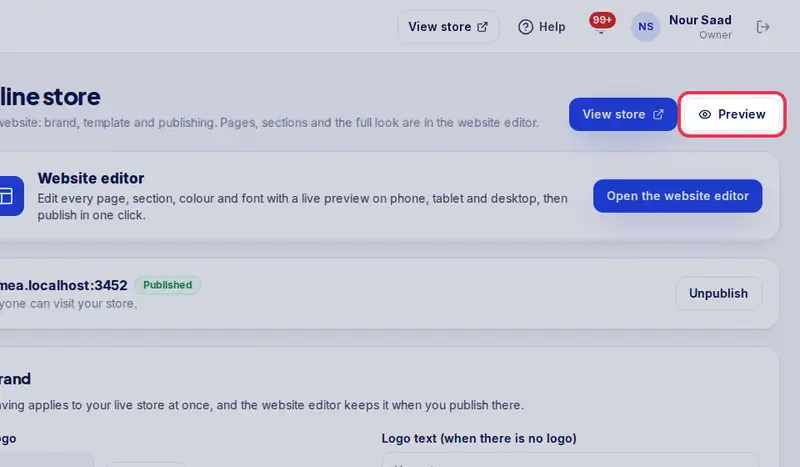
- Tap Preview your store and check it like a customer: products, prices, delivery and payment.
- When you are ready, come back and tap Publish store.
- The label now says Published. Anyone with the link can visit and order.
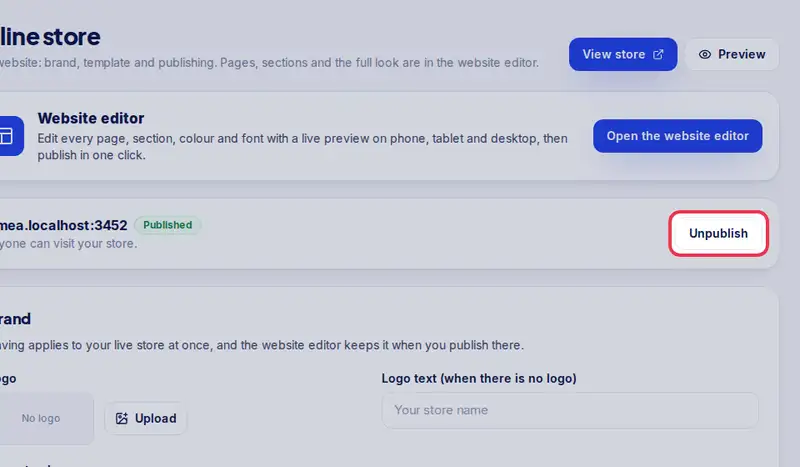
- Unpublish, in the same place, closes the store again, for example during a holiday.
Step by step
- Step 1: Open Online store in the menu.
- Step 2: Tap Preview your store and check it like a customer: products, prices, delivery and payment.
- Step 3: Next to your store link, Not published means customers cannot see it yet.
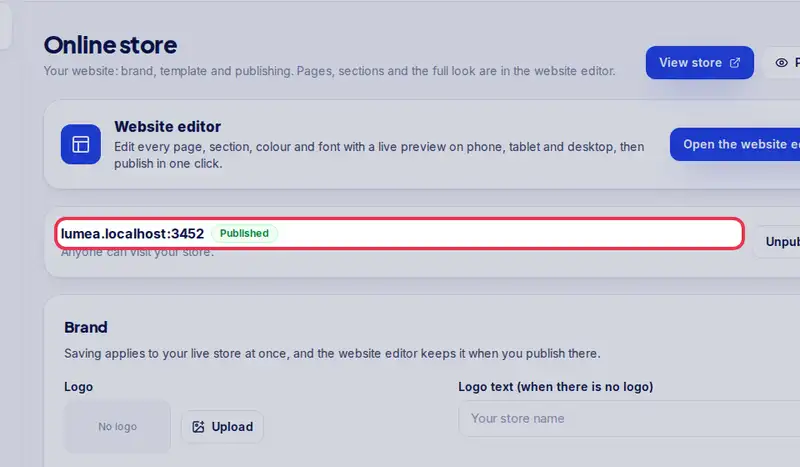
- Step 4: When you are ready, tap Publish store. The label changes to Published.