Your website
Change your template and logo
Pick a template, upload your logo and choose your main colour.
Open this in your dashboard4 steps · Video
Changing the template changes only the look. Your products, pages and settings stay the same.
Watch the video
What the video says
- In this video, you pick a new template for your store, upload your logo and choose your colour.
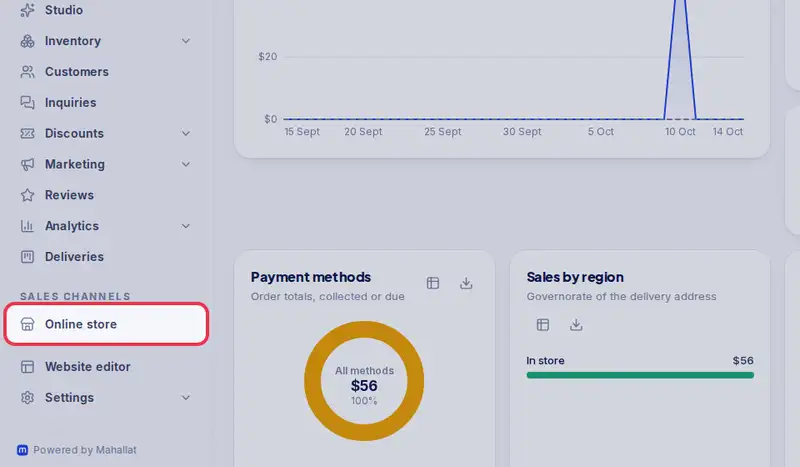
- Open Online store from the menu.
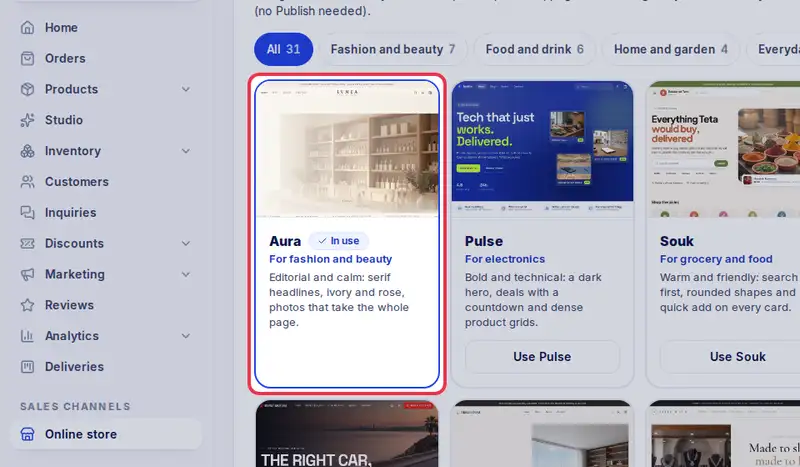
- Each template is made for a kind of shop. The chips show one kind at a time.
- Tap Use under the one you want. Your products and pages stay the same.
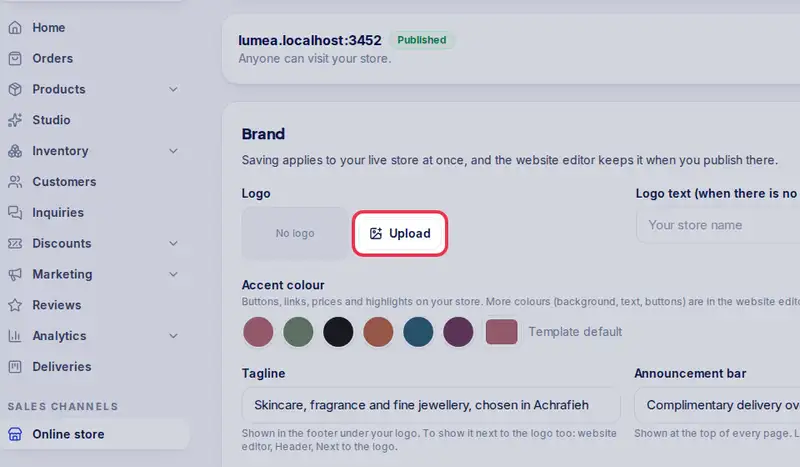
- Under Brand, tap Upload next to Logo and pick your logo.
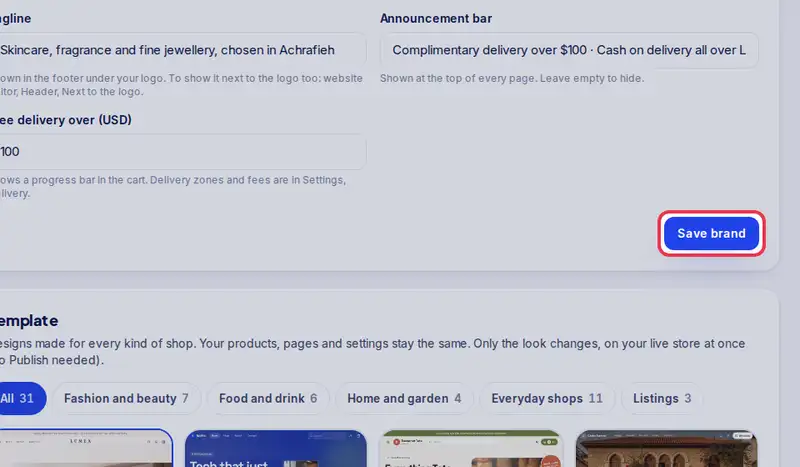
- Choose your accent colour, then tap Save brand.
- Here is your store with its new look.
Step by step
- Step 1: Open Online store in the menu.
- Step 2: Look at the templates: each one is made for a kind of shop (fashion, electronics, groceries, real estate, cars, furniture, jewellery, flowers, restaurants, shoes, clothing, cosmetics, eyewear, baby things, parties and more). The chips above them show one kind at a time. Tap Use under the one you want. Turn on the switch under them only if you also want the home page reset to the template's sections.
- Step 3: Under Brand, tap Upload next to Logo and pick your logo (PNG, JPG or WebP).
- Step 4: Choose your Accent colour, then tap Save brand.