Your website
Connect your own domain
Use your own address, like myshop.com, with the secure padlock. You add three records at your registrar; Mahallat does the rest.
Open this in your dashboard8 steps · Video
Every store starts on yourname.mahallat.io. On the Pro plan you can also use a domain you own. Buy it anywhere (Hostinger, GoDaddy, Namecheap, a .lb registrar), then connect it here. Your mahallat.io address keeps working.
Watch the video
What the video says
- In this video, you connect a domain you own, like myshop.com, to your store.
- Open Settings, then the Domains tab. It explains every step for your registrar.
- Type your domain, then tap Connect. We connect the www address with it too.
- The card shows Waiting for your DNS, and the records to create. Tap Copy all.
- At your registrar, delete the old records for the domain, then add each of these.
- Come back and tap Check now, or simply wait. Each record says Found once we see it.
- When every record is found, the card says Live, and your store opens on your domain.
Step by step
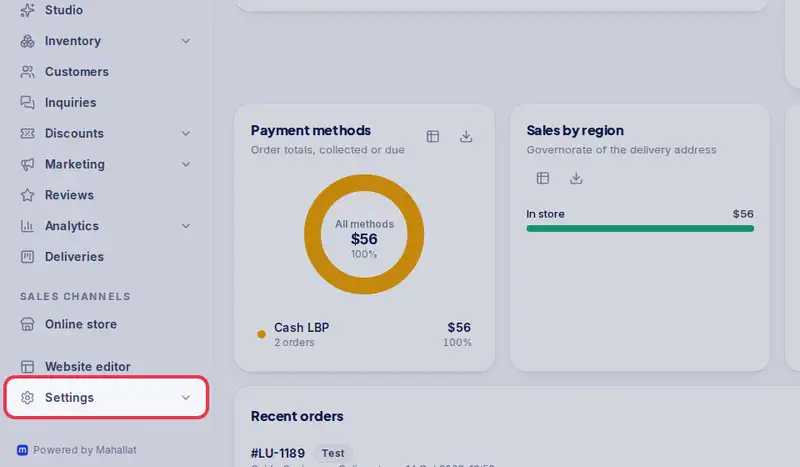
- Step 1: Open Settings in the menu.
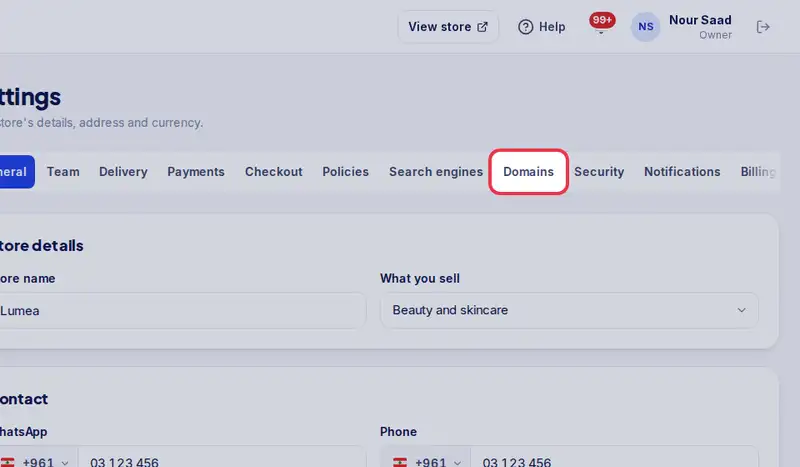
- Step 2: Tap the Domains tab. The page explains every step, with what to delete and what to add for your registrar.
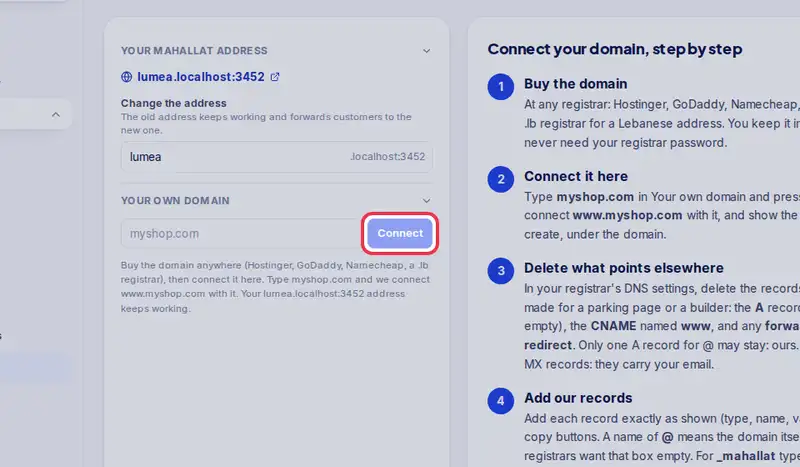
- Step 3: Type your domain, for example myshop.com, and tap Connect. We connect www.myshop.com with it, so both work.
- Step 4: The card shows Waiting for your DNS and the records to create: usually an A record for @, a CNAME record for www and a TXT record named _mahallat. Tap Copy all, or the copy button next to each value.
- Step 5: At your registrar, open the domain's DNS settings. First delete the records that point elsewhere: the A record for @ that points to a parking page, the CNAME for www, and any forwarding. Keep your MX (email) records. Then add each record with exactly that type, name and value.
- Step 6: Come back and tap Check now, or simply wait: we check by ourselves. Each record says Found once we see it.
- Step 7: When every record is found, the card says Securing your domain (HTTPS) for a few minutes, then Live. Your store now opens on your domain with the padlock.
- Step 8: Under Customers land on, pick myshop.com or www.myshop.com. The other one forwards to it.