Orders and delivery
Run your deliveries board
See every order on its way, send it out with one tap, move it to the next step and collect the cash.
Open this in your dashboard7 steps · Video
The board shows every open order in columns, from To pack to Delivered today, so you see the whole day at a glance.
Watch the video
What the video says
- In this video, you move orders along the deliveries board, from packing to out for delivery.
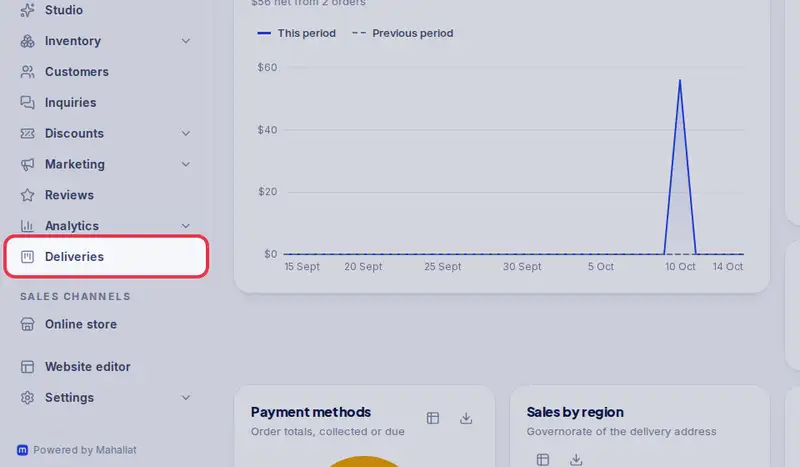
- Open Deliveries from the menu.
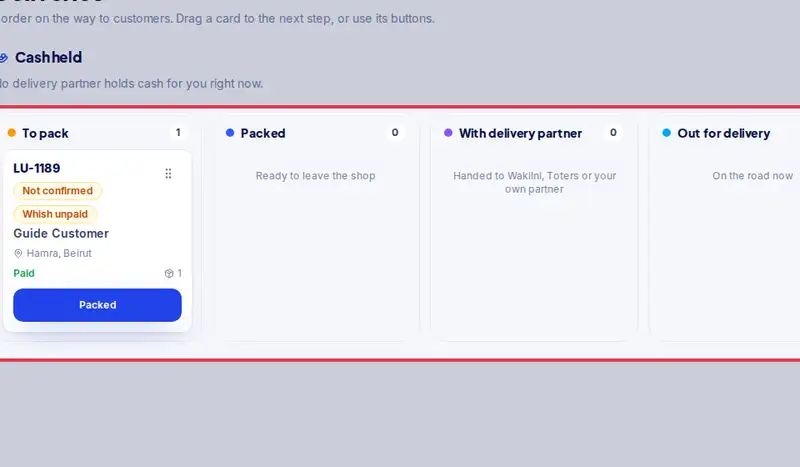
- Each column is one step, from To pack to Delivered today.
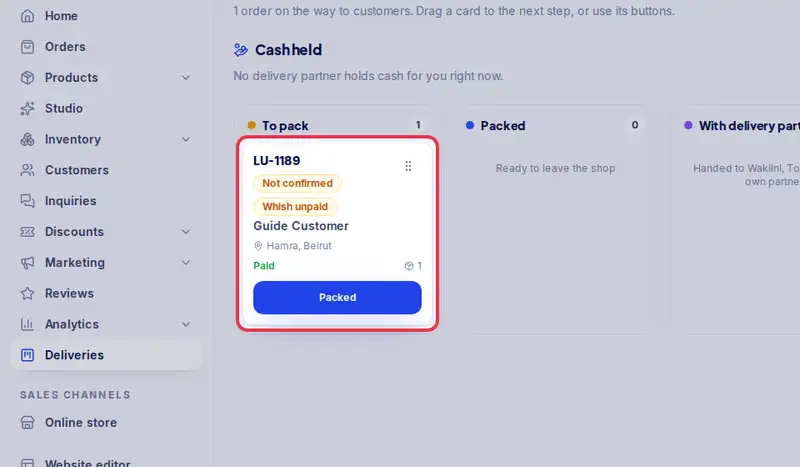
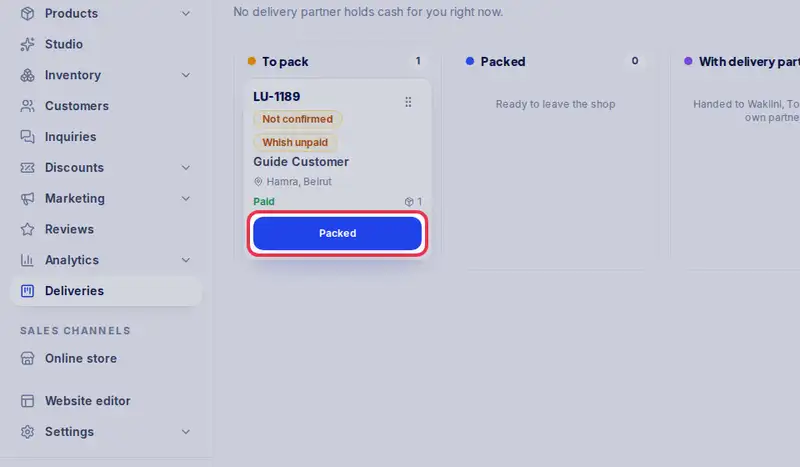
- Each card is one order. Tap the button on it to move it on, here Packed.
- On a computer, you can also drag a card to the next column.
- When it leaves, tap Out for delivery. One tap: it goes with your usual company from Settings.
- The card shows the company's name, and the customer gets an email with it.
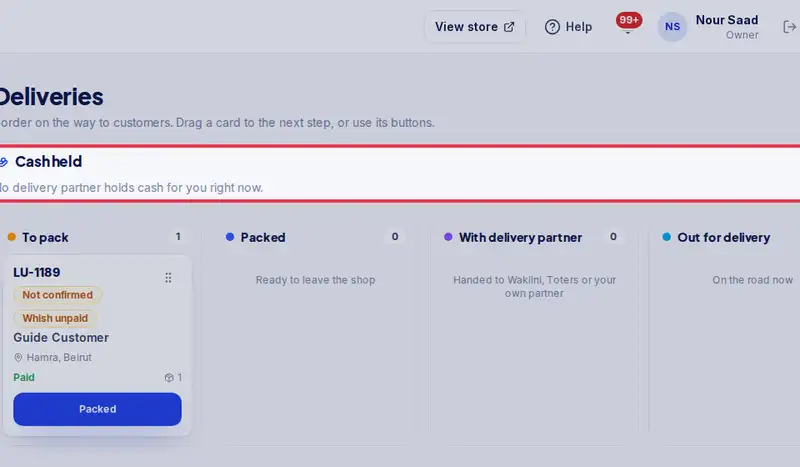
- Cash held shows the cash each company collected for you and still owes you.
- When they pay you, tap Record remittance.
Step by step
- Step 1: Open Deliveries in the menu.
- Step 2: Each column is one step: To pack, Packed, Out for delivery, Delivered today and Failed.
- Step 3: Each card is one order. Drag it to the next column on a computer.
- Step 4: Or tap the button on the card, for example Packed or Out for delivery. Move... offers the other steps, like Delivered or Failed.
- Step 5: Out for delivery is one tap, the way Settings, Delivery says: handed to your usual delivery company (its name shows on the card, and the customer gets an email with it), or out with you if you deliver yourself. No company named in Settings yet? Pick one or type its name, add the tracking number if you have one, and tap It is on its way. To send one order with another company, open it and tap Change.
- Step 6: Cash held at the top shows the cash on delivery each delivery company collected for you and has not handed over yet.
- Step 7: When the company pays you, count it and tap Record remittance, then Cash received.