Orders and delivery
Record a sale made in your shop
Record what you sold at the counter in a few taps, so your stock, analytics and customers stay right.
Open this in your dashboard7 steps · Video
Sold something in your shop? Record it with Create order, in the same place as your online orders. Your stock goes down at once, and the sale counts in your analytics like any other order.
Watch the video
What the video says
- In this video, you record something you sold at the counter, so your stock and your numbers stay right.
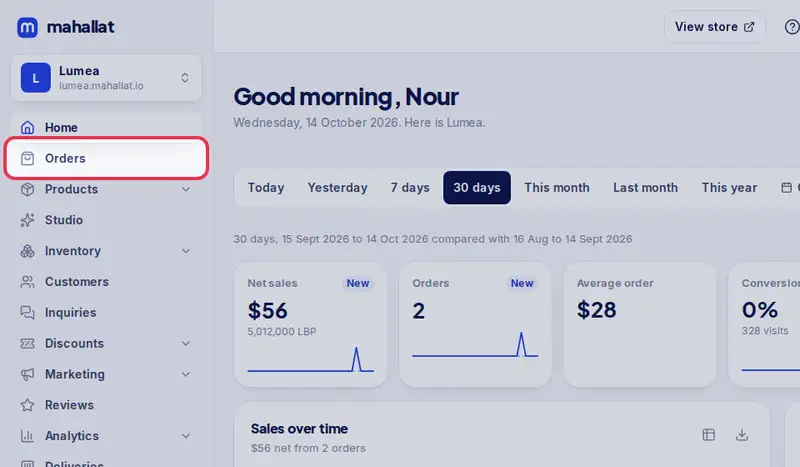
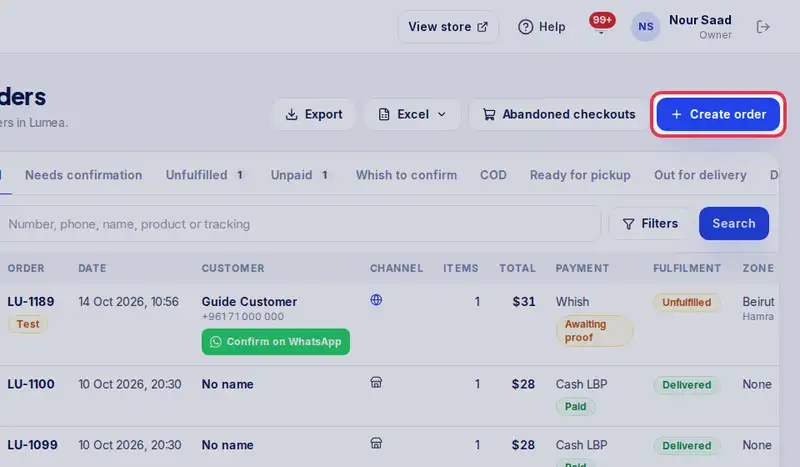
- In Orders, tap Create order. In store is already picked.
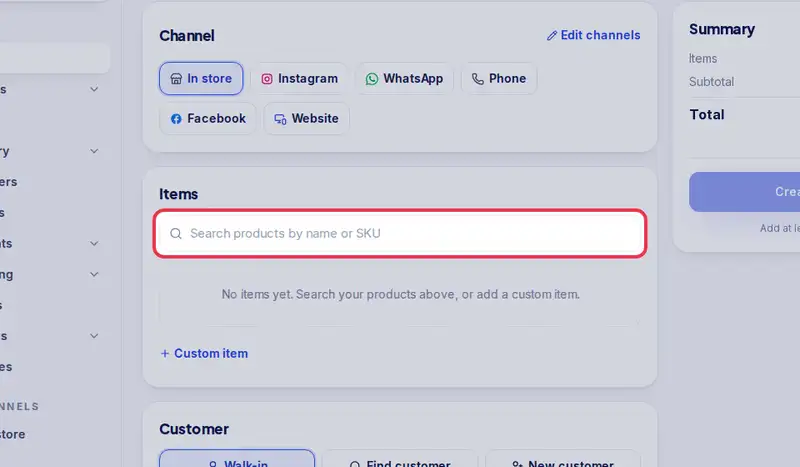
- Search for what you sold and tap it to add it.
- Change the quantity with plus and minus, or type a lower price if you gave a discount.
- Leave Walk-in when you do not know the customer. No name or phone needed.
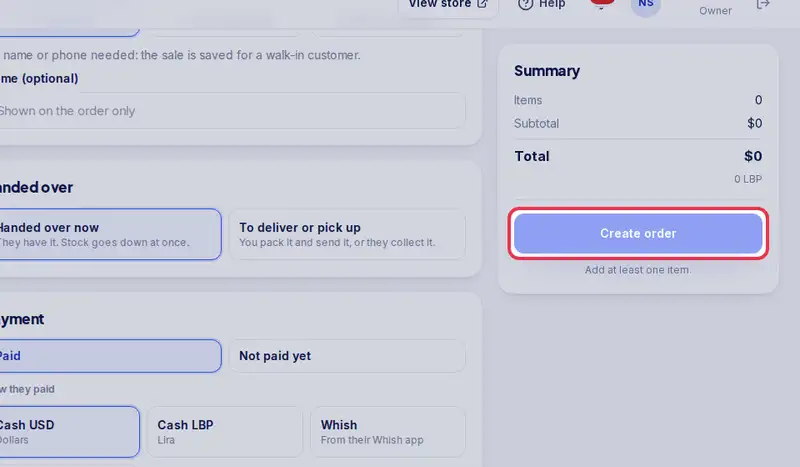
- Leave Handed over now and Paid, then tap how they paid, here Cash USD.
- Tap Create order. Your stock goes down at once.
- A green line confirms the sale, and the form is empty for the next one.
Step by step
- Step 1: Open Orders.
- Step 2: Tap Create order. In store is picked under Channel.
- Step 3: Under Items, search a product by name or SKU and tap it to add it. Selling something that is not in your catalogue, like gift wrapping? Tap Custom item, type its name and price, then Add.
- Step 4: Set the quantity with the - and + buttons. The price box shows your normal price: type a lower one if you gave a better price, and the difference is recorded as a discount.
- Step 5: Under Customer, leave Walk-in when you do not know them: no name or phone needed. Or tap Find customer to pick someone, or New customer to add them.
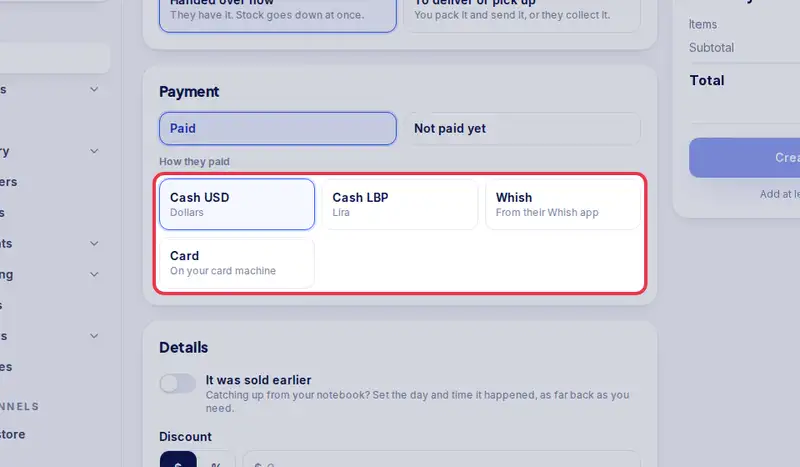
- Step 6: Leave Handed over now and Paid, then tap how they paid: Cash USD, Cash LBP, Whish or Card. They pay later? Tap Not paid yet, and mark it paid on the order when the money arrives.
- Step 7: Tap Create order. On a phone, the button and the total are in the bar at the bottom of the screen.