Orders and delivery
Confirm a Whish payment
Check the customer's Whish screenshot, then confirm the payment or reject it.
Open this in your dashboard8 steps · Video
When a customer pays by Whish, they send the money to your Whish number and upload a screenshot. You check it against your Whish app, then confirm it.
Watch the video
What the video says
- In this video, you check a customer's Whish screenshot and confirm the payment.
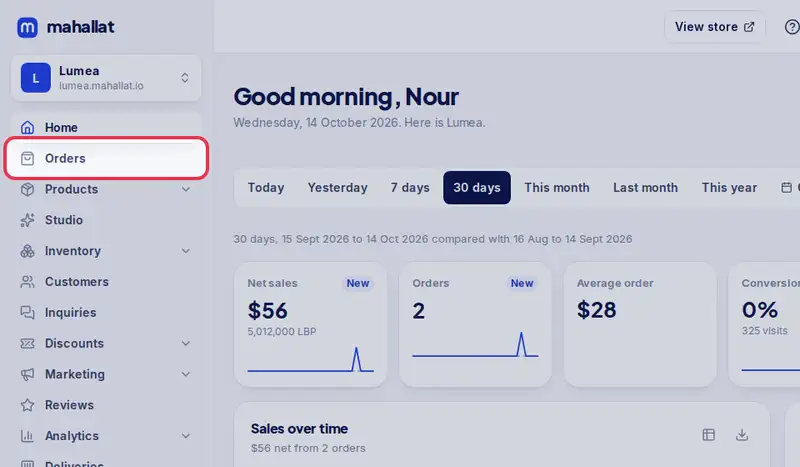
- Open Orders from the menu.
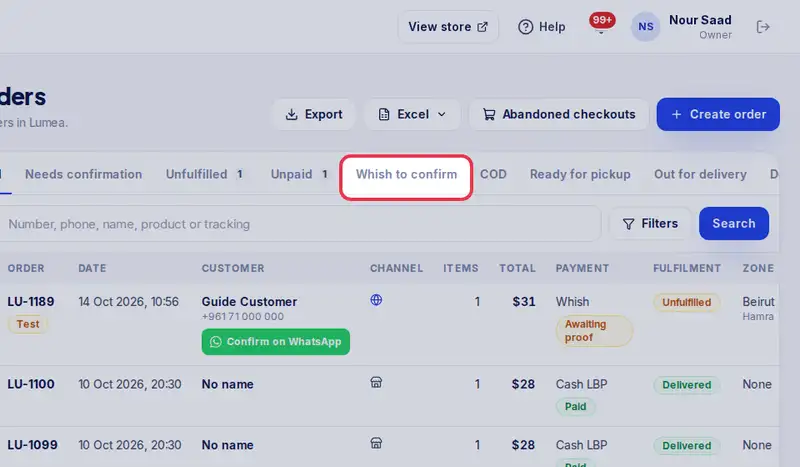
- Tap the Whish to confirm tab. Every screenshot waiting for you is here.
- Tap the screenshot to zoom in. Check the amount and the sender in your Whish app.
- The money arrived? Tap Confirm. The customer gets an email that you received it.
- Wrong amount or no money? Tap Reject instead and say why.
Step by step
- Step 1: Open Orders.
- Step 2: Tap the Whish to confirm tab. Every screenshot waiting for you is here.
- Step 3: Tap a screenshot to zoom in. Check the amount and the sender in your Whish app.
- Step 4: If the money arrived, tap Confirm. The customer gets an email that you received the payment.
- Step 5: Wrong amount or no money? Tap Reject, write why (for example "the amount is $5 short") and tap Reject again. The customer is asked to send a new screenshot.
- Step 6: You can also do it from inside an order: open the order.
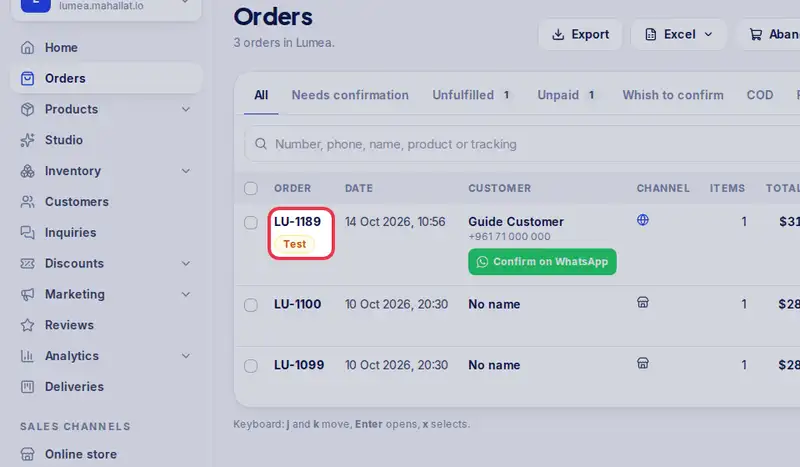
- Step 7: Under Payment, tap Confirm (the button shows the amount, for example Confirm $25 received).
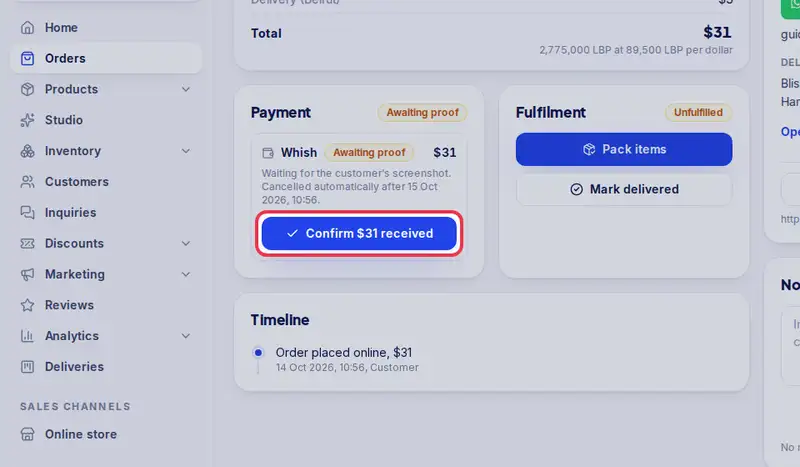
- Step 8: Or tap Reject there and write the reason.