Orders and delivery
Edit or cancel an order
Change the items, address, delivery fee or discount of an order before it is packed, or cancel it and give the stock back.
Open this in your dashboard10 steps · Video
A customer changed their mind, or you typed something wrong? Edit the order while nothing is packed yet. Once it is packed, you can still cancel it (or refund it once it is delivered).
Watch the video
What the video says
- In this video, you change the items of an order, then cancel an order and give its stock back.
- On the order, tap More actions, then Edit order.
- Change a quantity with plus and minus, or search a product to add it.
- You can also fix the delivery address, the fee, a discount or the note.
- Tap Save changes. The totals and stock are worked out again.
- To cancel instead, tap More actions, then Cancel order.
- Pick a reason, then tap Cancel order. The stock it held comes back.
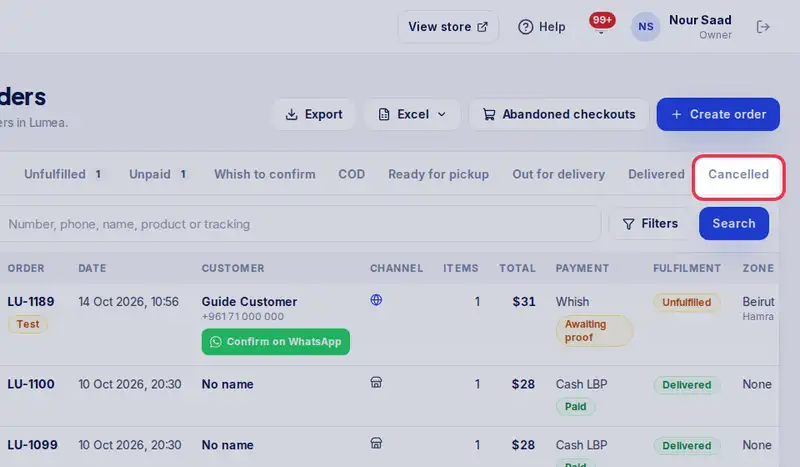
- The customer is told. Cancelled orders are under the Cancelled tab in Orders.
Step by step
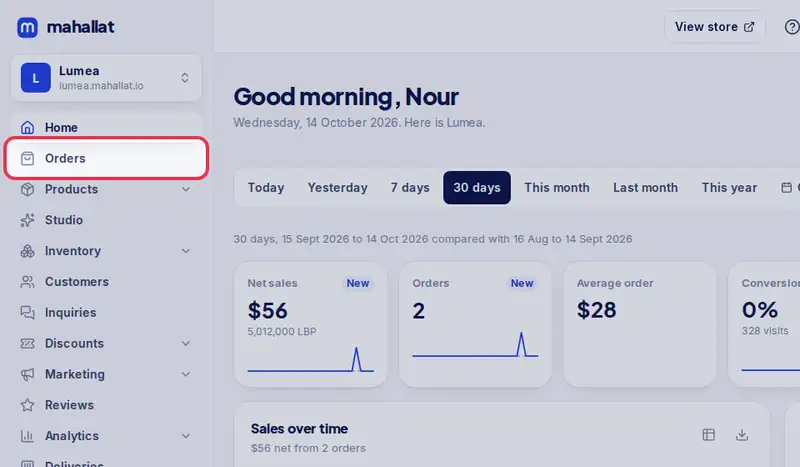
- Step 1: Open Orders in the menu.
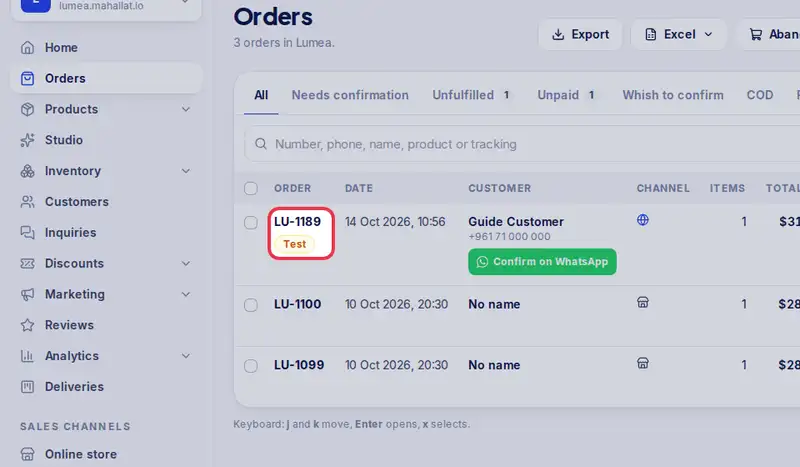
- Step 2: Tap the order number to open it.
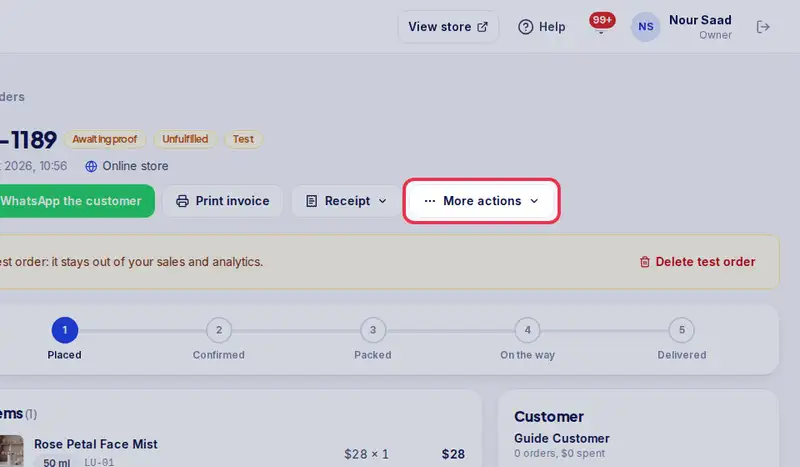
- Step 3: Tap More actions, then Edit order. It is greyed out with "Packed orders cannot be edited" once you packed anything.
- Step 4: Under Items, change a quantity with - and +, remove an item with the bin, search a product to add it, or tap Custom item.
- Step 5: For a delivery, fix the Delivery address, the Delivery fee, the Discount or the Order note.
- Step 6: Tap Save changes. The totals, fees and stock are worked out again.
- Step 7: To cancel instead, tap More actions, then Cancel order.
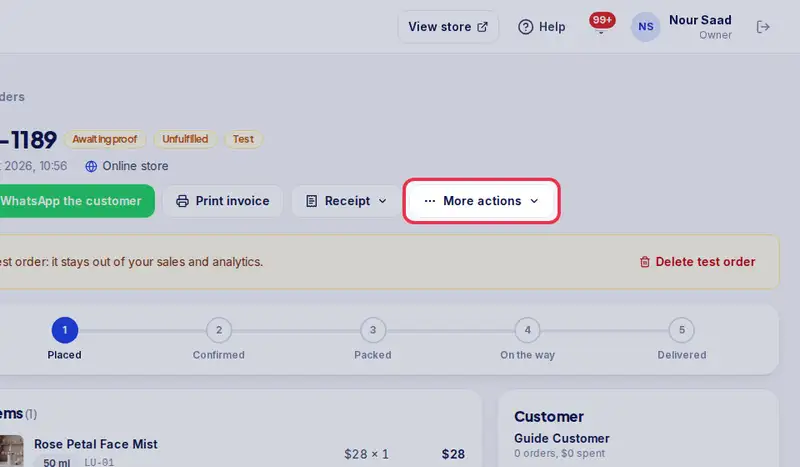
- Step 8: Pick a Reason, like Customer changed their mind or Out of stock, or Other and say why. If items were packed, leave Put packed items back in stock on.
- Step 9: Tap Cancel order. The customer is told the order was cancelled, and the stock it held comes back.
- Step 10: Cancelled orders are under the Cancelled tab in Orders.