Customers
Answer inquiries
See the questions customers ask about your items and the messages from your contact page, reply on WhatsApp and keep track of what is done.
Open this in your dashboard5 steps · Video
When a customer taps Ask about this on an item, or writes from your contact page, the message lands in Inquiries and you get an email and a phone alert. The menu shows how many are new.
Watch the video
What the video says
- In this video, you see the questions customers ask about your items, reply on WhatsApp, and keep track of what is done.
- Open Inquiries from the menu.
- New shows the messages you have not answered yet, with the item they are about.
- Tap Reply on WhatsApp. It opens with a ready message that names the item.
- Once you have answered, tap Mark as handled.
- It moves to Handled, with who handled it and when.
- Mahallat never sends WhatsApp messages by itself. You choose when to reply.
Step by step
- Step 1: Open Inquiries in the menu. On a phone it is under More.
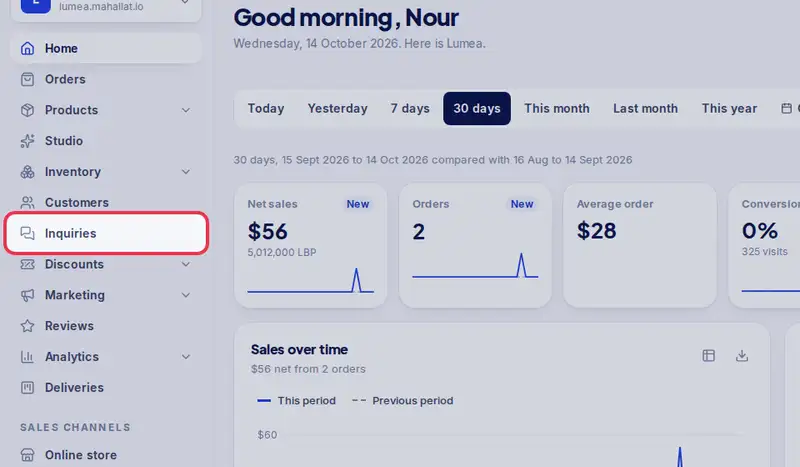
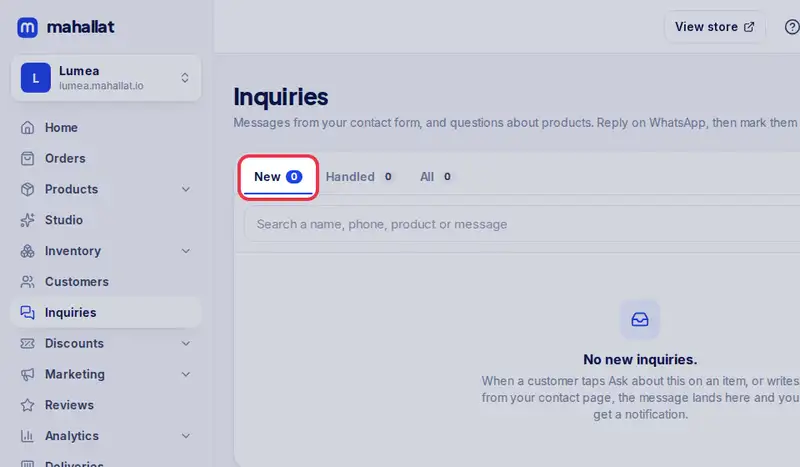
- Step 2: New shows the messages you have not answered yet. Each card has the name, the phone number, the message and the item it is about, with links to the product and to the item in your store.
- Step 3: Tap Reply on WhatsApp. WhatsApp opens with a ready message that names the item; change it if you like and press send.
- Step 4: Tap Mark as handled once you have answered. It moves to Handled, with who handled it and when.
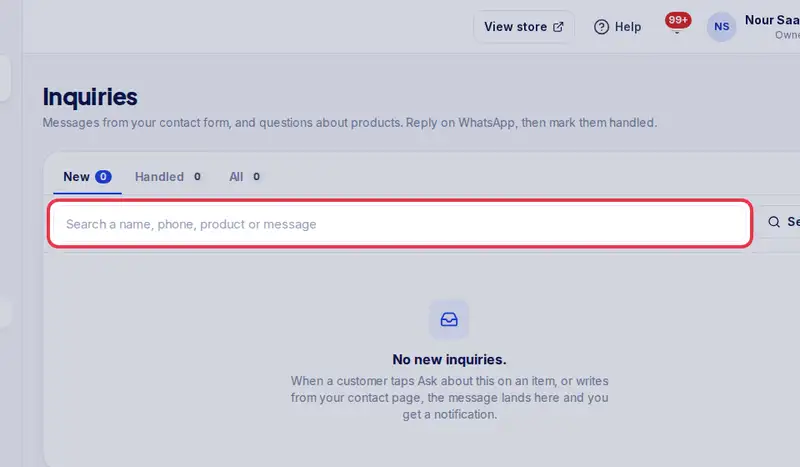
- Step 5: Looking for an old message? Search a name, a phone number, a product or a word from the message.