Getting started
Install the dashboard on your phone
Put Mahallat on your home screen so it opens like an app and alerts arrive reliably.
Open this in your dashboard6 steps · Video
Installed, Mahallat opens full screen from its own icon, and order alerts arrive like any other app. On iPhone, alerts only work from the installed app.
Watch the video
These videos show each browser's own menus drawn for the video: yours may look a little different, the steps are the same.
What the video says
- Put Mahallat on your iPhone's home screen, so it opens like an app and order alerts reach you.
- Open app.mahallat.io in Safari and sign in.
- Tap the three dots button at the bottom. On older iPhones, tap the Share button instead.
- Tap Share.
- Scroll down the list, and tap Add to Home Screen.
- Keep Open as Web App switched on, then tap Add.
- Mahallat is now on your home screen. Tap it to open your dashboard, and sign in once.
- It opens full screen, like any other app. On iPhone, order alerts only work from this installed app.
Step by step
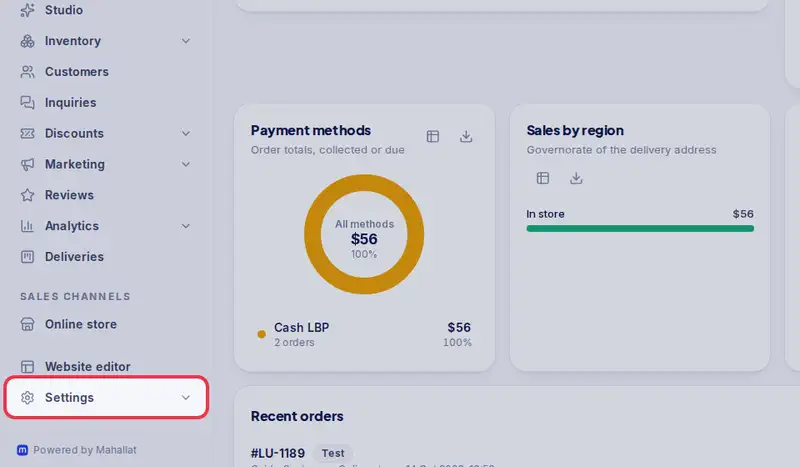
- Step 1: Open Settings.
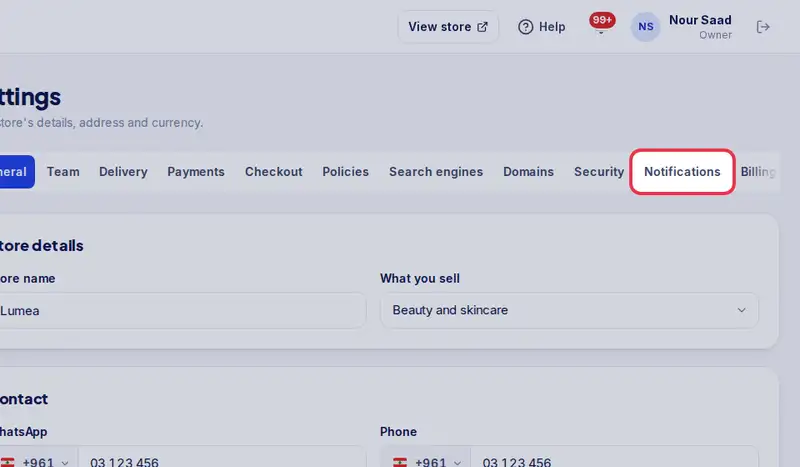
- Step 2: Tap the Notifications tab.
- Step 3: Look at Install the app on this phone. It says Installed or Not installed and shows the steps for your phone.
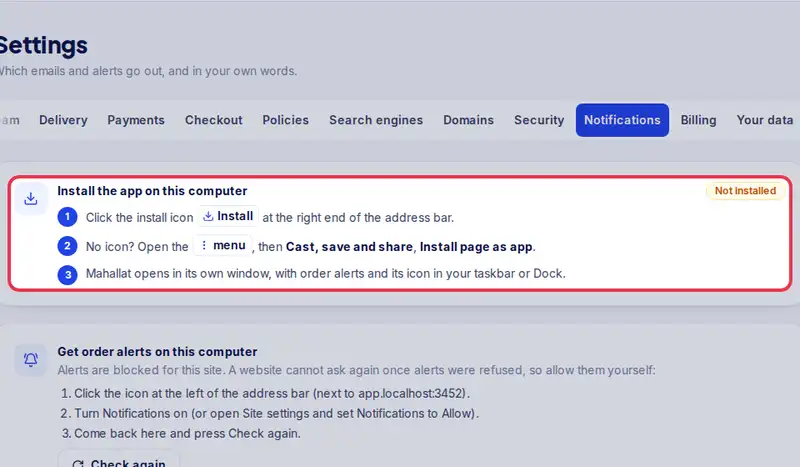
- Step 4: On iPhone, in Safari: tap Share, scroll down, tap Add to Home Screen, then Add.
- Step 5: On Android, in Chrome: tap Install Mahallat if you see it, or open the Chrome menu (the three dots) and tap Install app.
- Step 6: Open Mahallat from the new icon on your home screen and log in once.