Settings
Choose which emails and alerts go out
Turn customer emails and your own phone alerts on or off, and write the emails your way.
Open this in your dashboard6 steps · Video
Mahallat emails your customers at every step of their order: the confirmation, the payment, shipped, delivered and the review request. You get a push alert on your phone when an order comes in. You decide which ones go out and what the emails say.
Watch the video
What the video says
- In this video, you choose which emails customers get, and change the words of one of them.
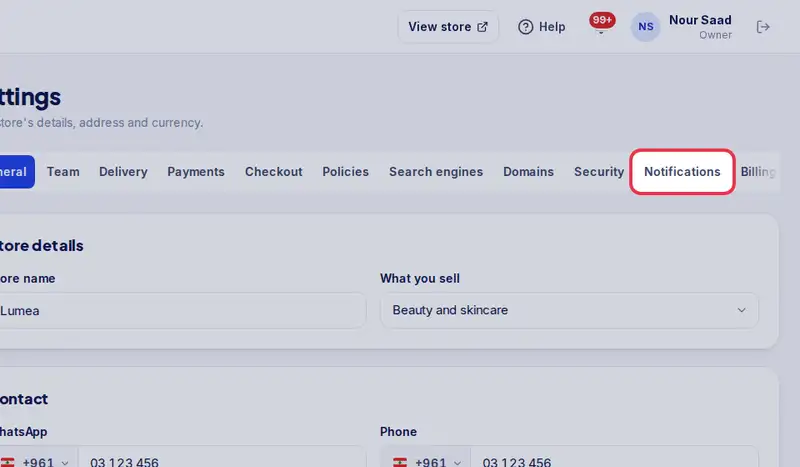
- Open Settings, then the Notifications tab.
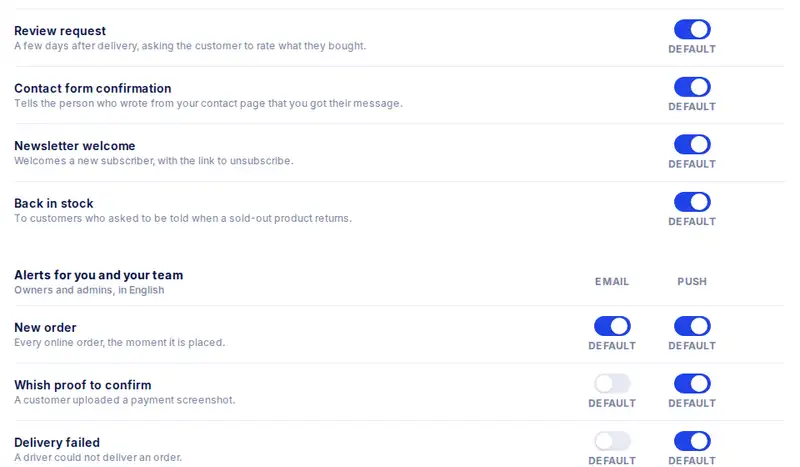
- Under Who gets what, turn each message on or off.
- Tap Save changes.
- Under Wording, pick a message and change what its email says.
- The preview shows the email as your customer gets it.
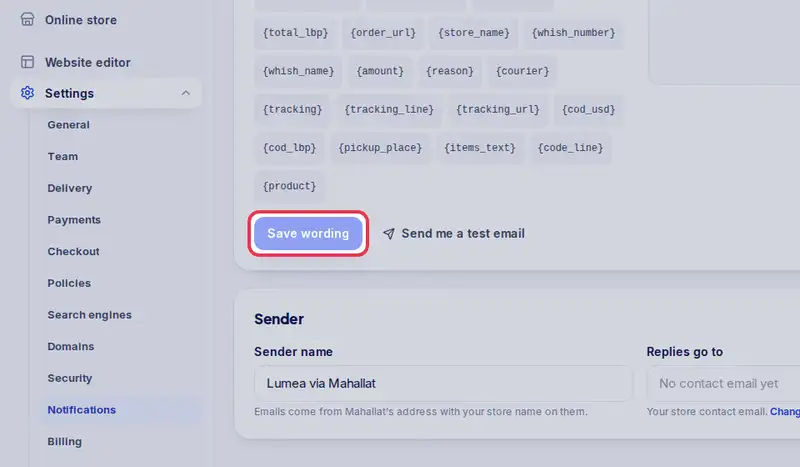
- Tap Save wording.
- Mahallat never sends WhatsApp for you. You send it yourself from the order.
Step by step
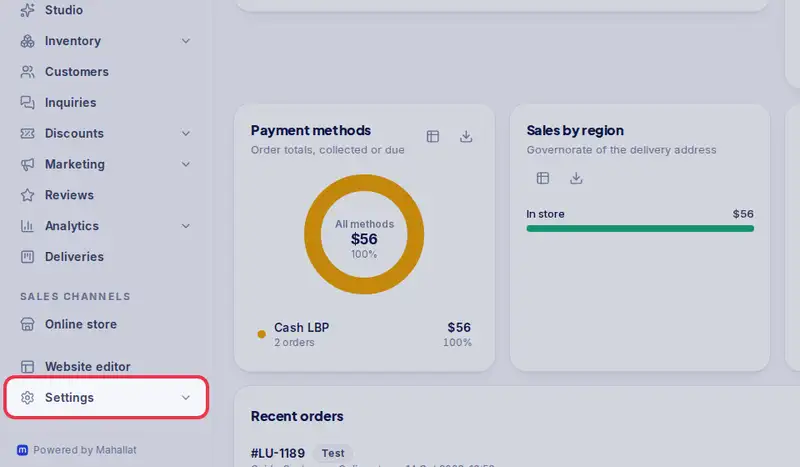
- Step 1: Open Settings.
- Step 2: Tap the Notifications tab.
- Step 3: Under Who gets what, turn each message on or off, for your customers and for you and your team.
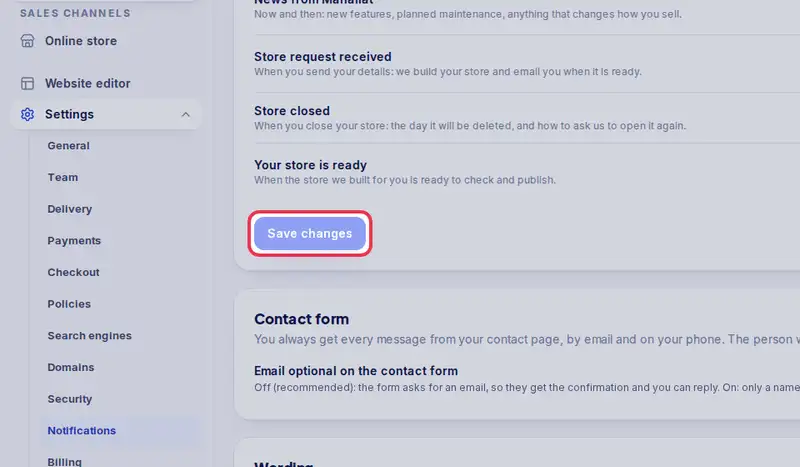
- Step 4: Tap Save changes.
- Step 5: Under Wording, pick a message and change the text of its email. Tap a word like
{customer_name}to insert it.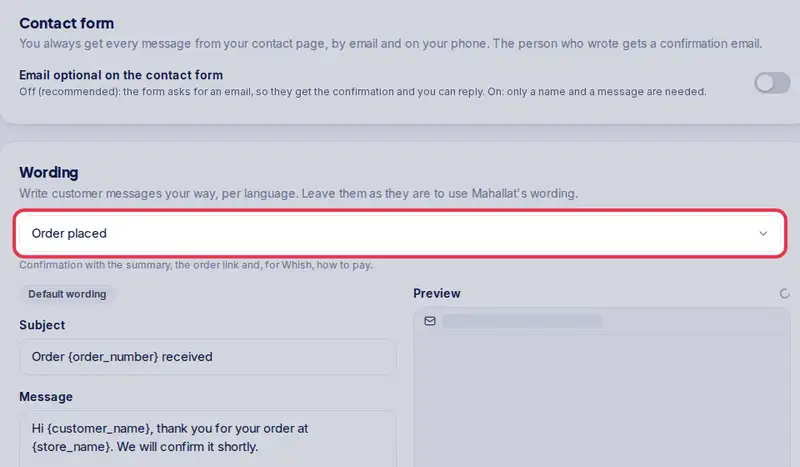
- Step 6: Check the preview and tap Save wording.