Settings
Change your name, email or password
Your own login: the name the team sees, the email you log in with, and your password.
Open this in your dashboard4 steps · Video
Your account is yours alone: changing it does not change the store's details or anyone else's login.
Watch the video
What the video says
- In this video, you open your own account to change your name, your email or your password.
- Tap your name at the top right.
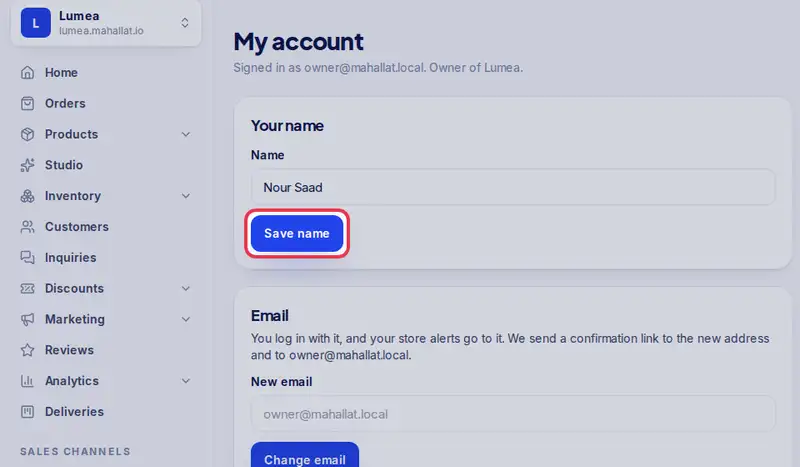
- Under Your name, type it the way your team should see it, and tap Save name.
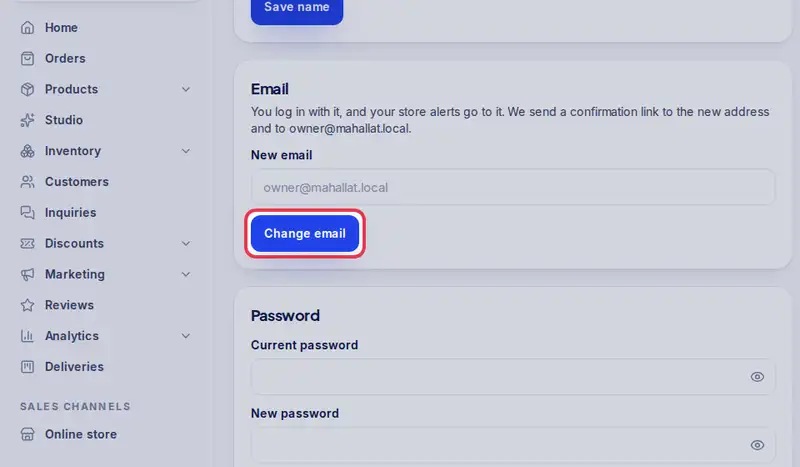
- To change your email, type the new one and tap Change email. Open the link we send to both addresses.
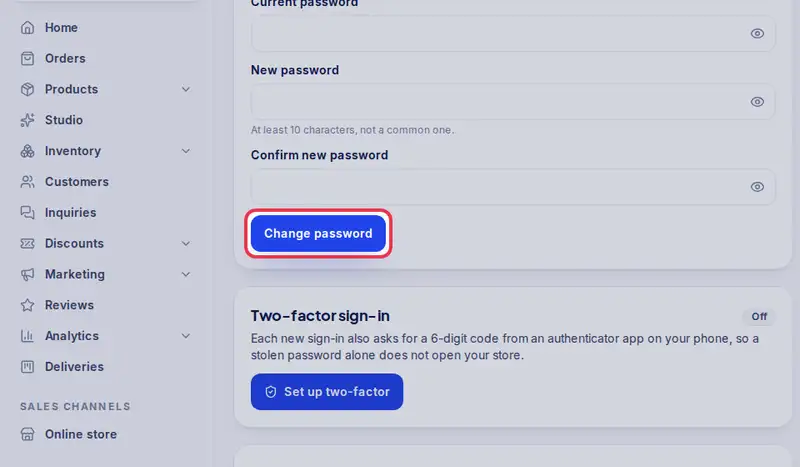
- To change your password, type the current one, then the new one twice.
- Your account is yours alone. It does not change the store or anyone else's login.
Step by step
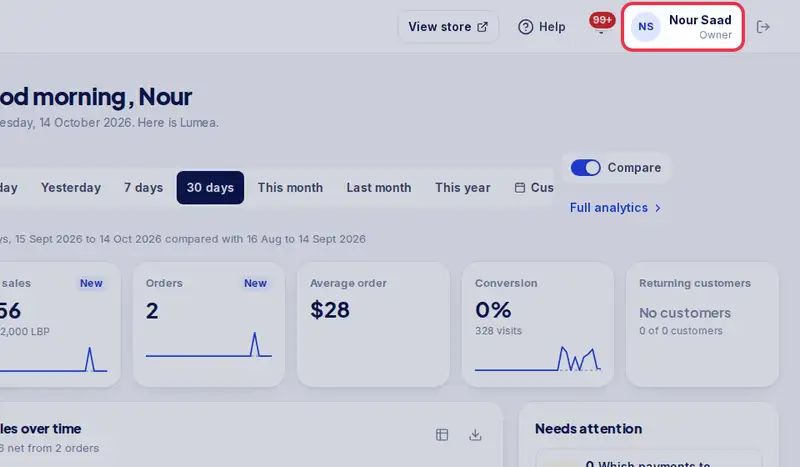
- Step 1: Tap your name or initials at the top right. On a phone, tap More, then your name at the bottom.
- Step 2: Under Your name, type it the way your team should see it and tap Save name.
- Step 3: To change your email, type the new one in New email and tap Change email. We send a link to the new address and to your current one: open both and the change is done.
- Step 4: To change your password, type your Current password, then the new one in New password and again in Confirm new password (at least 10 characters, not a common one), and tap Change password.