Settings
Check your store's security log
See held and refused orders, reused Whish screenshots, large refunds, new team members and rule changes in one list.
Open this in your dashboard7 steps · Video
Settings, Security keeps a log of what matters for your store's safety: orders that were held or refused, a Whish screenshot used twice, large refunds, people joining your team and changes to your rules. Owners and admins see it.
Watch the video
What the video says
- In this video, you set when a large refund is noted, and read your store's security log.
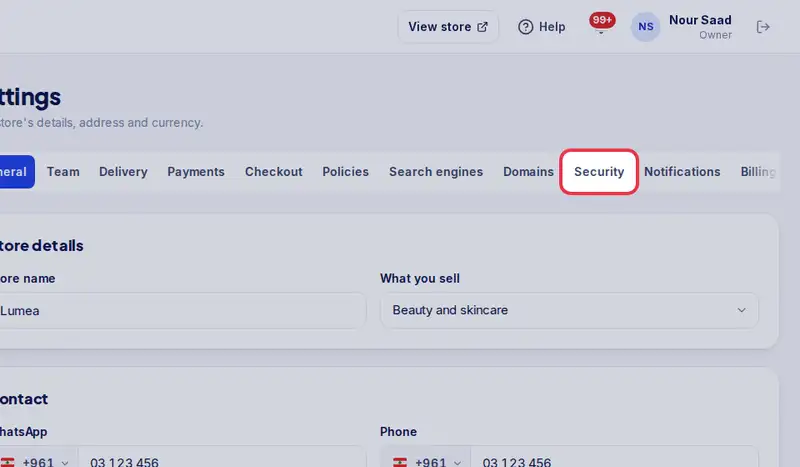
- Open Settings, then the Security tab.
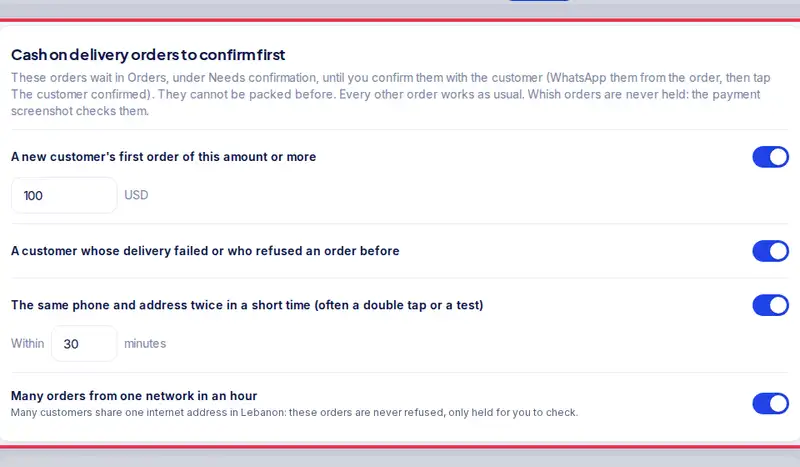
- The cards at the top are your order protection rules.
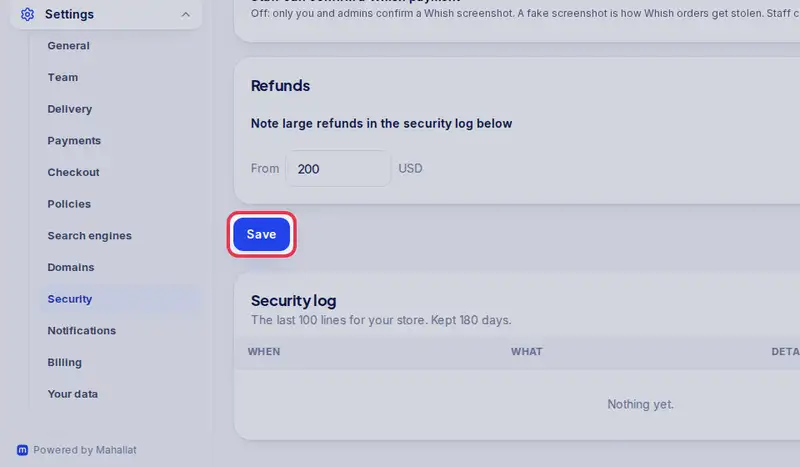
- Under Refunds, keep Note large refunds on, and set the amount from which a refund is noted.
- Tap Save.
- Scroll down to the Security log: the last hundred lines, newest first.
- Each line says when it happened, what happened, and the detail, usually the order number.
- A line you do not expect? Open the order to see who did it.
Step by step
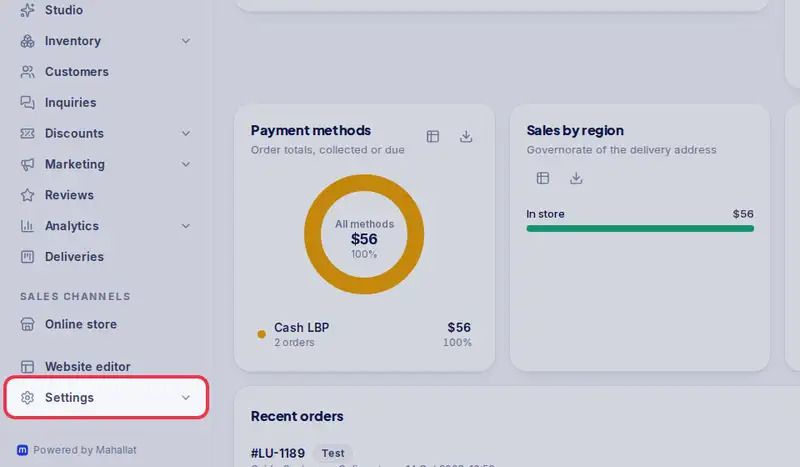
- Step 1: Open Settings in the menu.
- Step 2: Tap the Security tab.
- Step 3: The cards at the top are your order protection rules: which cash on delivery orders wait for your OK, and who confirms Whish payments. They have their own article: Confirm risky cash on delivery orders first.
- Step 4: Under Refunds, leave Note large refunds in the security log below on and set the amount From which a refund is noted (200 USD to start).
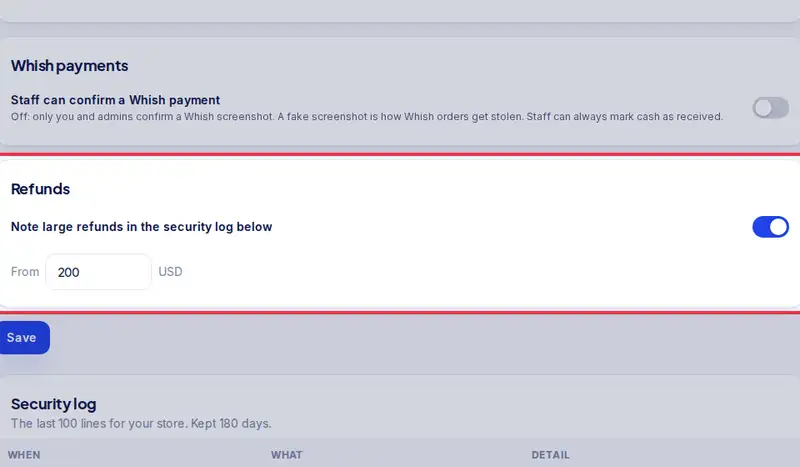
- Step 5: Tap Save.
- Step 6: Scroll down to the Security log. It lists the last 100 lines for your store, newest first, kept 180 days.
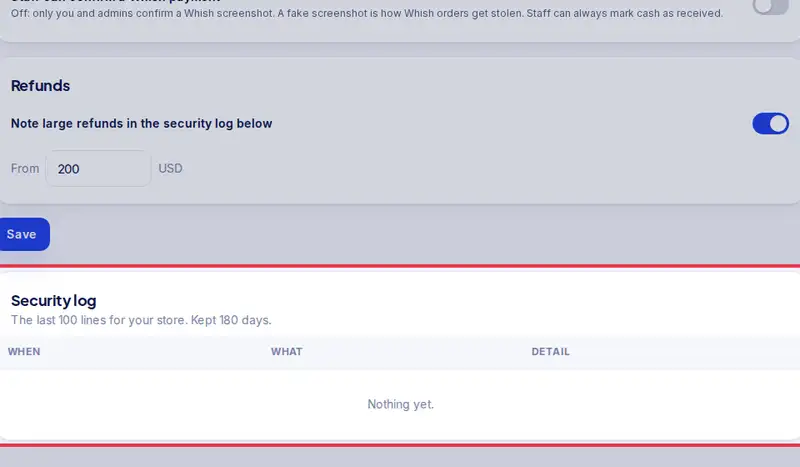
- Step 7: Read each line: When it happened, What happened and the Detail, usually the order number.