Settings
Confirm risky cash on delivery orders first
Some cash on delivery orders wait for your OK before packing, so a fake order never costs you a delivery. You choose which ones in Settings, Security.
Open this in your dashboard8 steps · Video
A fake cash on delivery order costs you a courier trip and holds stock. Mahallat marks the risky ones so you check them with the customer before packing. Every other order works as usual, and Whish orders are never held: the payment screenshot checks them.
Watch the video
What the video says
- In this video, you choose which cash on delivery orders wait for your OK before you pack them.
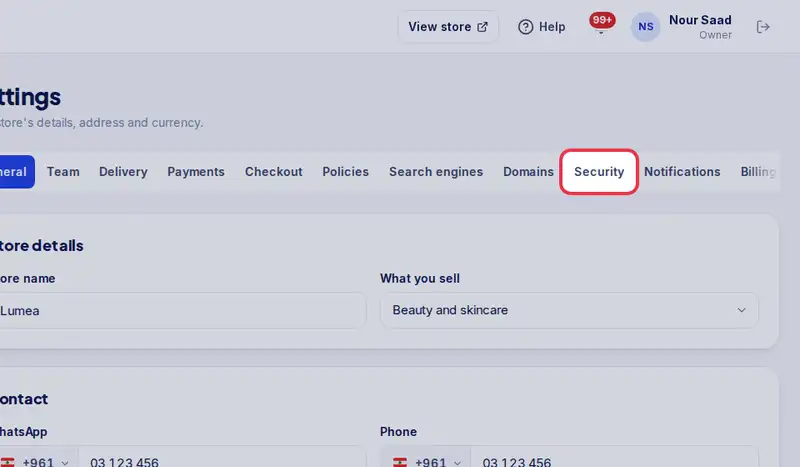
- Open Settings, then the Security tab.
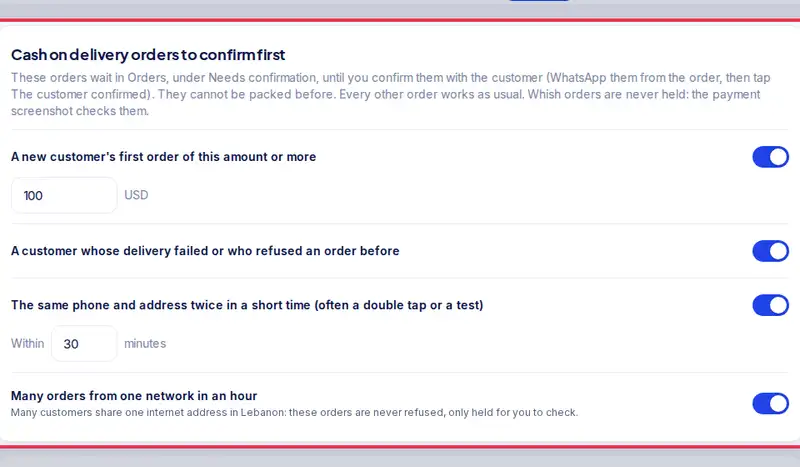
- Choose which cash on delivery orders wait for your OK.
- For example, a new customer's first order from an amount you set.
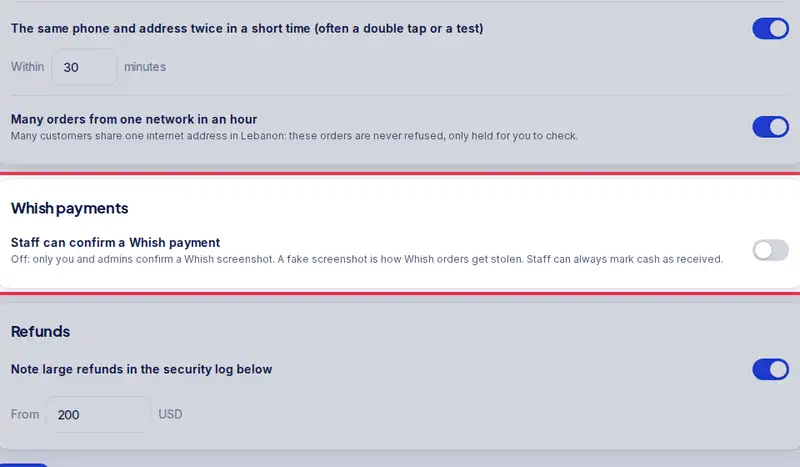
- Whish orders are never held. Choose if staff can confirm a Whish payment.
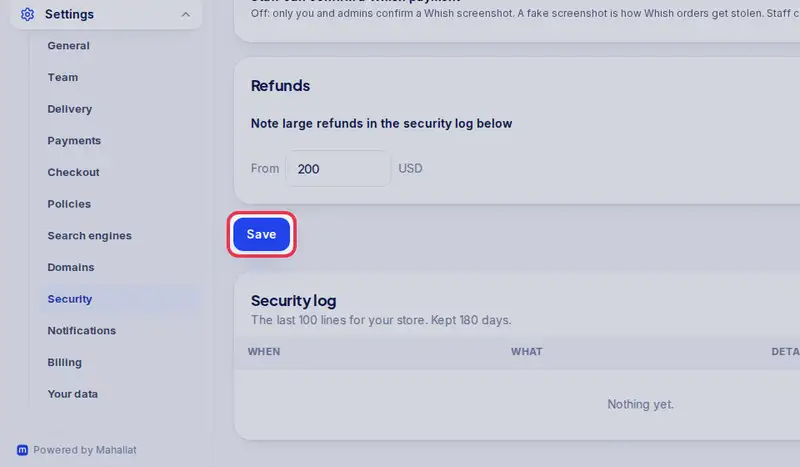
- Tap Save.
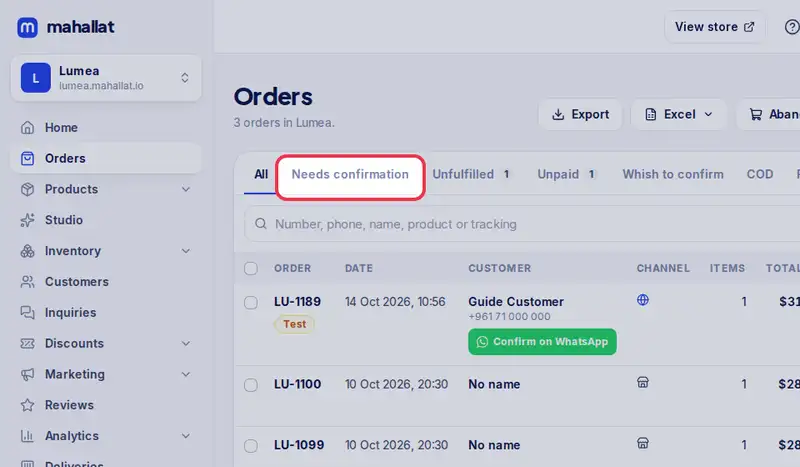
- In Orders, the Needs confirmation tab lists the orders waiting for you.
- Open one and tap Send the confirmation. When the customer replies, the order can be packed.
Step by step
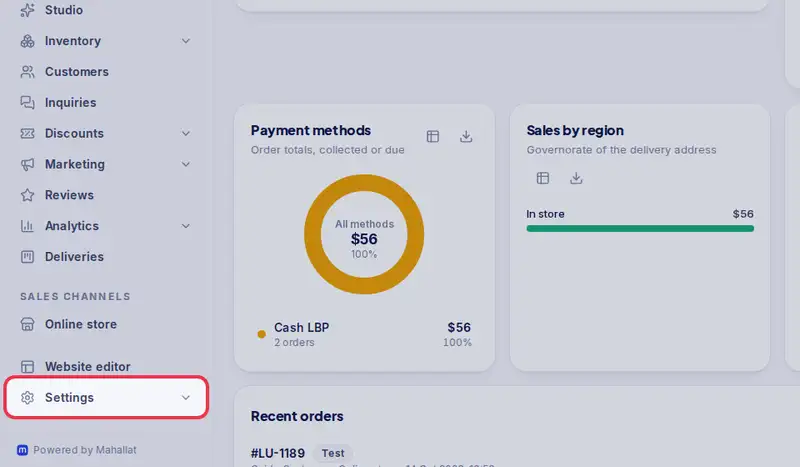
- Step 1: Open Settings in the menu.
- Step 2: Tap the Security tab.
- Step 3: Choose which cash on delivery orders wait for your OK: a new customer's first order from an amount you set (100 USD to start), a customer whose delivery failed before, the same phone and address twice in a short time, and many orders from one network in an hour.
- Step 4: Choose whether staff can confirm a Whish payment. Off by default: only you and admins confirm a Whish screenshot.
- Step 5: Tap Save.
- Step 6: In Orders, the Needs confirmation tab lists the orders waiting for you, each marked Confirm before packing with the reason.
- Step 7: Open one and tap Send the confirmation to WhatsApp the customer. When they reply, tap The customer confirmed: the order can be packed as usual.
- Step 8: If the number is wrong or nobody answers, cancel the order: nothing is shipped and the stock comes back.