Settings
Turn on two-factor sign-in and see your devices
A code from an app on your phone on top of your password, so a stolen password alone never opens your store. See where you are signed in and sign a device out.
Open this in your dashboard6 steps · Video
With two-factor on, each new sign-in asks for your password and then a 6-digit code from an authenticator app on your phone (Google Authenticator, 1Password, Authy). Someone who learns your password still cannot open your store.
Watch the video
What the video says
- In this video, you see how to protect your account with a code from an authenticator app on your phone.
- Tap your name at the top right to open My account.
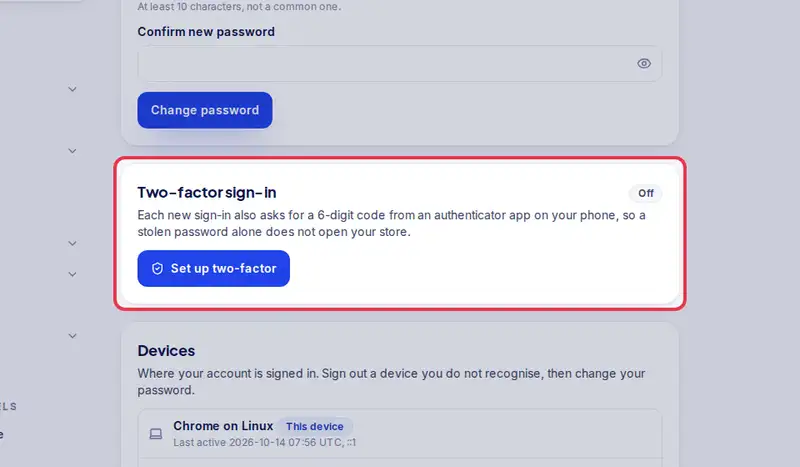
- Go down to Two-factor sign-in.
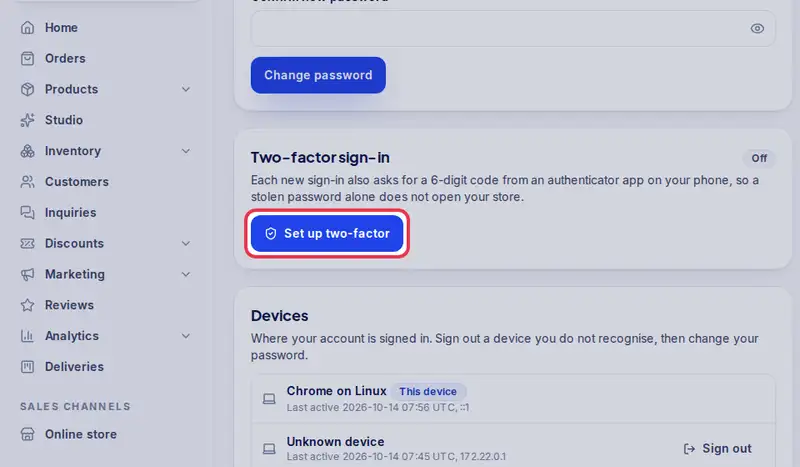
- Tap Set up two-factor.
- Scan the QR code with an authenticator app, like Google Authenticator.
- Type the six digit code the app shows, and tap Continue.
- Then save your ten recovery codes somewhere safe, away from your phone.
- From then on, each new sign-in asks for your password and a code from your phone.
Step by step
- Step 1: Tap your name or initials at the top right, then go down to Two-factor sign-in.
- Step 2: Tap Set up two-factor, then scan the QR code with your authenticator app.
- Step 3: Type the 6-digit code the app shows and tap Continue.
- Step 4: Save the 10 recovery codes somewhere safe, away from your phone. Each one signs you in once if you lose your phone. Tap I saved them, continue.
- Step 5: From now on, after your password, type the code your app shows. Codes change every 30 seconds.
- Step 6: Lost your phone? On the code screen, tap Lost your phone? Use a recovery code, type one, then set up two-factor again on your new phone.