Products
Organise products into categories and collections
Categories build your shop menu and filters; collections group products for your homepage and sales.
Open this in your dashboard8 steps · Video
A product has one category, like Skincare, which builds your menu and filters. Collections are groups you choose, like New arrivals or Gifts under $30, picked by hand or by rules.
Watch the video
What the video says
- In this video, you add a category for your shop menu, and a collection that fills itself.
- In Products, tap the Categories and brands tab.
- Tap Add category, then type its name.
- To make it a sub-category, pick its parent under Inside.
- Tap Add. Then choose the category on each product's page.
- Now the Collections tab, then Create collection.
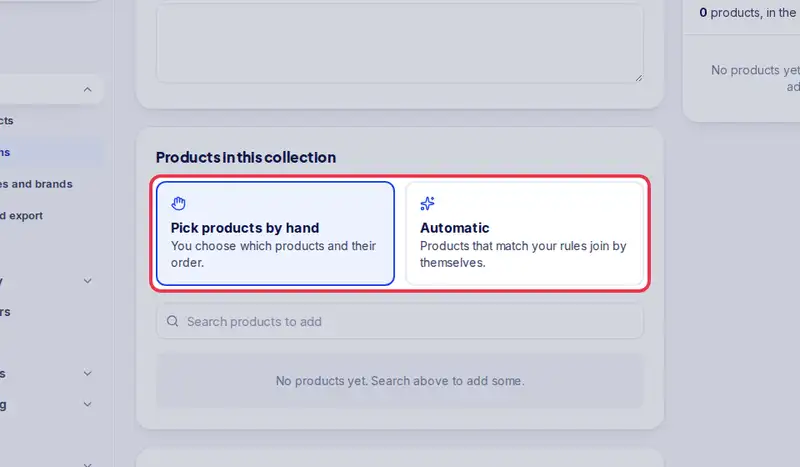
- Pick Automatic and set a rule. The products that match show on the right.
- Tap Save. New products under 40 dollars join on their own.
Step by step
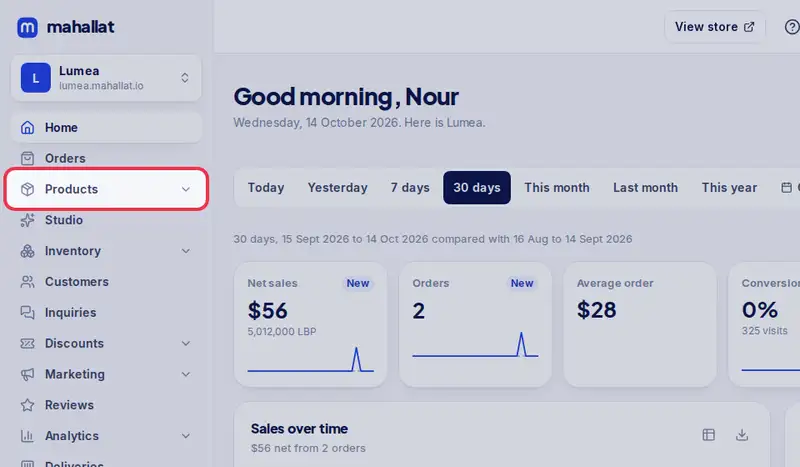
- Step 1: Open Products in the menu.
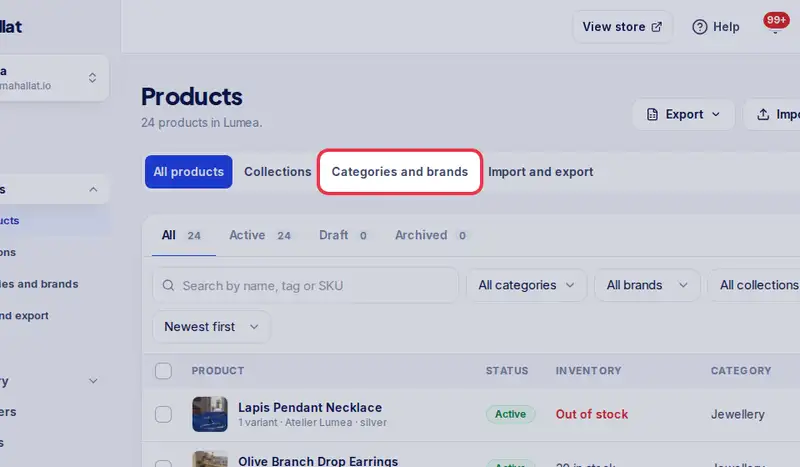
- Step 2: Tap the Categories and brands tab.
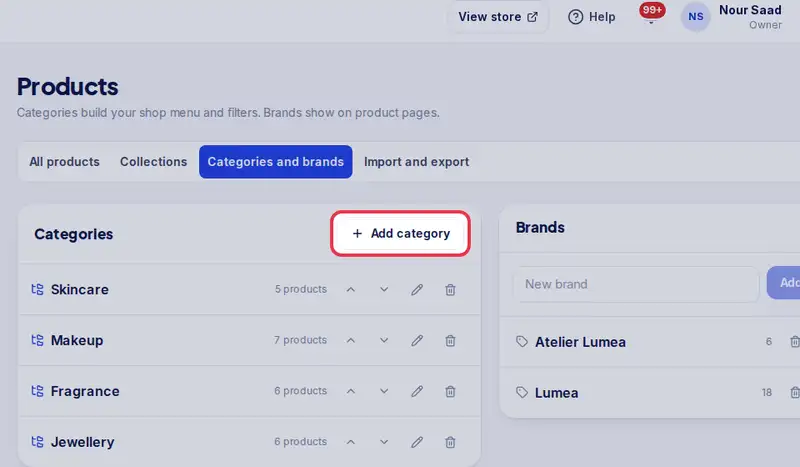
- Step 3: Tap Add category.
- Step 4: Type its Name, like Skincare. To make a sub-category, switch on Subcategory and pick the category it goes Inside: customers who open that category see its sub-categories as buttons above the products.
- Step 5: Tap Add. Then tap Products on the category's row and tick the products that belong in it, or choose the Category on each product's page.
- Step 6: Tap the Collections tab, then Create collection.
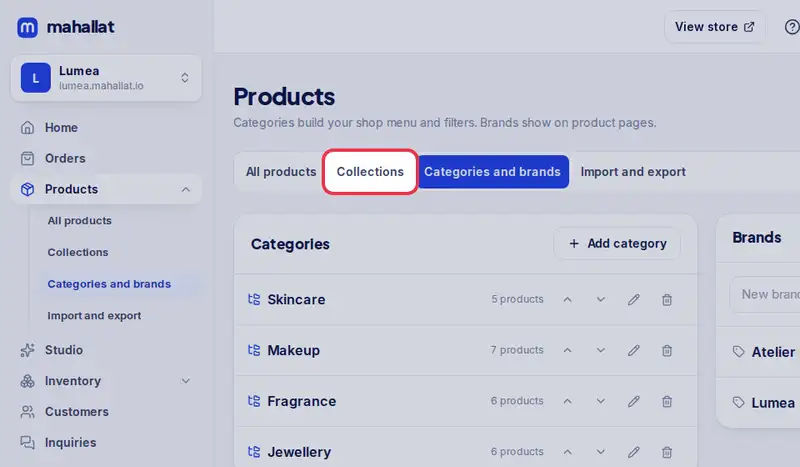
- Step 7: Give it a Title, then choose Pick products by hand or Automatic, with rules like "Tag is new" or "Is on sale".
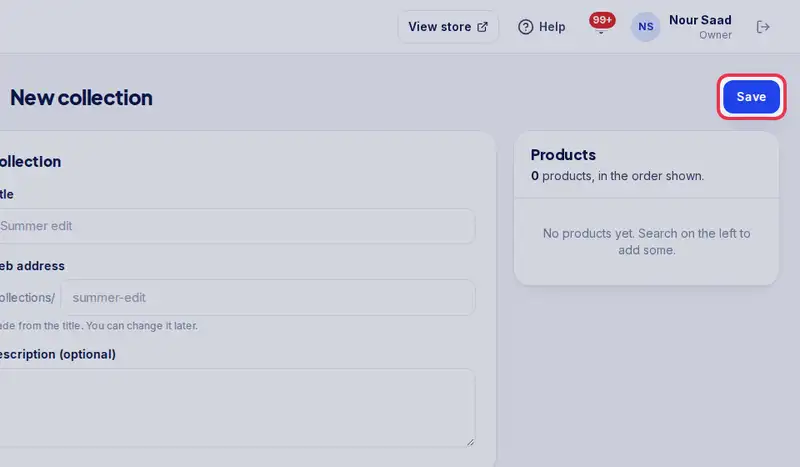
- Step 8: Tap Save.