Products
Change a price or a photo
Open a product, change its photos or price, and save.
Open this in your dashboard5 steps · Video
Prices and photos change all the time. Each change shows on your store as soon as you save.
Watch the video
What the video says
- In this video, you change a product's price and add a photo, then copy a product with Duplicate.
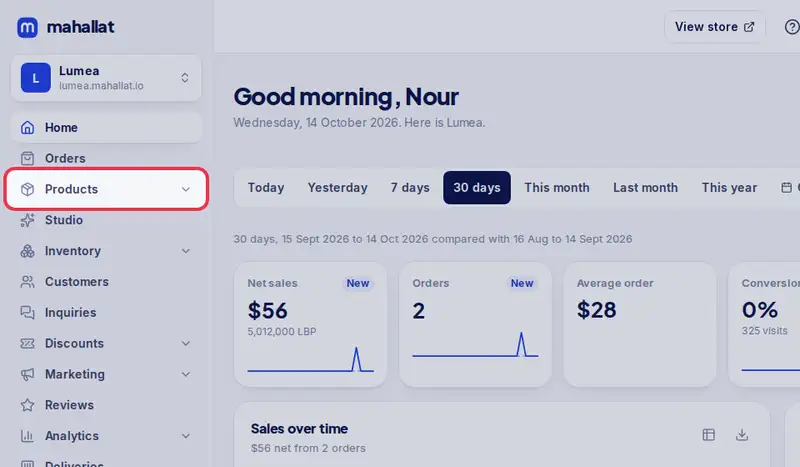
- Open Products from the menu.
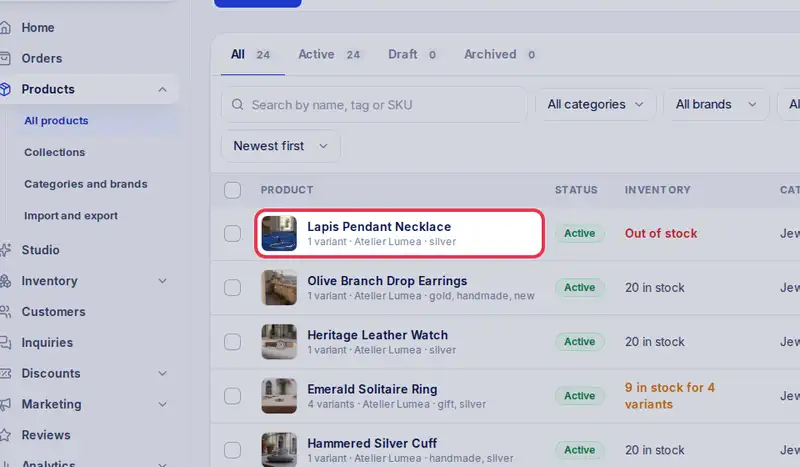
- Find the product, then tap its name.
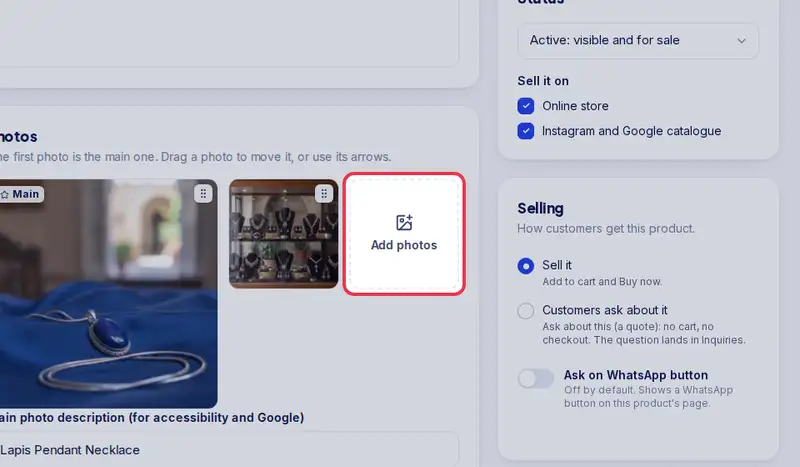
- To add a photo, tap Add photos. The first photo is the main one.
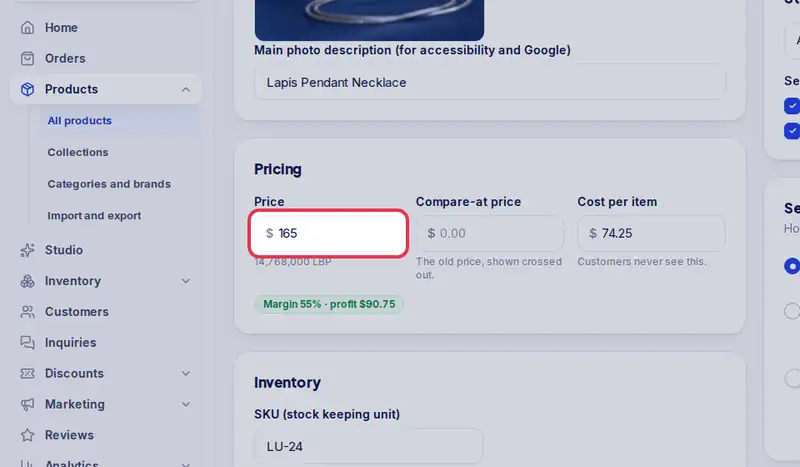
- Type the new price in dollars.
- For a sale, put the old price in Compare-at price. It shows crossed out.
- A bar appears at the bottom. Tap Save.
- Selling something similar? In Products, tap Duplicate on its row.
- The copy is a draft with the same photos and prices, ready to change.
Step by step
- Step 1: Open Products in the menu.
- Step 2: Find the product (use the search box if the list is long) and tap its name.
- Step 3: To add photos, tap Add photos. To remove one, tap the bin on the photo. The first photo is the main one.
- Step 4: Type the new Price in dollars. For a sale, put the old price in Compare-at price and it shows crossed out.
- Step 5: A bar appears at the bottom with Unsaved changes. Tap Save.