Products
Sell a product in sizes or colours
Add options like size or colour to a product. Each variant gets its own price, stock, SKU and photo.
Open this in your dashboard9 steps · Video
One product, several versions: a shirt in S, M and L, a lipstick in 4 shades. Add the options once and Mahallat makes a row for every mix (S Blue, S Red, M Blue...), each with its own price, stock and SKU. Customers pick the version on your website.
Watch the video
What the video says
- In this video, you add a product that comes in several colours, each with its own stock.
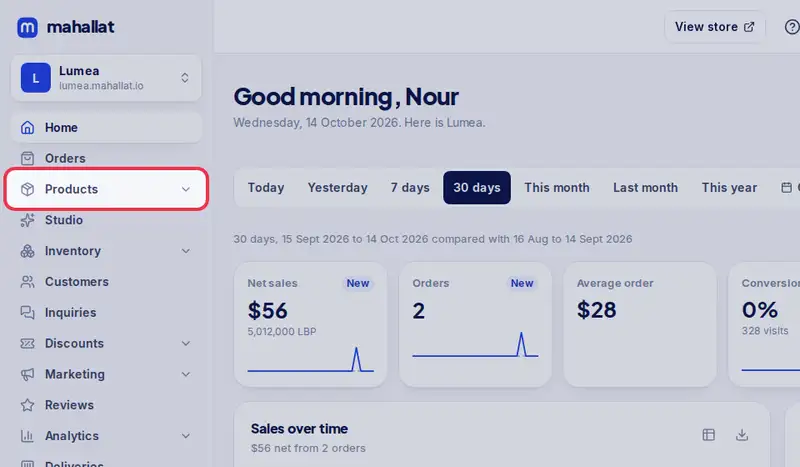
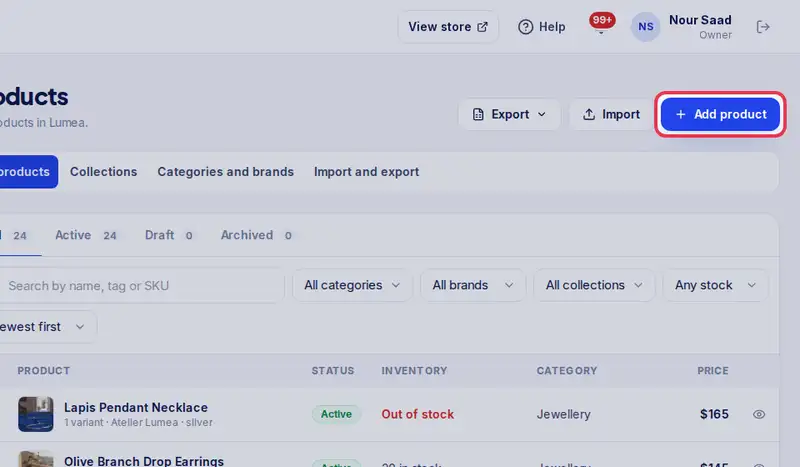
- In Products, tap Add product.
- Type the name and the price first. Every variant starts with this price.
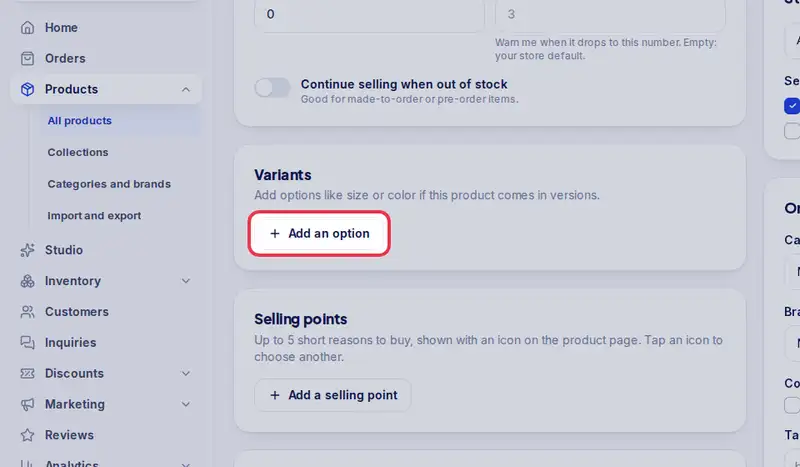
- Under Variants, tap Add an option.
- Name the option, for example Color.
- Then type each value and press Enter.
- Each colour gets a swatch, and its own row with a price, stock and SKU.
- Set how many you have of each colour.
- Tap Save. Customers pick the colour on your website.
Step by step
- Step 1: Open Products in the menu.
- Step 2: Open the product, or tap Add product. Fill in the Price and Cost per item first: every new variant starts with them.
- Step 3: Under Variants, tap Add an option.
- Step 4: Name the option, for example Size, Color, Shade or Material (pick one from the list or type your own).
- Step 5: Type each value and press Enter, for example S, M, L. You can also paste them separated by commas.
- Step 6: Another option, like colour on top of size? Tap Add an option again. A product can have up to 3 options.
- Step 7: In the table under the options, set each variant's Price, Compare-at price, Stock and SKU, and pick its Photo so customers see the right one when they choose it.
- Step 8: Same price for all? Type it once under Pricing, above the variants: it sets every variant's price. A variant that costs more keeps its own price in the table.
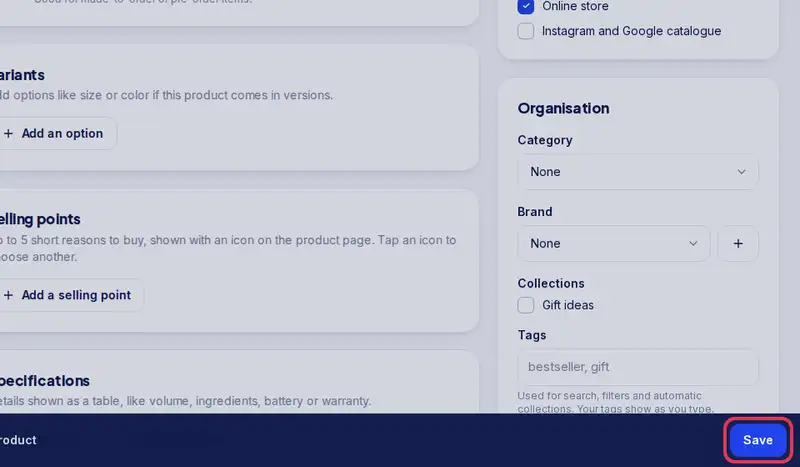
- Step 9: Tap Save.