Products
Edit many products at once
Tick products to change their status, tags, category or collection, put them on sale, or edit prices and stock in one table.
Open this in your dashboard9 steps · Video
Tick the products you want to change on the Products list. A bar appears above the list with everything you can do to all of them at once.
Watch the video
What the video says
- In this video, you put several products on sale at once, then change stock in one table.
- In Products, pick a category to show only those products. Here, Fragrance.
- Tick the products you want to change. A bar appears above the list.
- Type a percentage, then tap Put on sale. The old price shows crossed out.
- To type prices or stock yourself, tick the box at the top for every product.
- Then tap Edit prices and stock. A table opens, one row per product or size.
- Change any cell, for example the stock after a delivery.
- Tap Save at the bottom. Every change is saved together.
Step by step
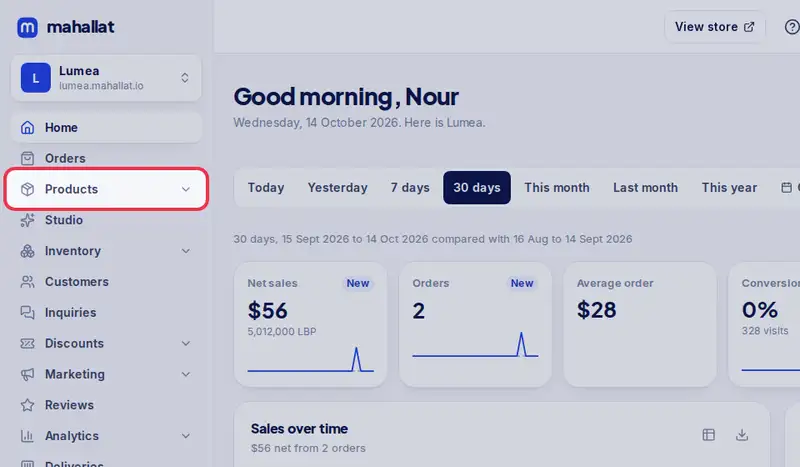
- Step 1: Open Products in the menu.
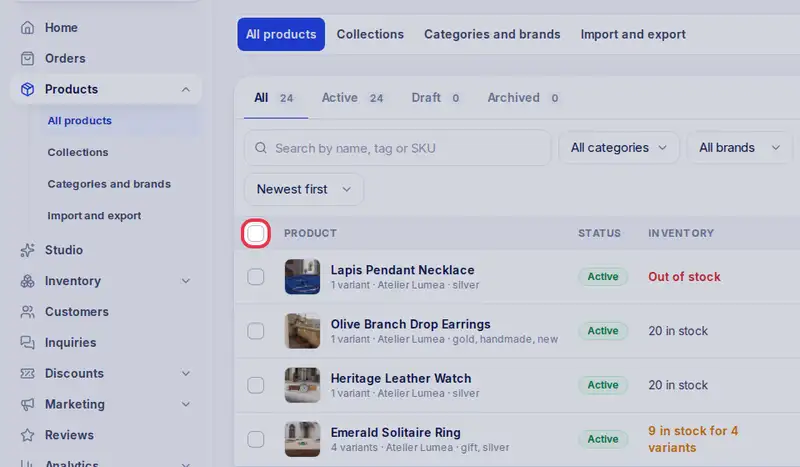
- Step 2: Tick the box next to each product, or the box at the top of the list to select every product on the page.
- Step 3: In the bar, tap Set active, Set draft or Archive to change their status, or Delete to remove them (you are asked first).
- Step 4: To add a tag, type it in Tag, like summer and tap Add tag.
- Step 5: To change prices, type a percentage and tap Put on sale (the old price shows crossed out), Raise price, or End sale to go back to the crossed-out price.
- Step 6: Pick a category in Add to category, or a collection you fill by hand in Add to collection.
- Step 7: To type new prices or quantities yourself, tap Edit prices and stock. A table opens with one row for each product or variant.
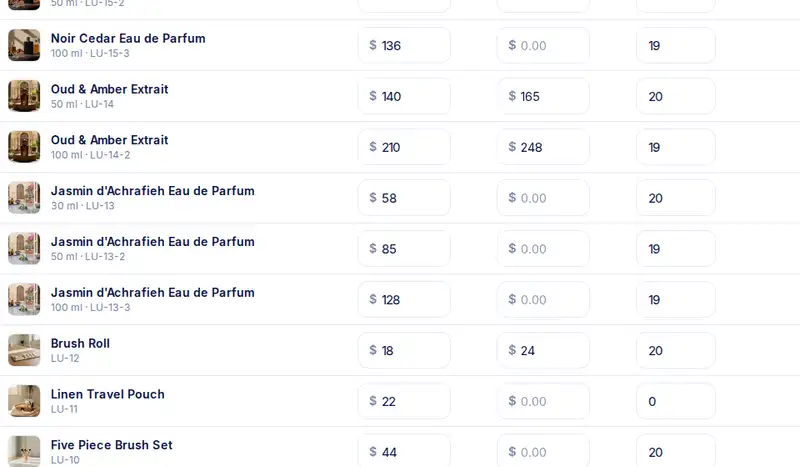
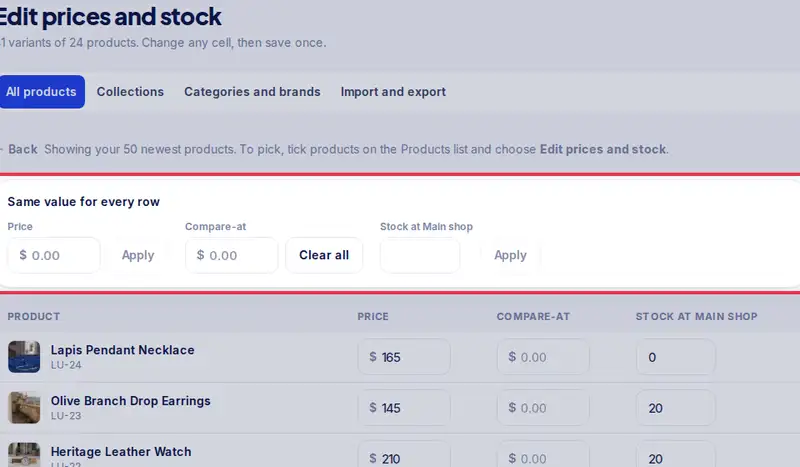
- Step 8: Change any Price, Compare-at or Stock cell. To give every row the same value, use Same value for every row and tap Apply.
- Step 9: Tap Save in the bar at the bottom. Changed cells are saved together, and the line at the top says how many prices and stock changes were saved.