Products
Edit your pictures in the Studio
Remove a photo's background, put the product on white, crop it square, brighten it or make a small picture bigger, all on your own phone or computer.
Open this in your dashboard8 steps · Video
The Studio makes your product photos look like they were taken in a studio. Everything happens on your own device: your pictures are not sent anywhere, and it costs nothing.
Watch the video
What the video says
- In this video, you put a product on a clean white background in the Studio, right on your own computer.
- Open Studio. You see every picture of your store. Tap one to open it.
- In Background, tap Remove background.
- It runs on your own computer: your pictures are not sent anywhere, and it costs nothing.
- The first time, it downloads its tool once. After that, it even works offline.
- Choose White, the classic product photo background.
- Tap Save as new photo to keep both, or Replace photo to swap it.
Step by step
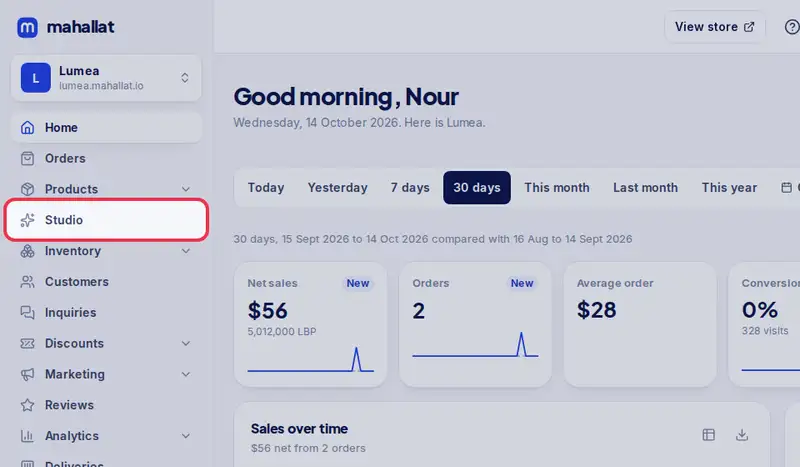
- Step 1: Open Studio in the menu. On a phone it is under More. You see every picture of your store: product photos, and for owners and admins the website pictures and the logo.
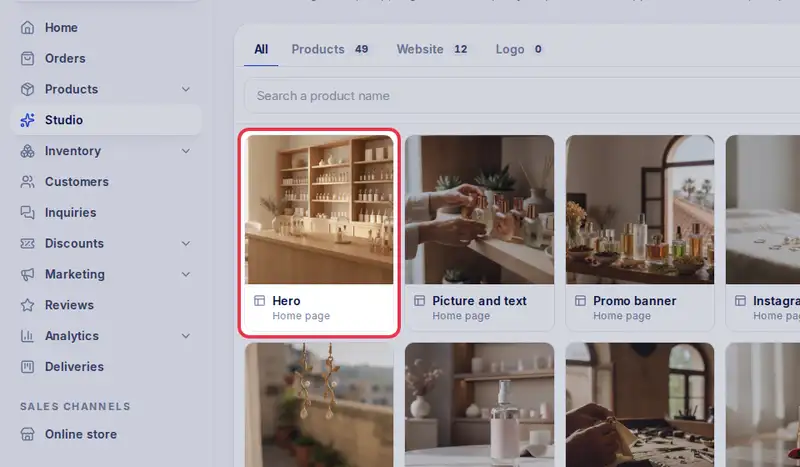
- Step 2: Tap a picture to open it. You can also tap Edit on a photo inside a product, on a picture in the website editor, or next to your logo.
- Step 3: In Background, tap Remove background. Then choose White, Transparent or any Colour, and add a Soft shadow if you like. The product is framed for you, with a little space around it.
- Step 4: In Crop, pick Square for product photos (or 4:5, 16:9 for banners, or Free), drag the frame, turn, flip or straighten the picture.
- Step 5: In Adjust, tap Auto enhance, then move any slider (brightness, contrast, colour, warmth, sharpen) to taste.
- Step 6: A small or blurry picture? In Upscale, tap 2x or 4x.
- Step 7: Tap Before / after to compare, and the arrows at the top to undo or redo.
- Step 8: Tap Replace photo to put it where the old one was, or Save as new photo to keep both. In a product, then tap Save at the bottom of the product.