Products
Import products from Excel
Bring your whole catalogue in at once from an Excel or CSV file.
Open this in your dashboard7 steps · Video
Fill a spreadsheet with one row per product, or per size and colour, and import it in one go. A Shopify product export works as it is.
Watch the video
What the video says
- In this video, you bring several products in at once from an Excel or CSV sheet.
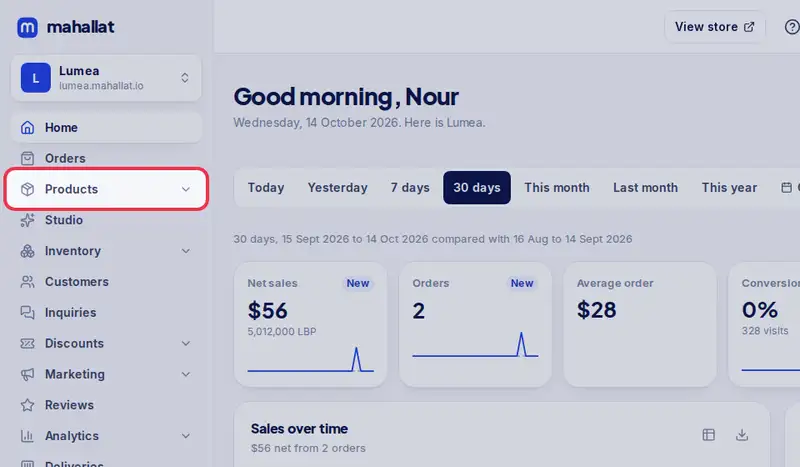
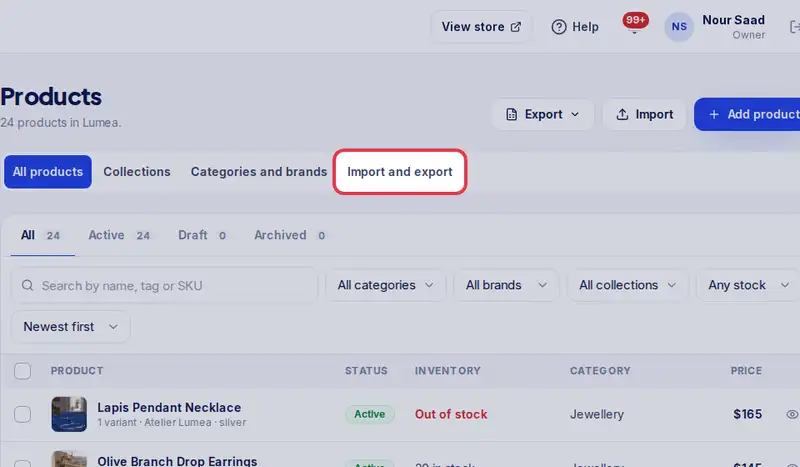
- In Products, tap the Import and export tab.
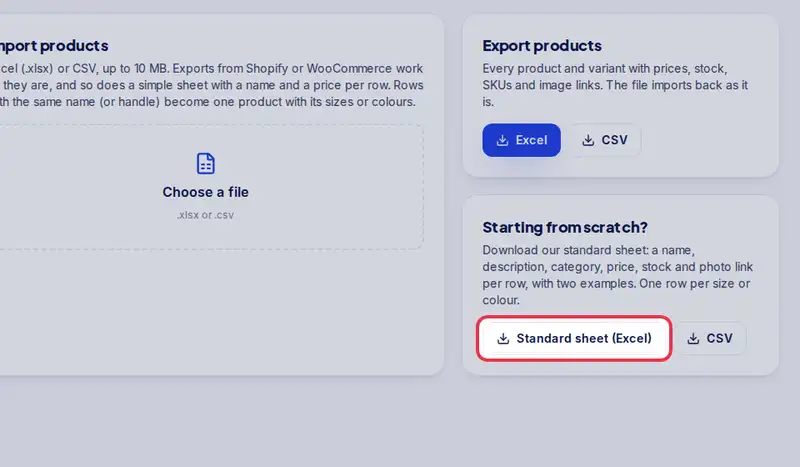
- Starting from scratch? Tap Standard sheet and fill one row per product.
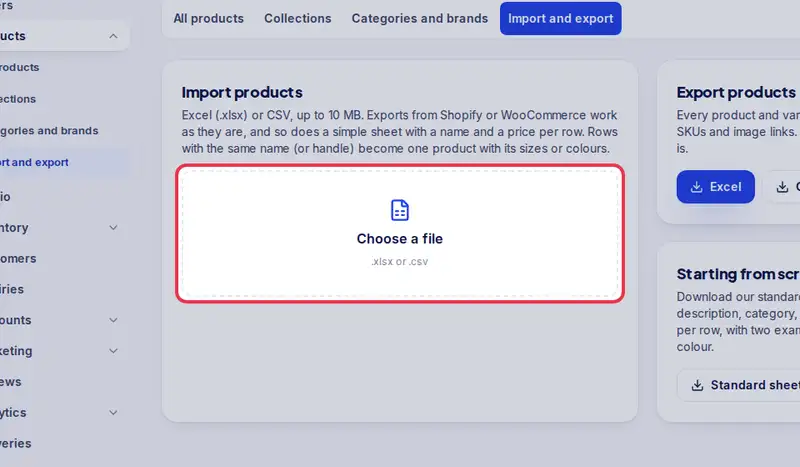
- Then tap Choose a file and pick your filled sheet.
- Check that each column fills the right field. Change any that is wrong.
- Check how many products are ready, then tap The columns are right.
- Tap Import. Your products are added in one go.
Step by step
- Step 1: Open Products in the menu.
- Step 2: Tap the Import and export tab.
- Step 3: Starting from scratch? Tap Template and fill one row per product. Already have products here? Tap Excel under Export products, edit the file, and import it back.
- Step 4: Tap Choose a file and pick your .xlsx or .csv file.
- Step 5: Under Check your columns, check each column fills the right field, or pick Skip this column to leave it out. If you changed one, tap Check again with these columns.
- Step 6: Check how many products, variants and images are ready, and which rows will be skipped.
- Step 7: Tap Import.