Inventory
Adjust stock by hand
Correct a quantity when something is damaged, lost, found or returned.
Open this in your dashboard6 steps · Video
When the shelf and the screen do not match, fix the number in a few taps. Every change is saved with its reason in the stock history.
Watch the video
What the video says
- In this video, you check your stock levels, then correct a quantity when something is damaged, lost or found.
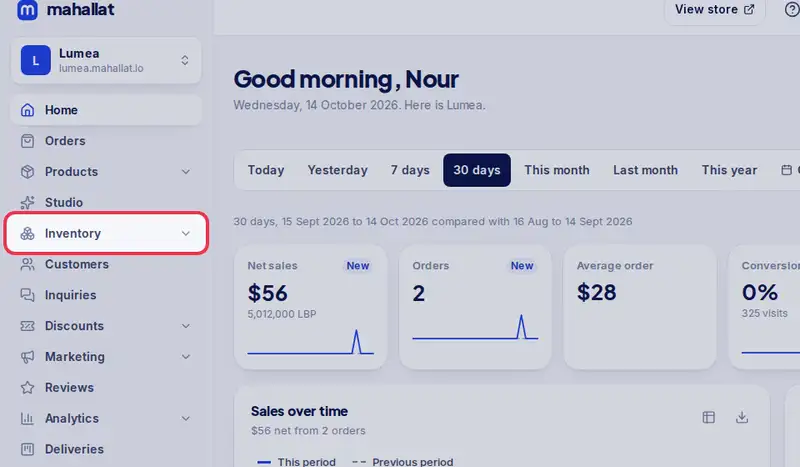
- Open Inventory from the menu.
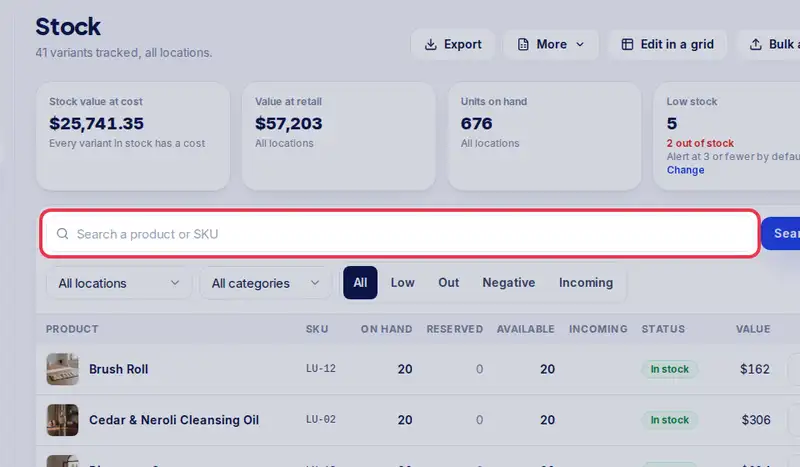
- Every product shows what is on hand, what is reserved for orders, and what you can still sell.
- Search for the product by name or SKU.
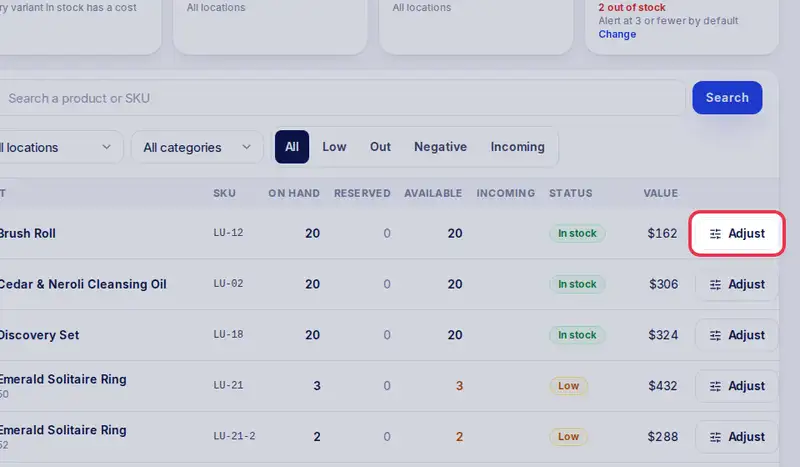
- Then tap Adjust on its row.
- Keep Add or remove, and type minus two to take two away.
- Pick the reason, here Damaged.
- This line shows the quantity now, and after you save.
- Tap Save change. It is kept with its reason in the stock history.
Step by step
- Step 1: Open Inventory in the menu.
- Step 2: Search for the product by name or SKU.
- Step 3: Tap Adjust on its row.
- Step 4: Choose Add or remove to change by an amount (for example -2), or Set to to type the new total. Then enter the number.
- Step 5: Pick a Reason, like Damaged, Found or Other. You can add a short note (say what happened when you pick Other).
- Step 6: Tap Save change.