Inventory
Move stock between locations
Send stock from your warehouse to the shop, or between two shops, with a record.
Open this in your dashboard8 steps · Video
A transfer takes stock off one location when you ship it and adds it to the other when it arrives. You need at least two locations.
Watch the video
What the video says
- In this video, you send stock from your warehouse to your shop, with a record of what left and what arrived.
- Open Inventory, then the Transfers tab.
- Tap New transfer.
- Choose where the stock leaves from, here the warehouse.
- And where it goes, your shop.
- Search each item and set how many you are sending.
- Tap Create transfer.
- When the boxes leave, tap Ship, then confirm. Until then, nothing moves.
- The stock is now in transit, until your shop receives it.
Step by step
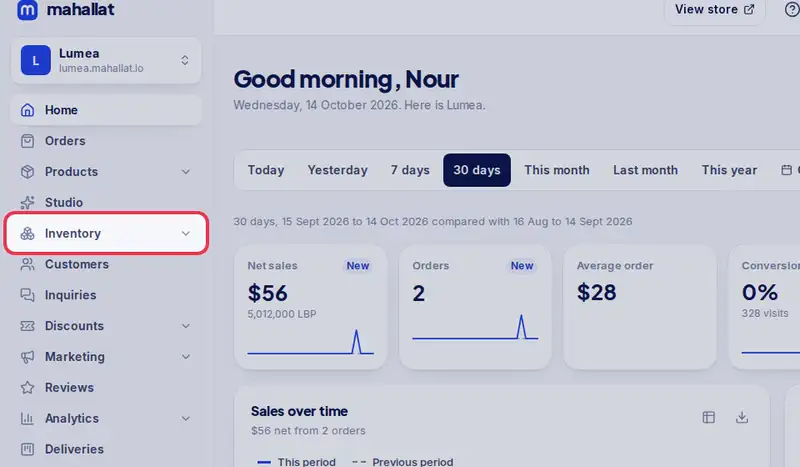
- Step 1: Open Inventory in the menu.
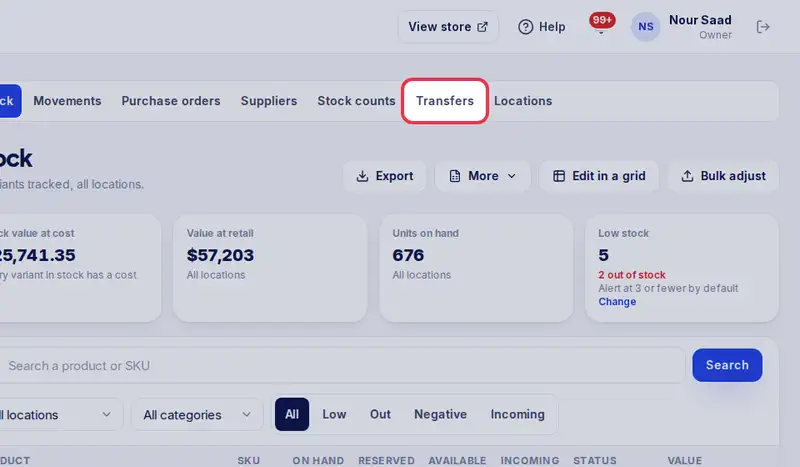
- Step 2: Tap the Transfers tab.
- Step 3: Tap New transfer.
- Step 4: Choose where the stock leaves From.
- Step 5: Choose where it goes To.
- Step 6: Search each item by name, SKU or barcode and set how many you are sending.
- Step 7: Tap Create transfer.
- Step 8: When the boxes leave, tap Ship, then confirm.