Inventory
See the stock history
Find out when, why and by whom a quantity changed.
Open this in your dashboard5 steps · Video
Every change to a quantity is written here: sales, returns, deliveries, counts, transfers and adjustments by hand. Use it when a number looks wrong.
Watch the video
What the video says
- In this video, you find out when, why and by whom a quantity changed.
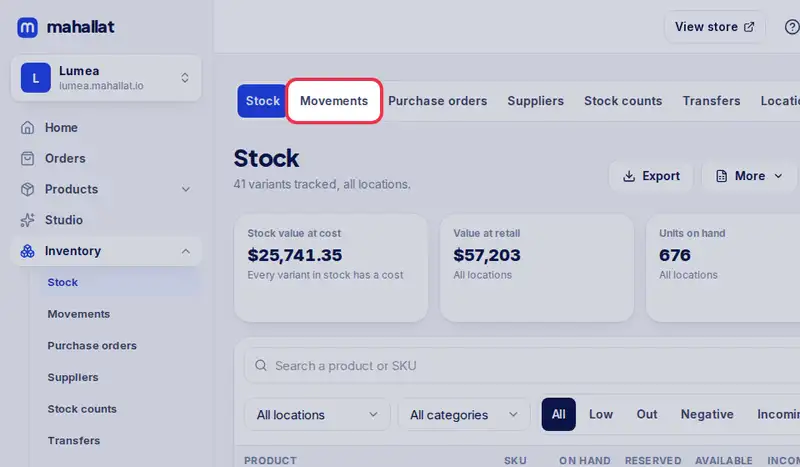
- Open Inventory, then the Movements tab.
- Every change is here: sales, returns, deliveries, counts, transfers and changes by hand.
- Type a product name, then tap Filter.
- Narrow it down by reason, here Damaged, and tap Filter again.
- Each line shows when, how many, the quantity after, and who did it.
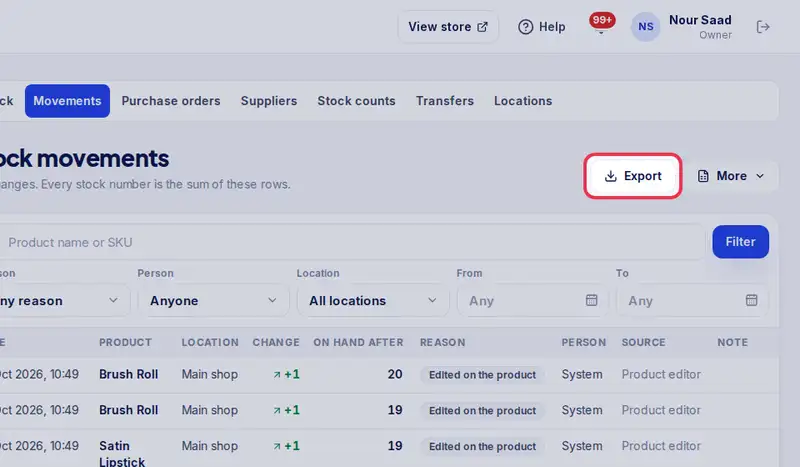
- Tap Export to download what you see as a spreadsheet.
Step by step
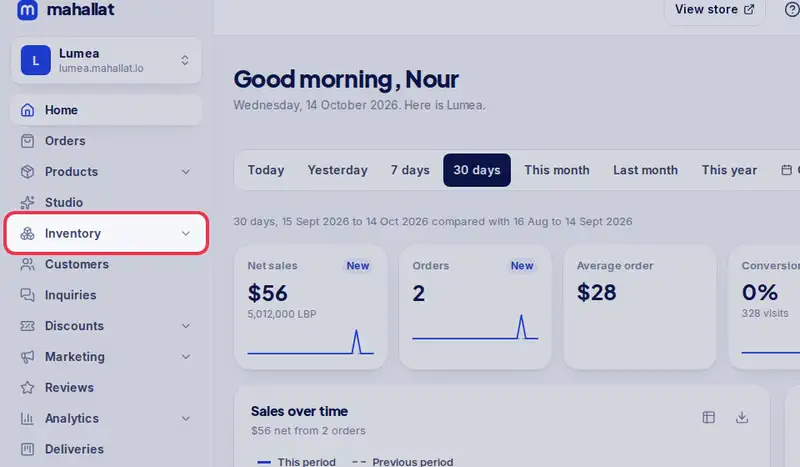
- Step 1: Open Inventory in the menu.
- Step 2: Tap the Movements tab.
- Step 3: Type a product name, SKU or barcode and tap Filter.
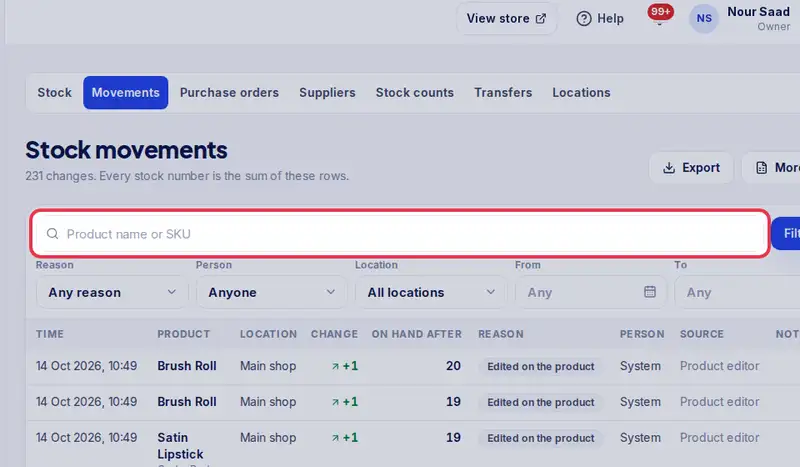
- Step 4: Narrow it down by Reason, Person, Location or dates, then tap Filter again.
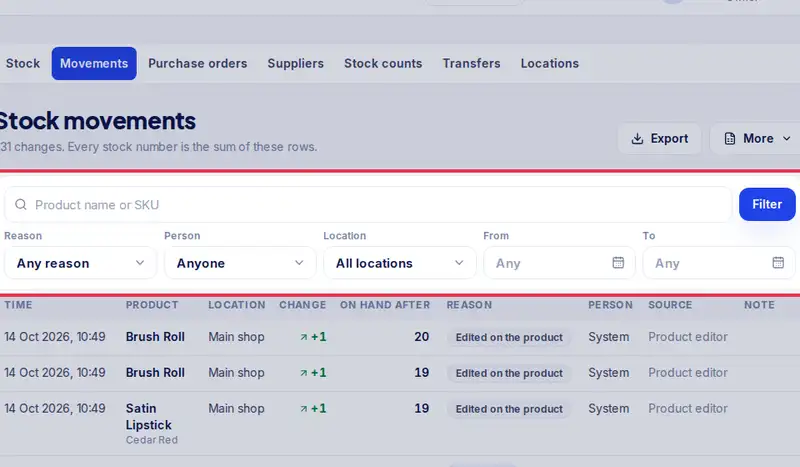
- Step 5: Tap Export to download what you see as a spreadsheet.