Inventory
Receive a delivery from a supplier
Check the boxes as they arrive so your stock goes up by exactly what came.
Open this in your dashboard6 steps · Video
When the supplier delivers, receive the purchase order on its own lines. What you mark as arrived adds to your stock at the location on the order.
Watch the video
What the video says
- In this video, you check the boxes as they arrive, so your stock goes up by exactly what came.
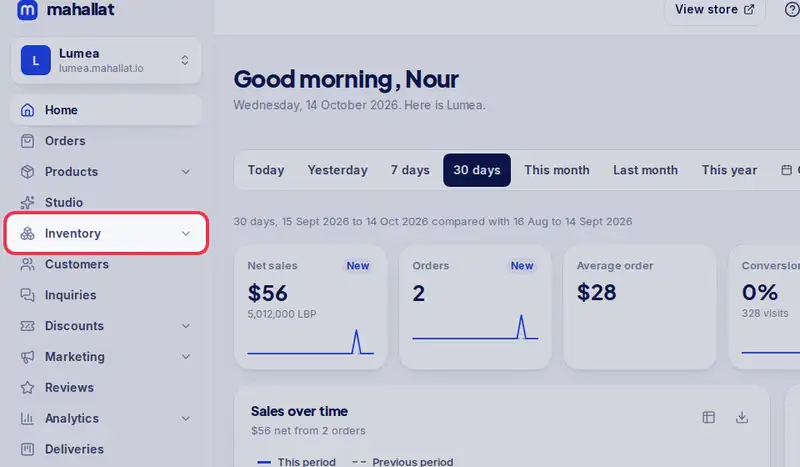
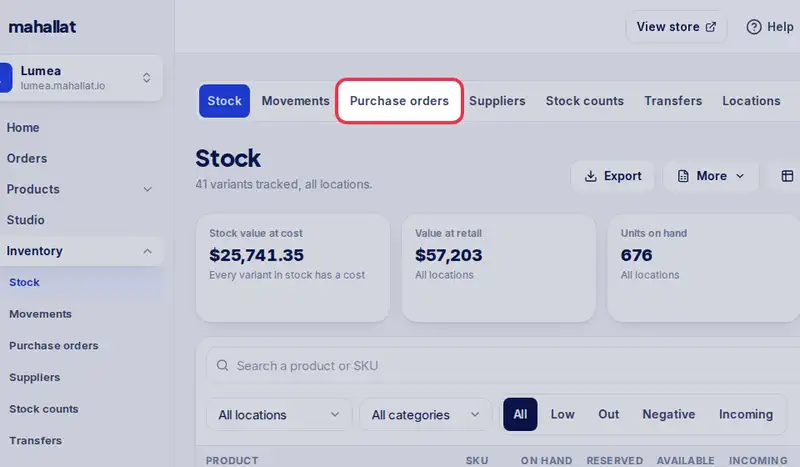
- Open Inventory, then the Purchase orders tab.
- Open the order that arrived.
- Tap Receive.
- Everything there? Tap All here on the line.
- A box came short? Set how many arrived with minus and plus.
- Each change is saved at once, and your stock goes up as you go.
- Tap Done. If the rest is not coming, tap Close order instead.
- The order now shows what arrived, and what is still to come.
Step by step
- Step 1: Open Inventory in the menu.
- Step 2: Tap the Purchase orders tab.
- Step 3: Open the order that arrived.
- Step 4: Tap Receive.
- Step 5: On each line, tap All here, or set how many arrived with - and + (or type the number). Each change is saved at once; All arrived at the top fills every line. Something not on the order? Open Something else arrived and search it by name.
- Step 6: Tap Done. If the rest is not coming, tap Close order instead.