Inventory
Change many quantities from a spreadsheet
Update the stock of many products at once with a CSV file.
Open this in your dashboard6 steps · Video
After a delivery or a full count on paper, fill one spreadsheet instead of adjusting products one by one. Every row is applied, or none.
Watch the video
What the video says
- In this video, you update the stock of several products at once, with one spreadsheet.
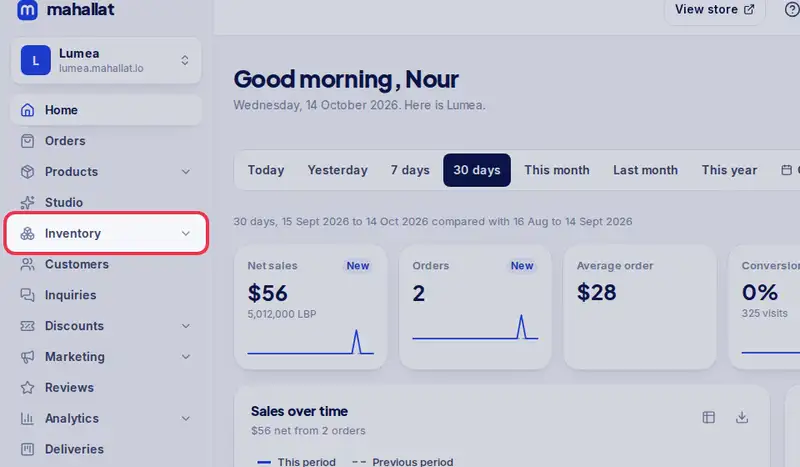
- Open Inventory from the menu.
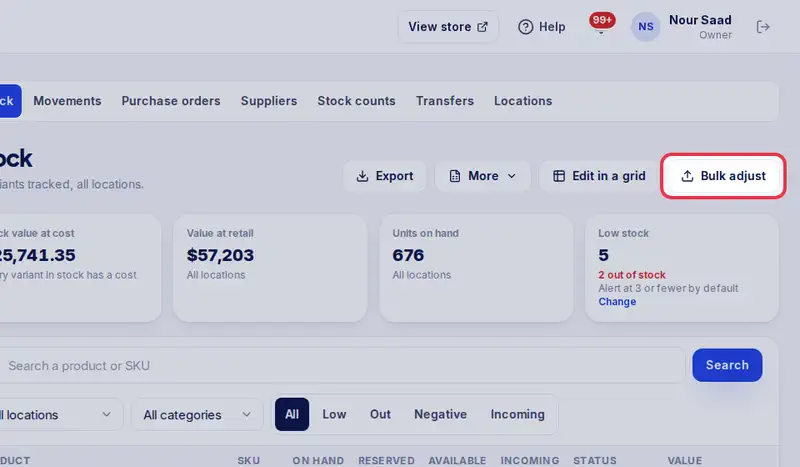
- Tap Bulk adjust.
- Download the template. Fill one row per product: its SKU, then the new total, or an amount to add or remove.
- Save it as CSV, then tap the box and choose your file.
- Check the preview. Rows in red need fixing in the file first.
- All good? Tap Apply. Every row is applied, or none.
Step by step
- Step 1: Open Inventory in the menu.
- Step 2: Tap Bulk adjust.
- Step 3: Tap Download template (CSV). Fill one row per product: its
skuorbarcode, thenset_tofor the new total ordeltato add or remove (5 adds five, -2 removes two). - Step 4: Save the file as CSV and drop it in the box, or tap the box to choose it.
- Step 5: Check the preview. Rows in red need fixing in the file first.
- Step 6: Tap Apply.