Inventory
Set low stock alerts
Choose when a product counts as low, so you reorder before it runs out.
Open this in your dashboard5 steps · Video
A product shows as Low when what you can still sell drops to its alert number. Set one number for the whole store, and a different one for products that sell fast.
Watch the video
What the video says
- In this video, you choose when a product counts as low, so you reorder before it runs out.
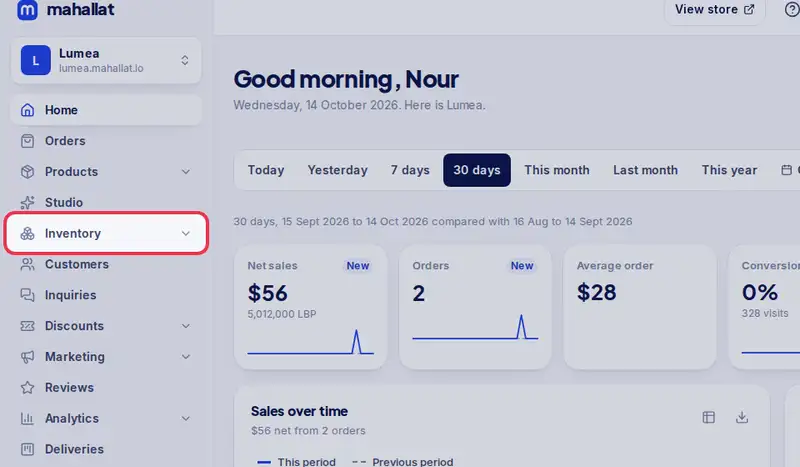
- Open Inventory from the menu.
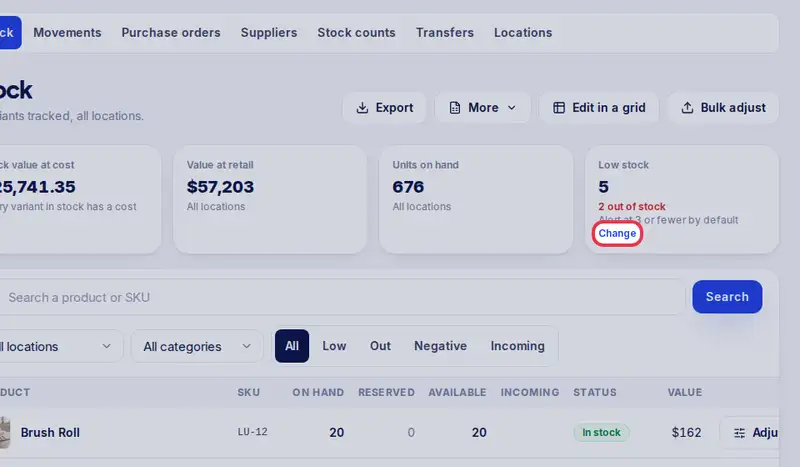
- In the Low stock box, tap Change to set the number for your whole store.
- Type five, then tap Save.
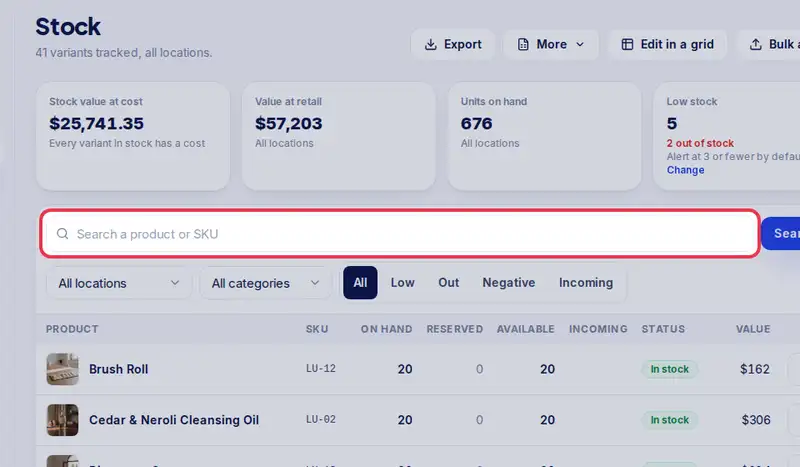
- A product that sells fast can have its own number. Search for it.
- Tap Adjust, then type its own alert under Low-stock alert.
- Tap Save alert. Leave it empty to use the store default.
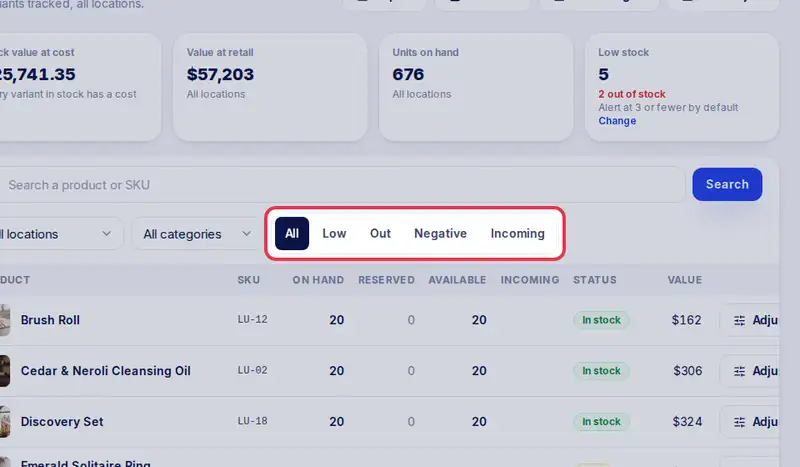
- Tap Low any time to see everything that needs reordering.
Step by step
- Step 1: Open Inventory in the menu.
- Step 2: In the Low stock box, tap Change, type the store default and tap Save.
- Step 3: For one product, search for it and tap Adjust on its row.
- Step 4: Type its own number under Low-stock alert, then tap Save alert. Leave it empty to use the store default.
- Step 5: Tap Low any time to see everything that needs reordering.