Inventory
Add a shop or warehouse
Keep stock in more than one place, and choose where online orders take stock from.
Open this in your dashboard7 steps · Video
Each location has its own stock. A sale you log in your shop takes stock from the location you pick, and transfers move stock between them.
Watch the video
What the video says
- In this video, you add a second shop, so you can keep stock in more than one place.
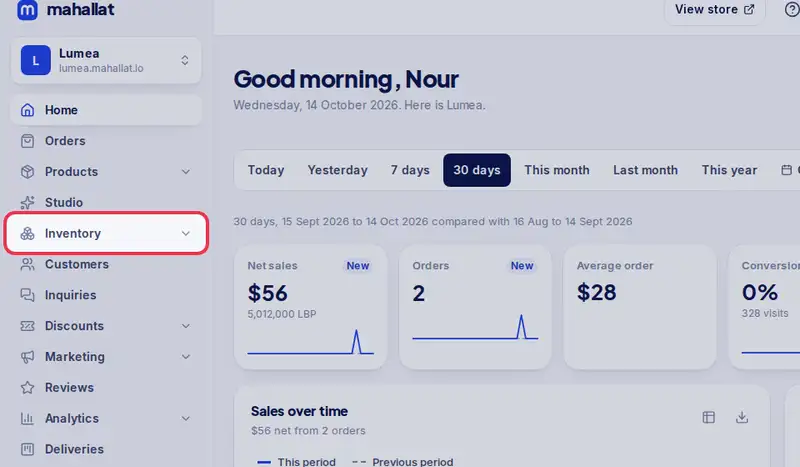
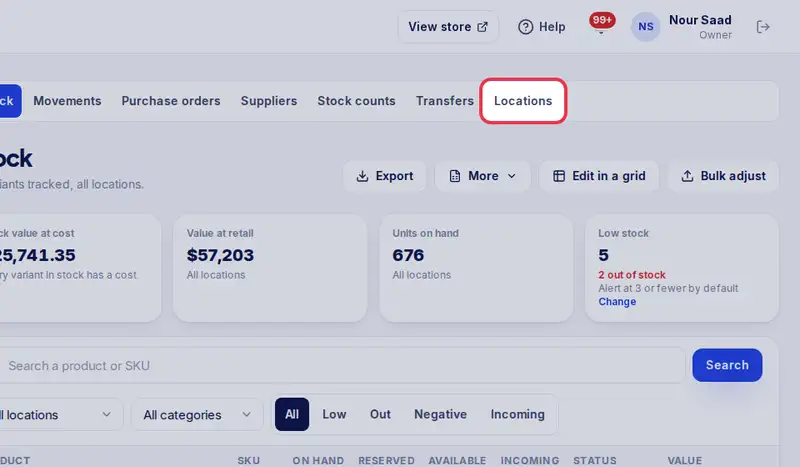
- Open Inventory, then the Locations tab.
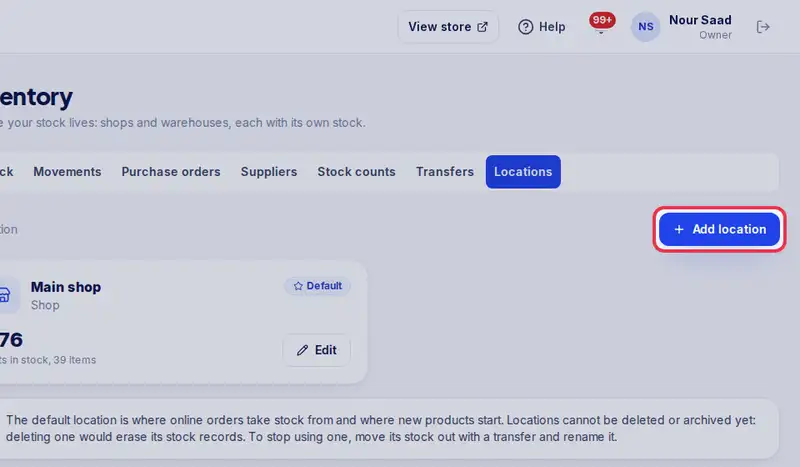
- Tap Add location.
- Choose Shop or Warehouse.
- Type its name, then the address and the area.
- Tap Save location.
- It has its own stock. Tap Make default to take online orders from it.
Step by step
- Step 1: Open Inventory in the menu.
- Step 2: Tap the Locations tab.
- Step 3: Tap Add location.
- Step 4: Choose Shop or Warehouse.
- Step 5: Type its Name, then the address and area.
- Step 6: Tap Save location.
- Step 7: To change where stock is taken from by default, tap Make default on that location.