Inventory
Order from a supplier
Make a purchase order and send it to your supplier on WhatsApp.
Open this in your dashboard8 steps · Video
A purchase order lists what you are buying and at what cost. Once sent, the units show as Incoming on your stock until they arrive.
Watch the video
What the video says
- In this video, you make a purchase order and send it to your supplier on WhatsApp.
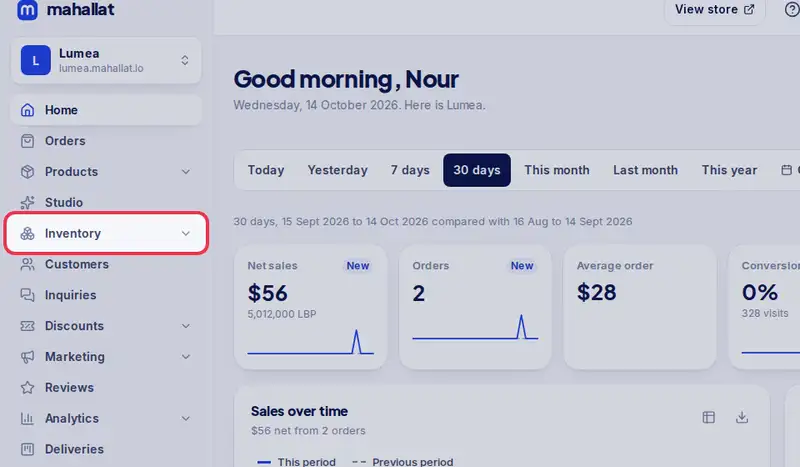
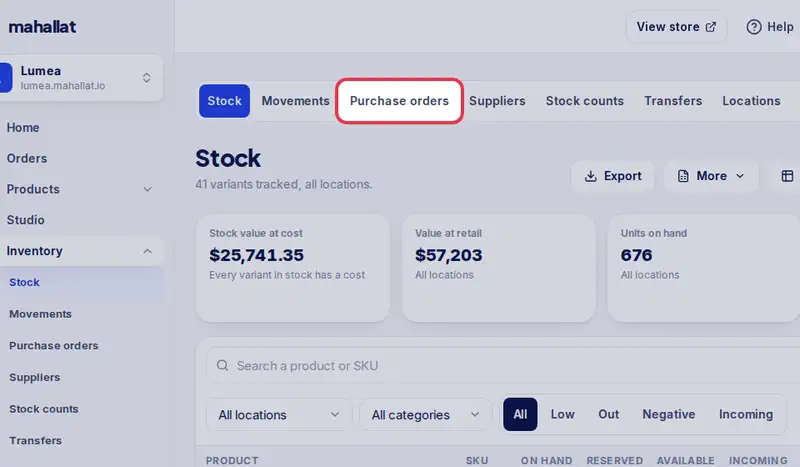
- Open Inventory, then the Purchase orders tab.
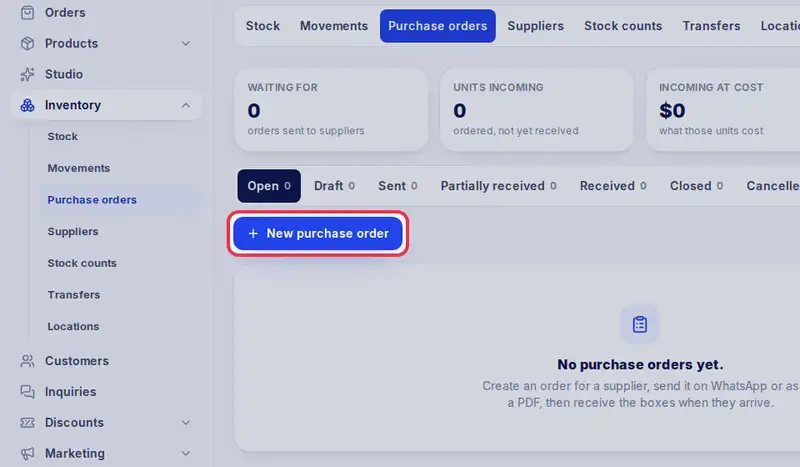
- Tap New purchase order.
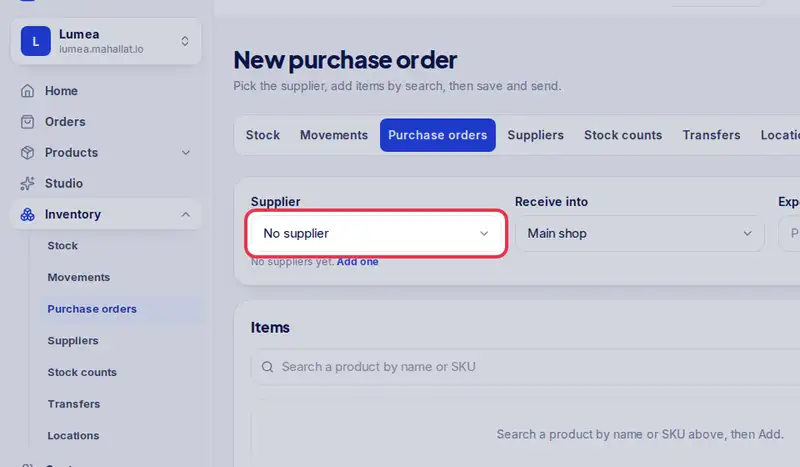
- Pick the supplier. Their usual delivery time fills in Expected on.
- Search each product by name and tap it.
- Set how many you want of each.
- The unit cost comes from the product. Change it if the price moved.
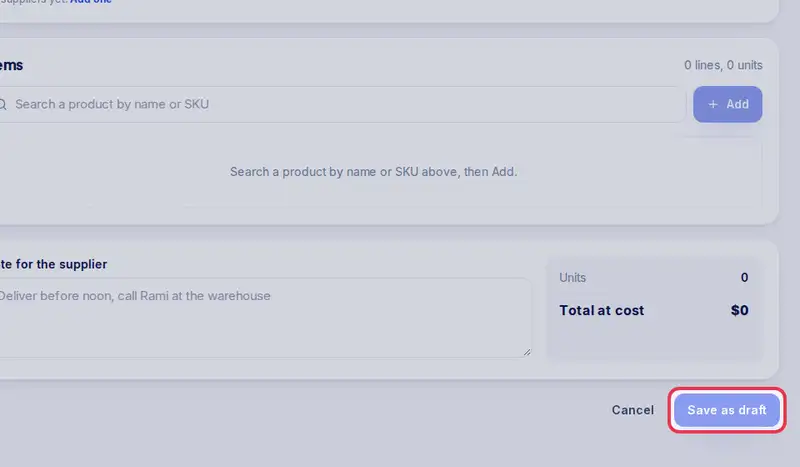
- Tap Save as draft.
- Then tap Send to supplier.
- Tap Open WhatsApp. The message is ready in their chat, and the order is marked as sent.
- The units now show as Incoming on your stock, until they arrive.
Step by step
- Step 1: Open Inventory in the menu.
- Step 2: Tap the Purchase orders tab.
- Step 3: Tap New purchase order.
- Step 4: Pick the Supplier. Their usual delivery time fills in Expected on.
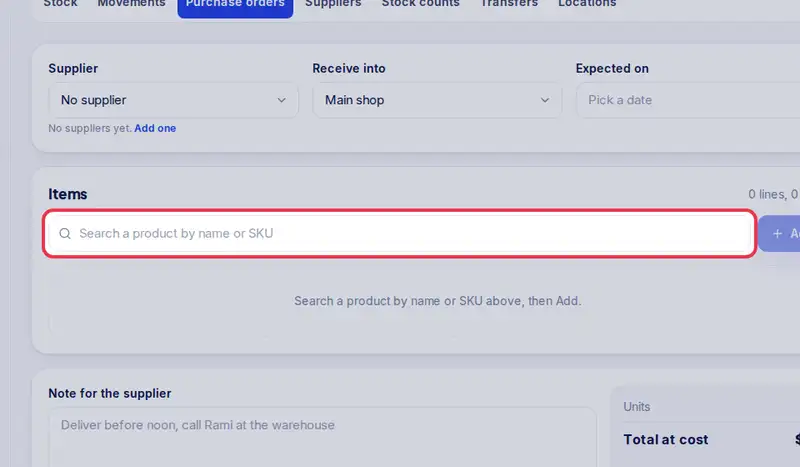
- Step 5: Search each product by name or SKU (the words in any order) and tap it or Add, then set the quantity and the unit cost.
- Step 6: Tap Save as draft.
- Step 7: Tap Send to supplier.
- Step 8: Tap Open WhatsApp to send the ready message to the supplier's chat. If no WhatsApp is saved for them, the button says Pick a chat. The order is marked as sent.