Inventory
Count your stock
Count what is really on the shelf and correct the differences in one go.
Open this in your dashboard8 steps · Video
Do a full count, one shelf, or a short list. Stock only changes when an owner or admin applies the count, and sales made while you count are kept.
Watch the video
What the video says
- In this video, you count what is really on a shelf and correct the differences in one go.
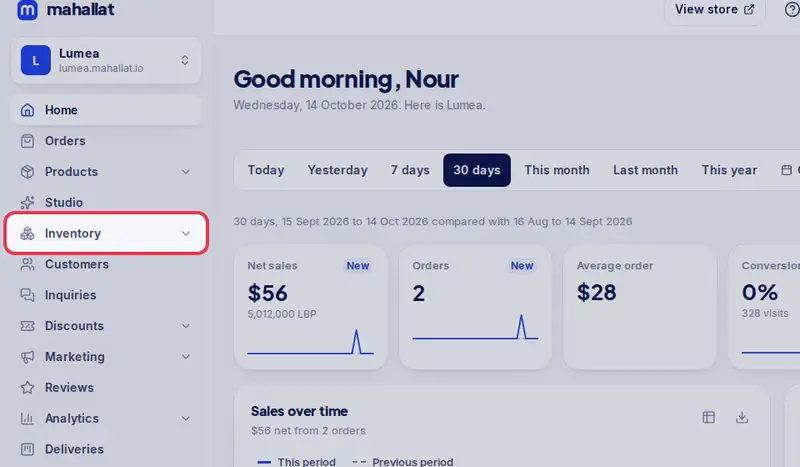
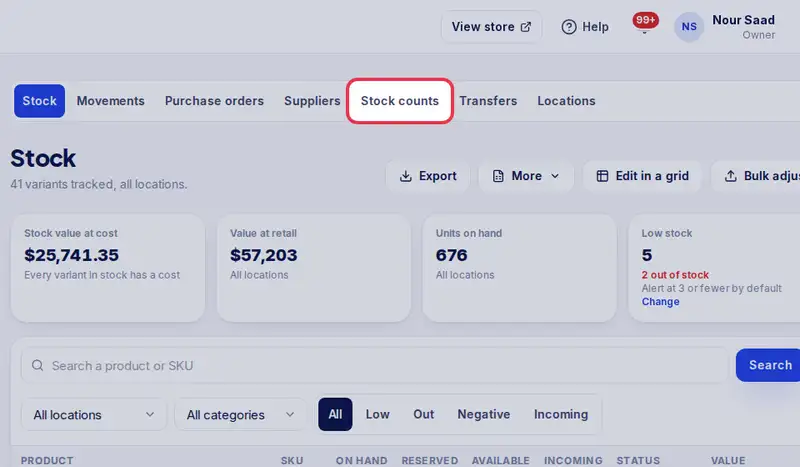
- Open Inventory, then the Stock counts tab.
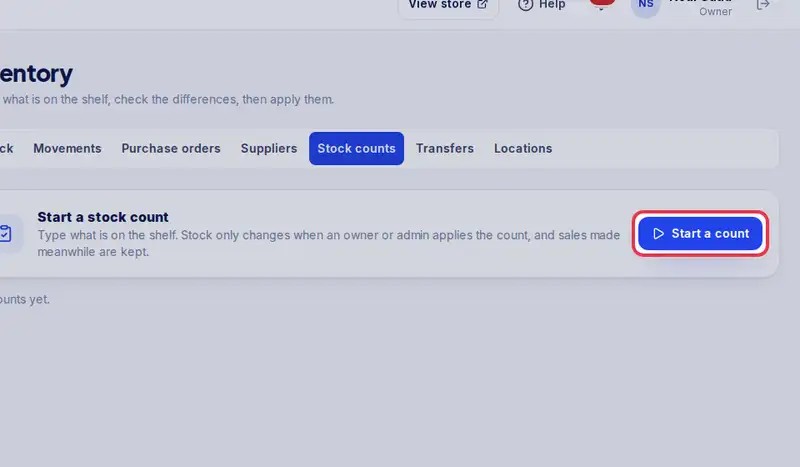
- Tap Start a count.
- Pick the location, then what to count. Here, one category: Skincare.
- Tap Start counting.
- On each line, type what is on the shelf, or use minus and plus.
- Tap Review to see what is missing or extra, and its value at cost.
- Items you did not count keep their stock, unless you switch this on.
- Tap Apply, then confirm. Stock moves by the differences only.
Step by step
- Step 1: Open Inventory in the menu.
- Step 2: Tap the Stock counts tab.
- Step 3: Tap Start a count.
- Step 4: Pick the Location, then what to count: Everything, One category or A list.
- Step 5: Tap Start counting.
- Step 6: On each line, set what is on the shelf with - and +, or type the total; None here sets 0. An item missing from the list? Search it by name above.
- Step 7: Tap Review to see what is missing or extra, and its value at cost.
- Step 8: Tap Apply, then confirm. Stock moves by the differences only.