Discounts and marketing
Set up an automatic discount
A discount that applies by itself, with no code, when the conditions are met.
Open this in your dashboard8 steps · Video
Automatic discounts need no code: free delivery over $50, or buy 2 get 1 free, applied at checkout on your online store.
Watch the video
What the video says
- In this video, you set up a discount that applies by itself, with no code: free delivery over fifty dollars.
- In Discounts, tap Create discount.
- Give it a title, like Free delivery over fifty dollars.
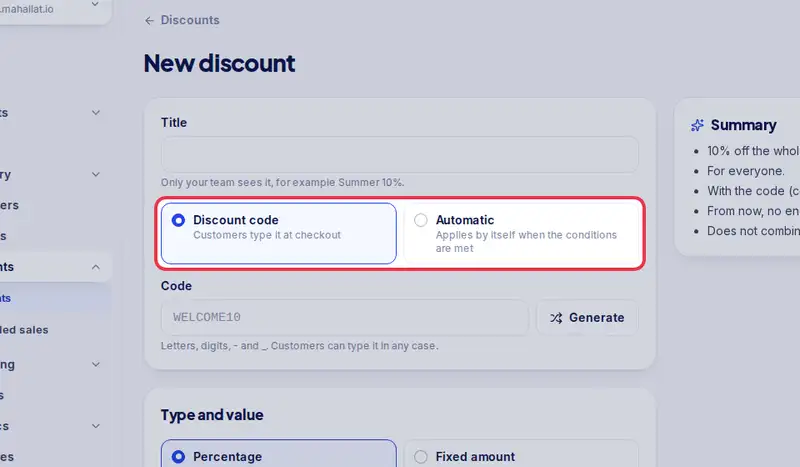
- Choose Automatic. There is no code: it applies on its own at checkout.
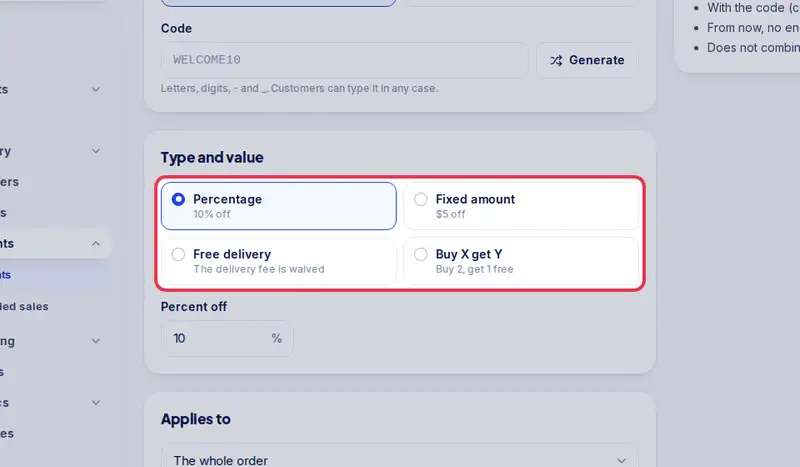
- Pick the type, here Free delivery.
- Under Minimum, choose Minimum amount and enter fifty.
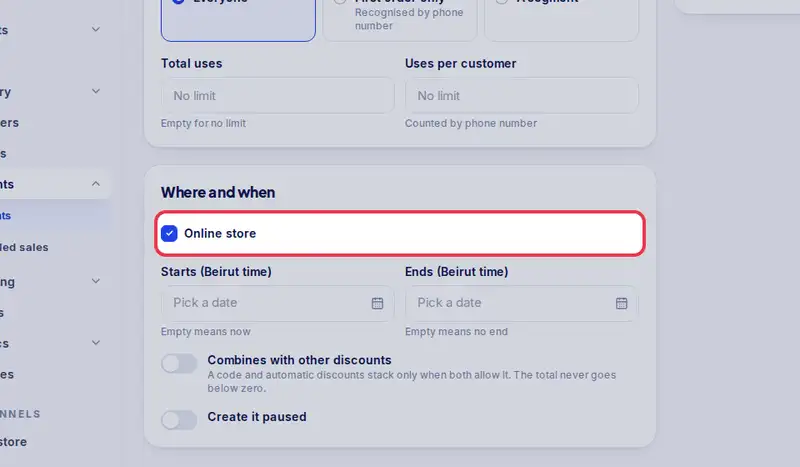
- Under Where and when, keep Online store ticked. You can also set the dates.
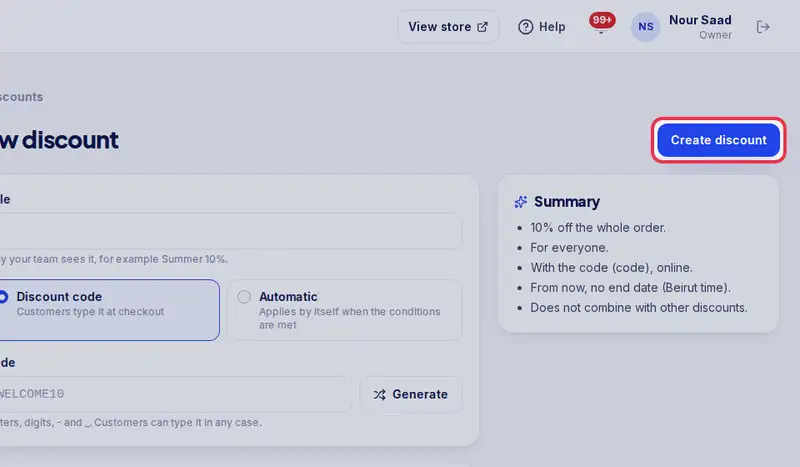
- Tap Create discount.
- From now on, every online order over fifty dollars gets free delivery.
Step by step
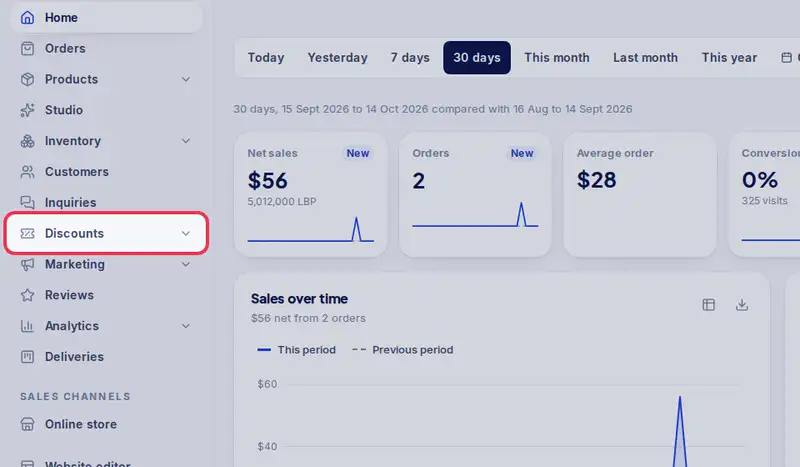
- Step 1: Open Discounts in the menu.
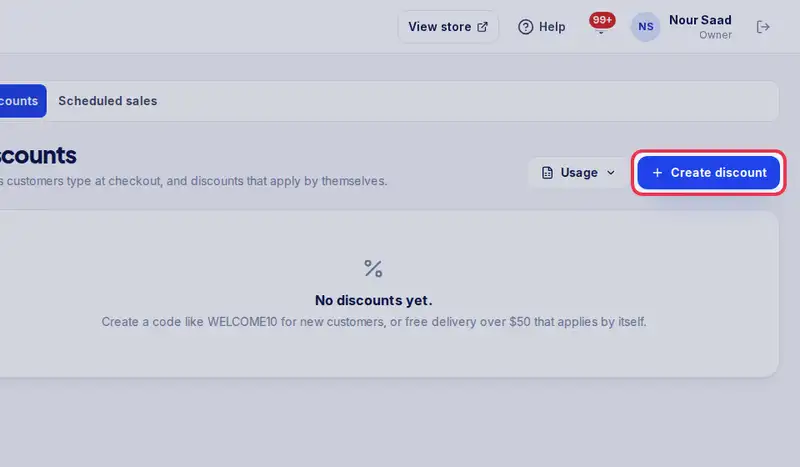
- Step 2: Tap Create discount.
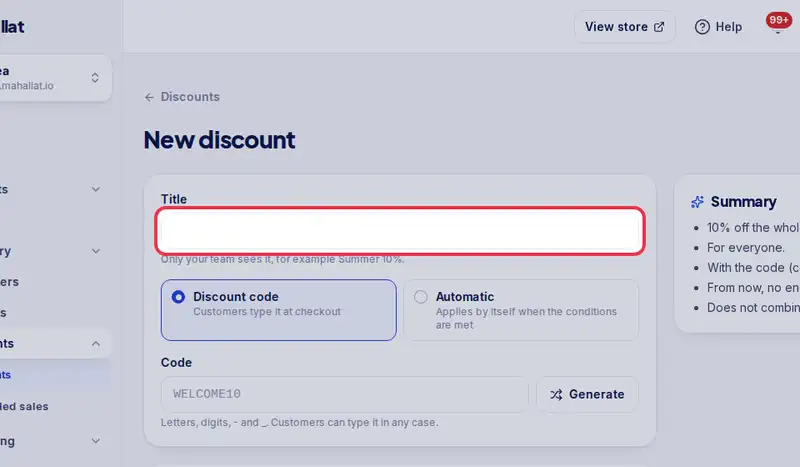
- Step 3: Give it a Title, like Free delivery over $50.
- Step 4: Choose Automatic.
- Step 5: Pick the type and enter its value.
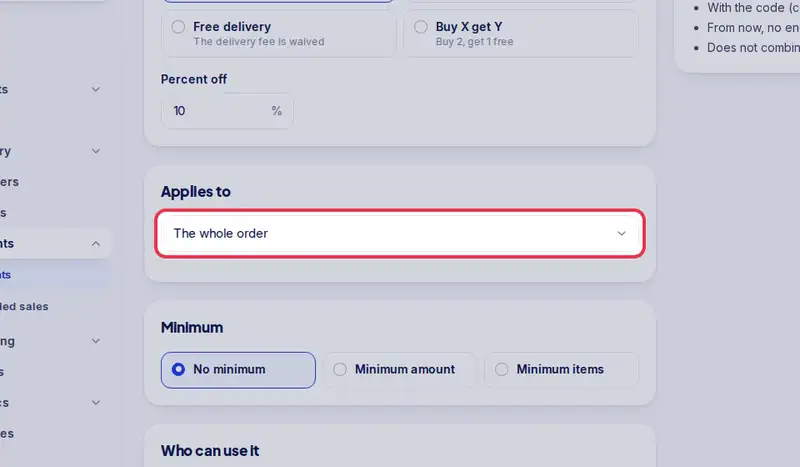
- Step 6: Under Applies to, choose the whole order, or some collections, categories or products.
- Step 7: Under Where and when, keep Online store ticked and set the dates.
- Step 8: Tap Create discount.