Discounts and marketing
Put your products on Instagram, Facebook and Google
Connect your catalogue to Meta and Google Merchant Center with one link each.
Open this in your dashboard5 steps · Video
Each feed is a link that Meta and Google read every day, so new products and prices show up on their own. Your store must be live.
Watch the video
What the video says
- In this video, you find the feed links that put your catalogue on Instagram, Facebook and Google Shopping.
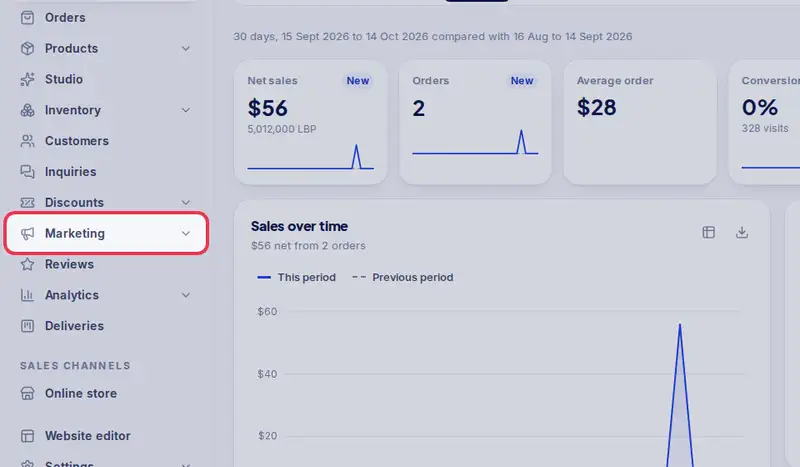
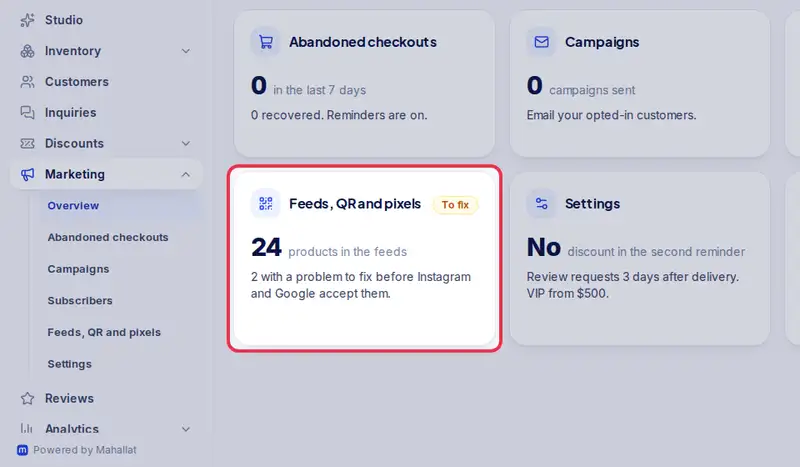
- Open Marketing from the menu, then Feeds, QR and pixels.
- Each feed is a link that Meta and Google read every day, so new products and prices show up on their own.
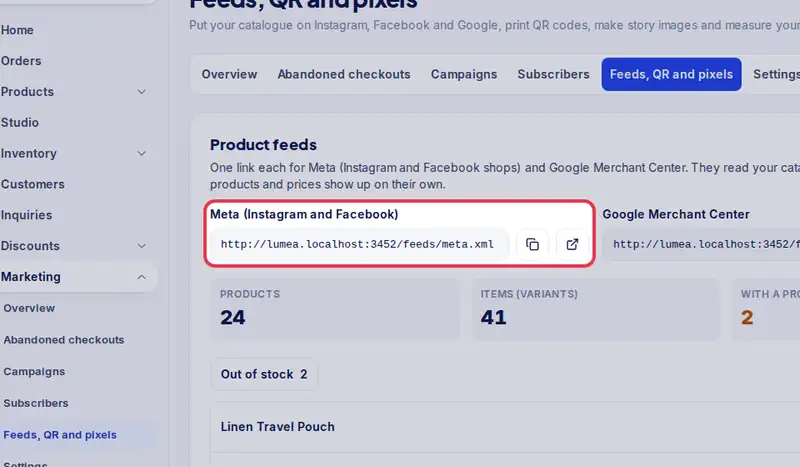
- Copy the Meta link and paste it as a data feed in Meta Commerce Manager.
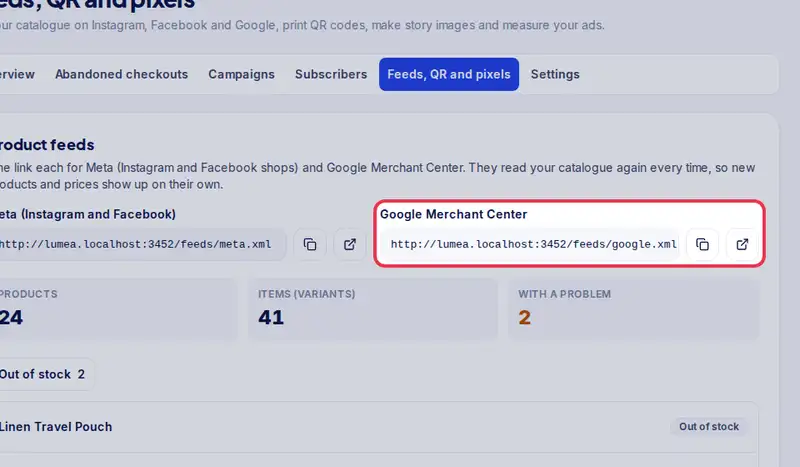
- Copy the Google link and add it as a scheduled fetch in Merchant Center.
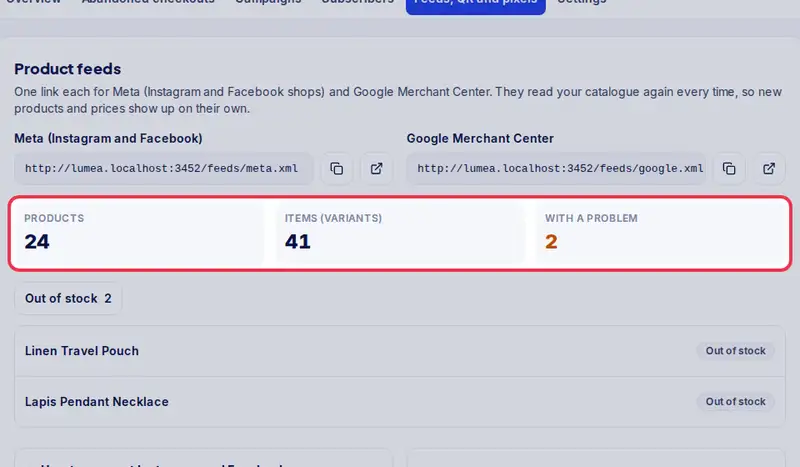
- Here you see how many products are in the feeds, and how many have a problem.
- Open How to connect for the steps on Meta's side.
- Paste the Meta link above, and set the schedule to daily.
Step by step
- Step 1: Open Marketing in the menu.
- Step 2: Tap Feeds, QR and pixels.
- Step 3: Copy the Meta (Instagram and Facebook) link and paste it as a data feed in Meta Commerce Manager.
- Step 4: Copy the Google Merchant Center link and add it as a scheduled fetch in Merchant Center.
- Step 5: If products are listed with a problem, like No image or No description, open each one and fix it.