Discounts and marketing
Create a discount code
Make a code customers type at checkout, like WELCOME10.
Open this in your dashboard8 steps · Video
Customers type the code at checkout on your online store. You choose the value, what it applies to, who can use it and until when.
Watch the video
What the video says
- In this video, you create a discount code that customers type at checkout on your online store.
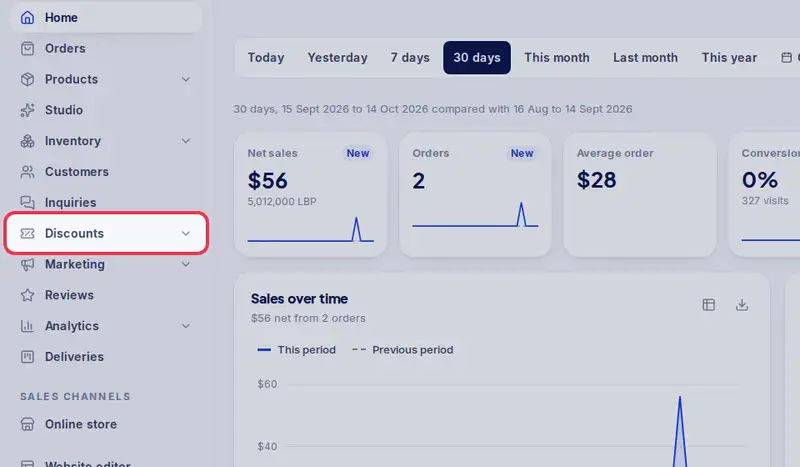
- Open Discounts from the menu.
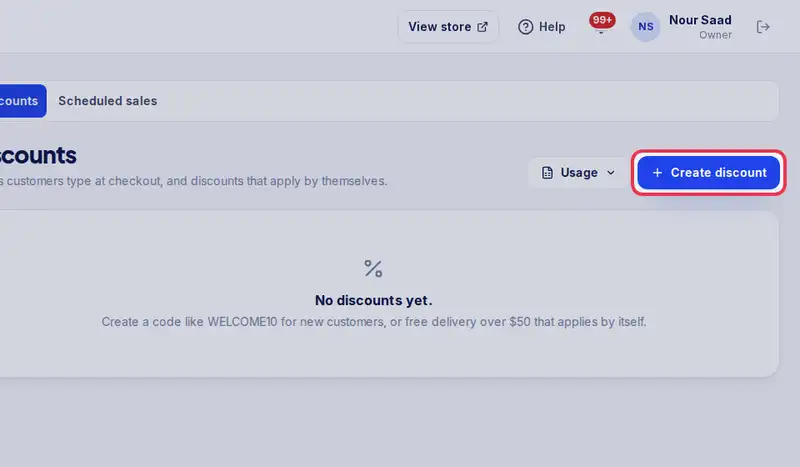
- Tap Create discount.
- Give it a title. Only your team sees it.
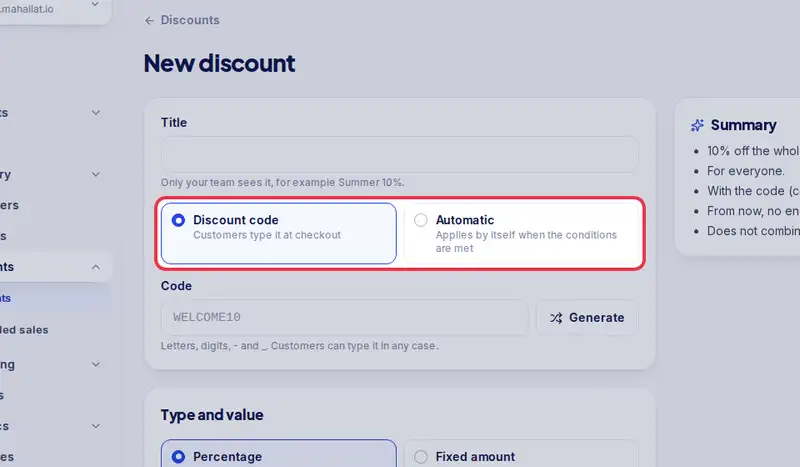
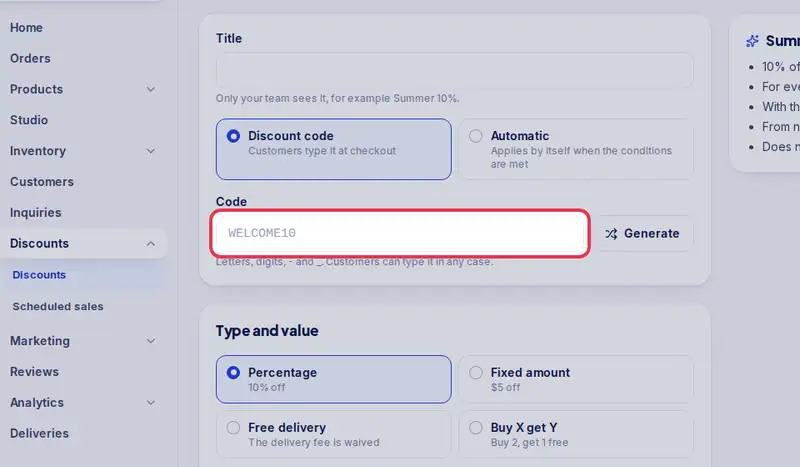
- Keep Discount code selected, then type the code customers will use.
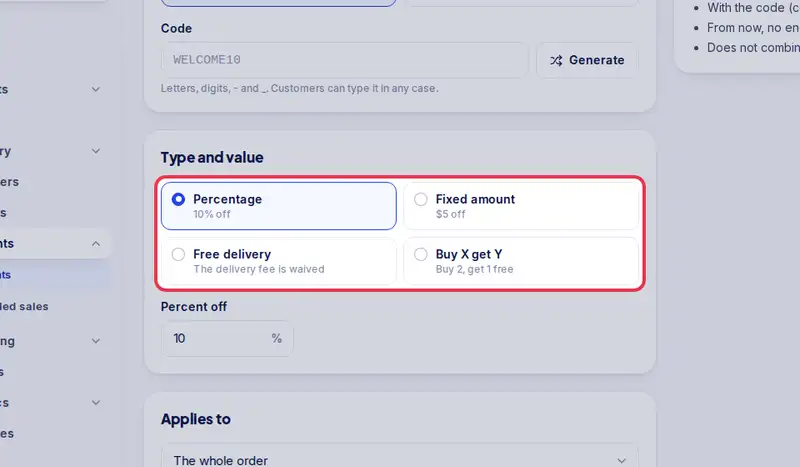
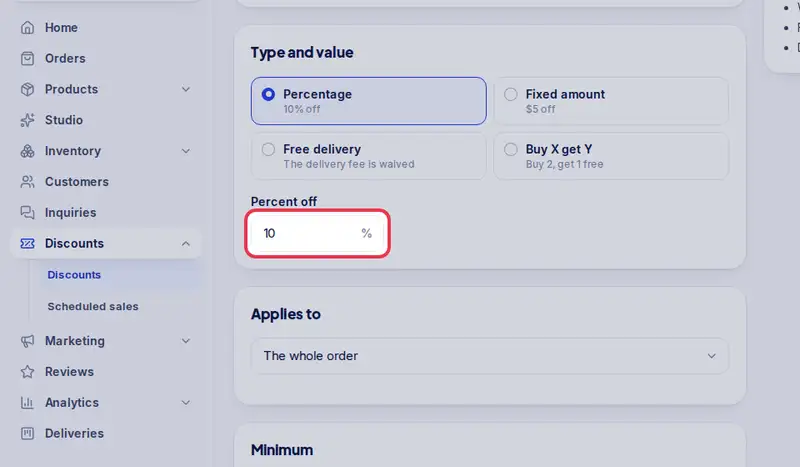
- Percentage is picked. Enter how much off, here ten percent.
- Below, you can add a minimum, a limit on uses and an end date if you need them.
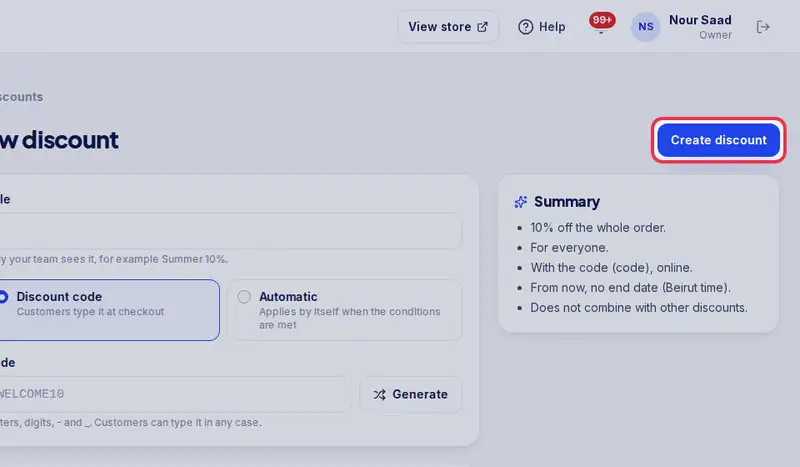
- Tap Create discount.
- Done. The code works at checkout right away.
Step by step
- Step 1: Open Discounts in the menu.
- Step 2: Tap Create discount.
- Step 3: Give it a Title only your team sees, like Summer 10%.
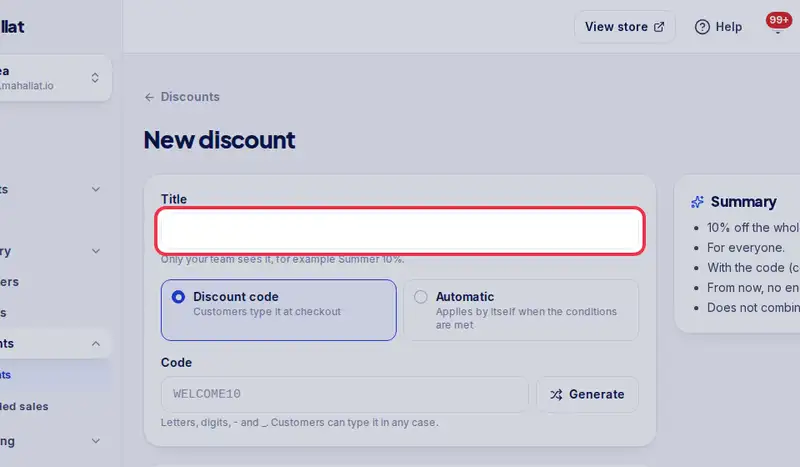
- Step 4: Keep Discount code selected.
- Step 5: Type the Code, or tap Generate to make one up.
- Step 6: Pick the type: Percentage, Fixed amount, Free delivery or Buy X get Y.
- Step 7: Enter the value, then set the minimum, the uses and the end date if you need them.
- Step 8: Tap Create discount.